

Bulk Actions
Act on many carts at once: send the next email, pause emails, mark as lost, restart recovery, stop tracking, open orders or delete.
When you select carts in the Carts Table, a bulk bar appears above it. It only offers actions that make sense for what you've selected: select Lost carts and you'll see Restart Recovery, not Send Next Email. This page explains how the bar decides, and exactly what each action does.
Selecting carts
Tick the checkbox at the start of a row to select that cart, or the checkbox in the header to select every cart on the page. The bar then shows how many are selected (1 cart selected, 5 carts selected), the actions, and Clear to drop the selection.
A selection covers one page of the table, up to 20 carts. Changing the filter, the search, the date range or the page clears it, so you never act on carts you can't see. To act on carts on several pages, run the action once per page.
Which actions you'll see
Each action shows only when at least one selected cart supports it. Actions that don't apply are hidden, not greyed out.
| When the selection includes | You'll see |
|---|---|
| Recoverable carts | Send Next Email, Pause Emails, Mark as Lost |
| Lost carts | Restart Recovery |
| Shopping carts | Stop Tracking |
| Recovered or Ordered carts | View Order for one order, View Orders (3) for several |
| Any carts | Delete |
The actions appear in that order, followed by Delete and then Clear. The first action is the main (teal) button, and Delete has a red outline.
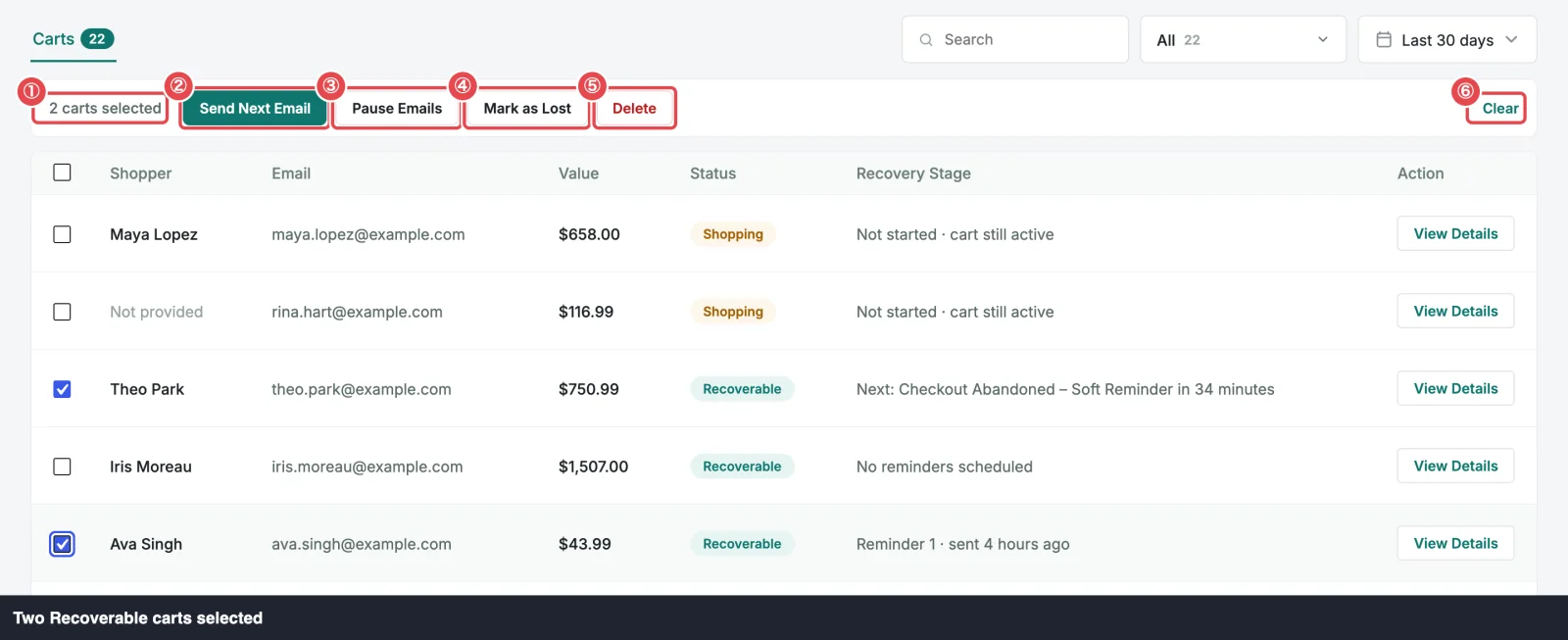 ① Count · ② Send Next Email · ③ Pause Emails · ④ Mark as Lost · ⑤ Delete · ⑥ Clear
Send Next Email is the only action that's ever disabled. While Abandoned Tracking is off it's greyed out, and hovering shows Turn on tracking to send. Turning tracking off holds every email. See General Settings.
Mixed selections
Select carts with different statuses and the bar tells you what's in the mix. A grey breakdown follows the count, and each action shows how many carts it will act on:
6 carts selected · 3 Recoverable · 2 Shopping · 1 Recovered
Send Next Email (3) · Pause Emails (3) · Mark as Lost (3) · Stop Tracking (2) · View Order (1) · Delete
Each action touches only the carts it applies to and leaves the rest alone. Above, Mark as Lost (3) marks the three Recoverable carts as lost; the Shopping and Recovered carts stay exactly as they were. The breakdown always lists statuses in the order Recoverable, Shopping, Lost, Recovered, Ordered.
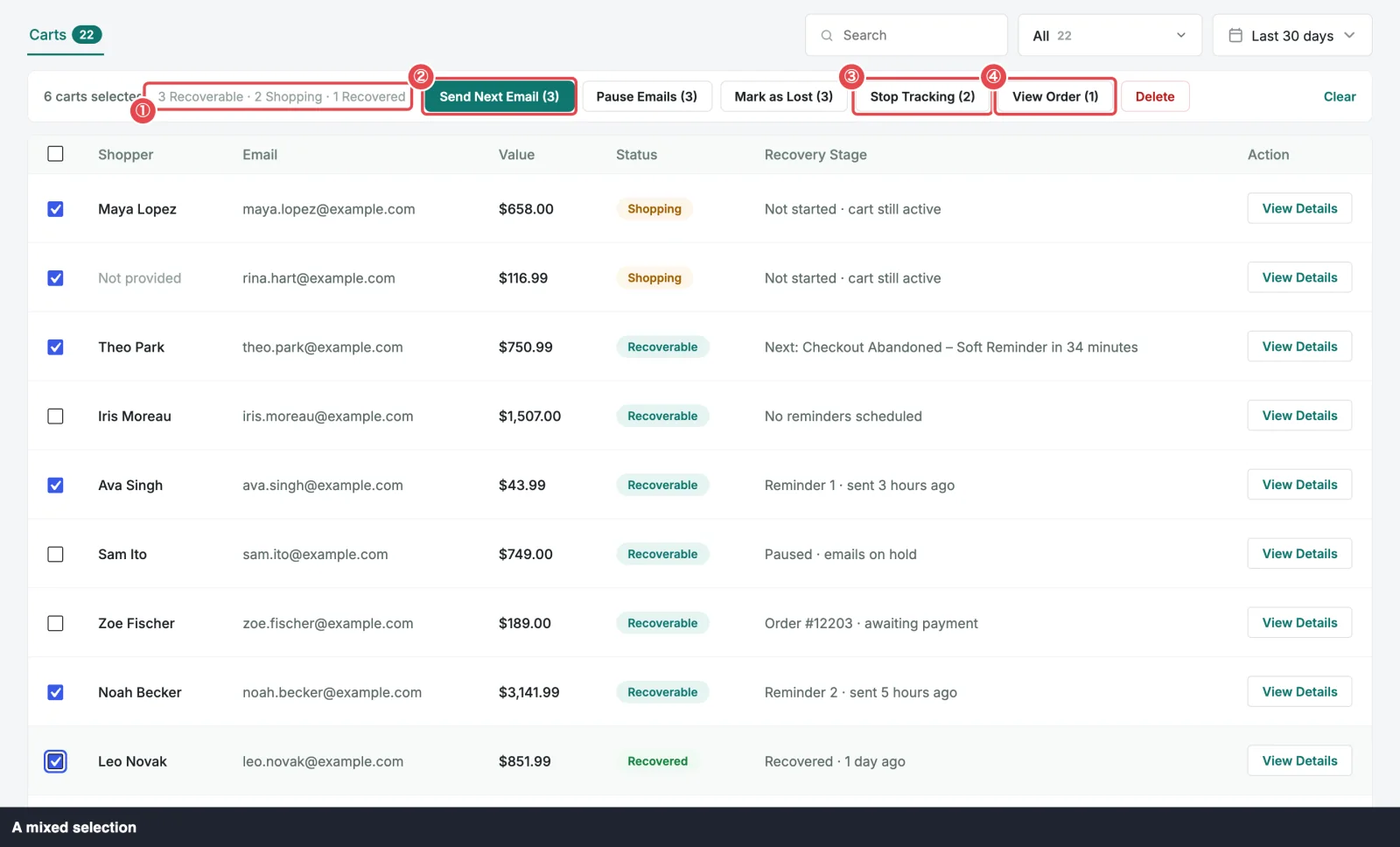 ① Breakdown · ② Send Next Email (3) · ③ Stop Tracking (2) · ④ View Order (1)
Carts waiting for payment
A cart whose shopper ordered through the recovery link but hasn't paid yet (its Recovery Stage reads Order #1234 · awaiting payment) is treated carefully. That order may still become a credited recovery, so the cart is never emailed, marked lost, stopped or deleted from the bar. It doesn't count towards Send Next Email, Mark as Lost or Stop Tracking; with only such carts selected, those actions are hidden. You can still pause its emails, and it shows in the breakdown under its status. See Cart Statuses.
Which actions ask first
Actions that email shoppers or delete carts ask you to confirm. Actions you can undo just happen.
| Action | Asks first? | Undo |
|---|---|---|
| Send Next Email | Yes | (an email can't be unsent) |
| Pause Emails | No | Resume in the cart drawer |
| Mark as Lost | No | Restart Recovery |
| Restart Recovery | Yes | Mark as Lost |
| Stop Tracking | Yes | None. The carts are deleted. |
| View Order / View Orders | No | (only opens a tab) |
| Delete | Yes | None |
In a confirmation, Cancel or the Escape key changes nothing and keeps your selection.
After any action, the selection clears, a short message pops up to say what happened, and the table reloads. Every action re-checks each cart's status on your server first, so a cart that changed since you loaded the page (say, the shopper just ordered) is left alone.
Send Next Email
Sends each selected Recoverable cart's next scheduled email right now, instead of at its scheduled time. Use it when you don't want to wait, for example to follow up on high-value carts before a sale ends.
It's the same email the background job would send next, and the same one the drawer's Send Now sends, with the same checks right before sending. It doesn't add an extra email: it brings the next one forward, and later emails move with it so they keep their spacing. If a cart's next email was due in 1 hour and the one after in 24 hours, the later one becomes due 23 hours from now.
The confirmation reads Send the next email? with, for example, Send the next email to 3 shoppers now? If some of the carts are already paused or have nothing left to send, it adds 1 cart is skipped: it is paused or has nothing left to send. Click Send to go ahead. If every selected cart would be skipped, nothing can go out, so there's no question: you go straight to the message saying why.
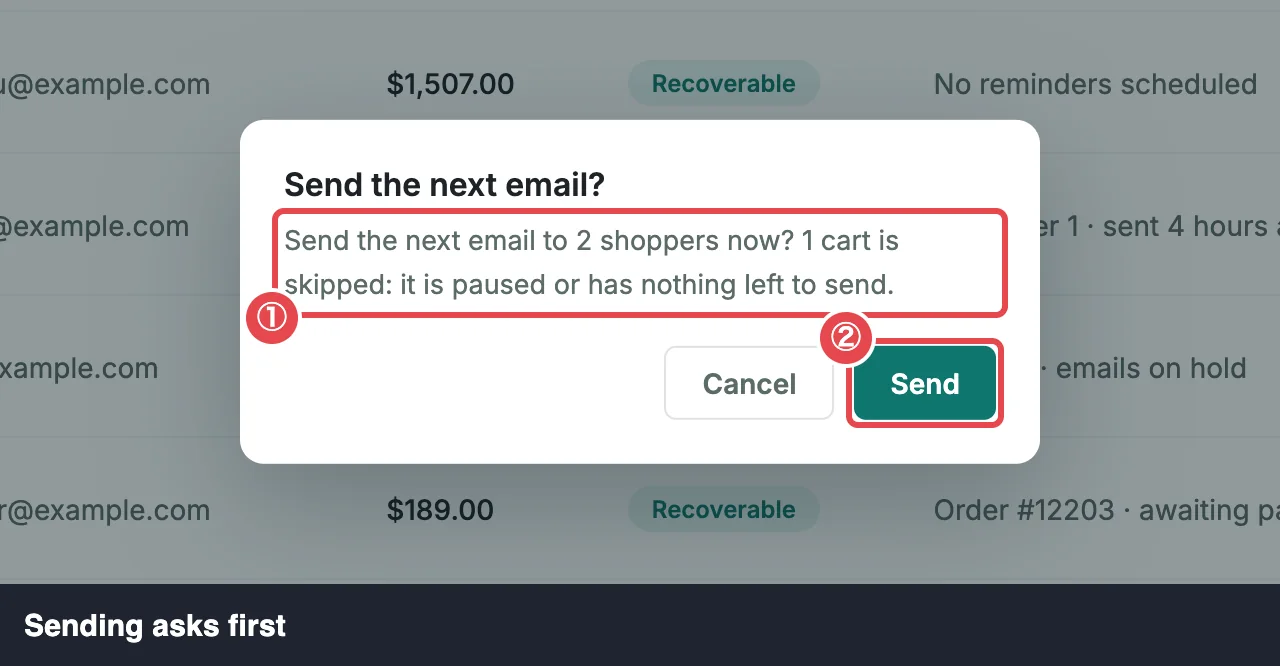 ① Who gets an email, and who's skipped · ② Send
Carts that are skipped, with the reason the message gives:
| Reason | The cart |
|---|---|
| paused | Has its emails paused. Resume it in the drawer first, or use the drawer's Send Now, which works while paused. |
| all emails already sent | Has received every email scheduled for it. |
| no active campaign | Never had an email scheduled. |
| order awaiting payment | Has an order through the recovery link waiting for payment. |
| not recoverable | Is no longer Recoverable (it changed since the page loaded). |
| unsubscribed, campaign off, … | Failed a check right before sending. The email is recorded as skipped, as in the drawer's timeline. See why an email was skipped. |
When a check skips an email, the cart's later emails keep their times.
The message afterwards tells you how it went:
- Next email sent to 3 shoppers: everything went out.
- Sent to 2 · 1 skipped (all emails already sent): some were skipped. With more than one reason, each is counted: (1 paused, 1 all emails already sent).
- No email sent · 2 skipped (paused): nothing could go out.
- … · 1 could not be sent: WordPress couldn't send an email. It's retried on the usual schedule, 15 minutes, 1 hour, then 4 hours later. See How Sending Works.
- … · 4 queued: a large selection didn't fit in one go. The rest are due now and go out on the next run of the background job, within a few minutes.
Pause Emails
Holds the emails of every selected Recoverable cart. The carts stay Recoverable, and their Recovery Stage reads Paused · emails on hold. Nothing sends to them until you resume. The message reads Emails paused for 3 carts.
There's no bulk Resume. Open each cart's drawer and click Resume. An email whose time passed during the pause then sends on the next run (if several did, only the latest).
Mark as Lost
Ends recovery for the selected Recoverable carts. They become Lost straight away, and their remaining emails are skipped with the reason marked lost, so they never send. The message reads 3 carts marked as lost.
Use it when you know a cart won't convert, for example when the shopper has told you so. A cart waiting for payment is left as it is. Changed your mind? Restart Recovery brings a Lost cart back.
Restart Recovery
Gives the selected Lost carts another chance. The confirmation reads Restart recovery? with Restart recovery for 2 carts? Their next emails go out within a few minutes. Click Restart.
- Each cart becomes Recoverable again, not paused.
- The emails it hadn't received when it was lost are scheduled again, in their original order. The first goes out on the next run of the background job, within about 5 minutes; the rest keep their spacing after it.
- The lost cutoff (Mark Cart as Lost After) counts again from today, so the cart isn't marked lost again straight away.
A cart is skipped when its shopper already has another open cart with the same email or account: they've come back with a newer cart, which has its own emails. Restarting the old one would send them two streams of reminders. The message then reads, for example, Recovery restarted for 1 cart · 1 skipped (shopper has a newer cart).
Cart Statuses covers restarts in detail.
Stop Tracking
Removes the selected Shopping carts and stops tracking their shoppers for now. It's meant for carts that shouldn't be there, such as a test you ran yourself or a shopper you're helping by phone.
The confirmation reads Stop tracking? with Stop tracking 2 carts? They are deleted, and these shoppers' current visits are not tracked again. This cannot be undone. Click Stop Tracking. The message reads Stopped tracking 2 carts.
- The carts are deleted, with their emails and recovery links.
- The shopper's current visit isn't captured again for 2 days, even if they keep shopping. A later visit is tracked as normal.
- For a logged-in customer, those 2 days cover their account on any device.
- ShapedRecover keeps nothing about the shopper to do this, just a scrambled marker for that visit, which expires after the 2 days.
- A cart waiting for payment is kept.
Pro
To stop tracking someone for good, add their address to the Never Track list in ShapedRecover Pro. Staff roles such as Administrator and Shop Manager are excluded by default in both plugins. See Exclusions.
View Order and View Orders
Opens the orders behind the selected Recovered and Ordered carts in WooCommerce, in a new browser tab.
- One order (View Order) opens that order's edit screen.
- Several orders (View Orders (3)) open one tab, not one per order: the WooCommerce Orders list showing only those orders. A notice at the top reads Showing 3 orders selected in ShapedRecover., with a Show all orders link back to the full list.
The message reads Opened 3 orders in WooCommerce, and the selection clears. It works whichever way your store saves orders (WooCommerce's newer order tables or the classic posts storage). Only users allowed to manage WooCommerce orders see the filtered list.
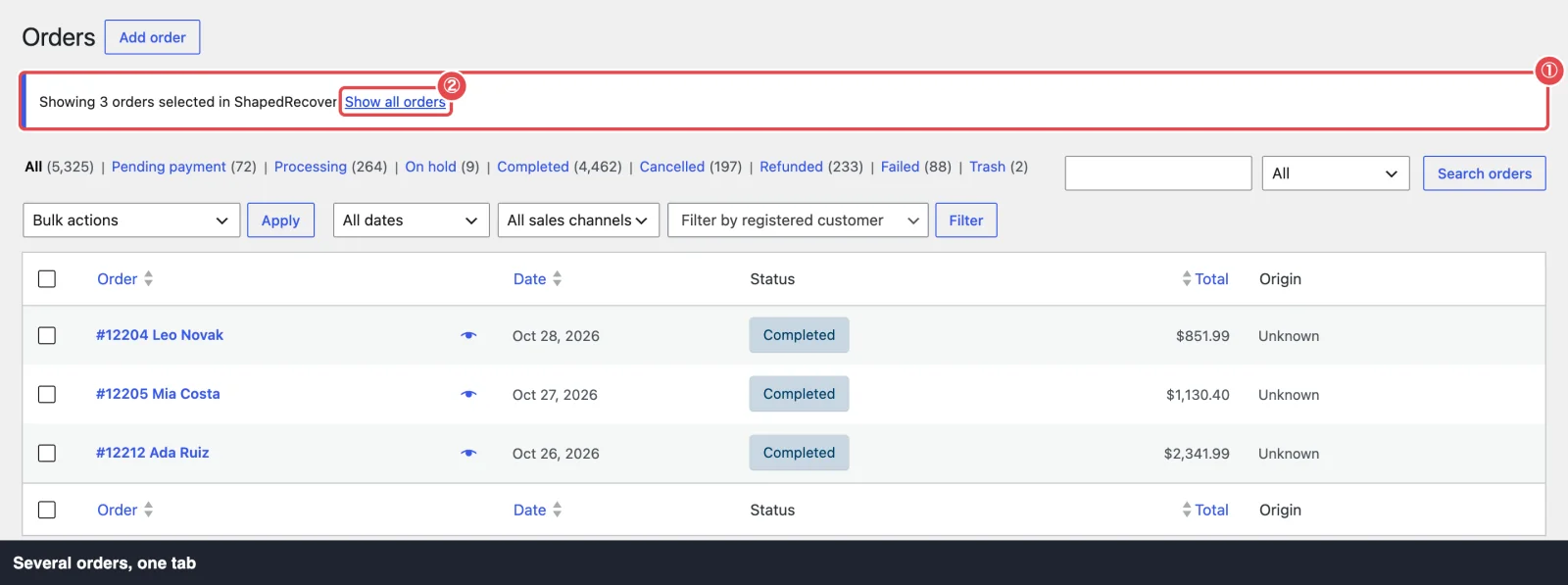 ① Filter notice · ② Show all orders
If a cart's order has since been deleted in WooCommerce, that cart doesn't count towards View Order(s).
Delete
Deletes the selected carts with all their tracking and recovery history: scheduled and past emails, and recovery links. The confirmation reads Delete carts? with Delete 4 carts? Their tracking and recovery history will be removed. This cannot be undone. Click Delete. The message reads 4 carts deleted.
Two kinds of cart are always kept, and left out of the count:
- Recovered carts. Each one is the source of a sale in your Recovered Sales report, so deleting it would break your recovery figures. See Recovered Sales.
- Carts waiting for payment, which may become recovered sales.
If you select only those, nothing is asked and the message says Recovered carts, and carts with an order waiting for payment, are kept for your reports.
You don't need to delete old carts by hand to keep your database tidy. ShapedRecover clears out closed carts on its own after the period you set in Data & Storage.
Where to go next
- Cart Drawer: Send Now, Resume and Copy Recovery Link for a single cart.
- Cart Statuses: what Mark as Lost and Restart Recovery do to a cart's status.
- Carts Table: filtering and searching to build the selection you want.
- How Sending Works: the checks every email passes before it goes out.