

Exclusions
Keep staff, test orders and chosen addresses out of your recovery data.
Not every cart belongs in your recovery data. Your own test orders, a colleague placing a phone order, a wholesale buyer who always pays by invoice: emailing them "Did you forget something?" is at best noise and at worst embarrassing, and their carts skew your Dashboard. ShapedRecover gives you four ways to keep them out, from the master switch down to a single visit.
The tracking switch
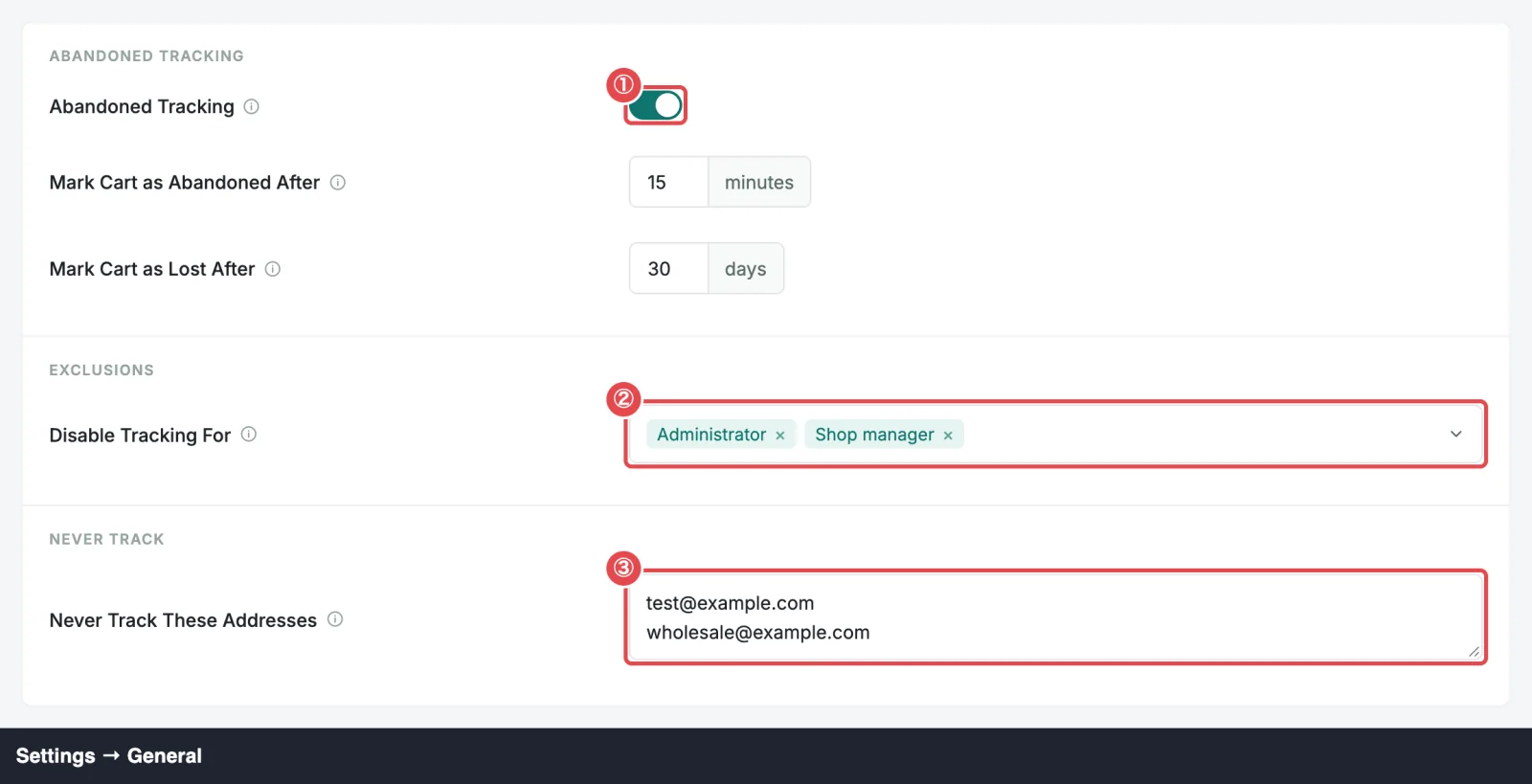
Settings → General → Abandoned Tracking turns capture on or off for the whole store.
| Field | What it does | Default |
|---|---|---|
| Abandoned Tracking | Records abandoned carts so recovery can run. | Off |
It's off when you first install ShapedRecover, so nothing is captured until you're ready. The Quick Start turns it on in step 1.
While it's off:
- no new carts are captured, and the consent checkbox disappears from your checkout,
- every recovery email waits: nothing is sent, and nothing is skipped either,
- carts you already have keep their status.
Turn it back on and the waiting emails go out on the next run. If one cart has several emails overdue by then, only the latest is sent and the earlier ones are skipped, so nobody gets a burst of reminders at once. See How Sending Works.
That makes the switch a handy pause button, for example while you rework your campaigns. Just don't leave it off by mistake: carts started in the meantime are never captured.
Disable Tracking For: user roles
Settings → General → Exclusions → Disable Tracking For lists user roles that are never tracked. While someone is logged in with one of these roles, nothing about their cart is saved, at the checkout or anywhere else.
| Field | What it does | Default |
|---|---|---|
| Disable Tracking For | These roles are never recorded, which keeps your own test carts out of the data. Click the field to open the role menu and tick any role on your site. | Administrator, Shop Manager |
The defaults cover you and your staff. Add any other role that shouldn't get reminders, such as a wholesale or B2B role from another plugin.
Excluded users still see the consent box at checkout. Ticking it just doesn't save anything.
Testing recovery yourself?
Role exclusions only apply while you're logged in. To see the whole flow from a shopper's side, use a private browser window, logged out, with a test email address. Test the Recovery Flow walks you through it.
Never Track These Addresses
Pro
Never Track is part of ShapedRecover Pro. Without Pro, the field shows read-only with a Pro badge, and no address is blocked.
Settings → General → Never Track → Never Track These Addresses blocks specific email addresses, whether or not the shopper is logged in. It's the right tool for guests you never want to email: your own test address, a business customer who orders by phone, or someone who asked you directly to stop.
| Field | What it does | Default |
|---|---|---|
| Never Track These Addresses | Carts using these addresses are never tracked. One address per line. | Empty |
- Matching ignores upper and lower case, so
Maya@Example.commatchesmaya@example.com. - Every line must be a valid email address. A line that isn't stops the save until you fix it.
- When you save, every cart already stored for a listed address is deleted, with its scheduled emails. That includes recovered carts, so a sale recovered from that address leaves your Recovered Sales.
If Pro is deactivated, or its license is deactivated or never activated, your list is kept, but addresses on it are tracked again until Pro is unlocked. An expired license keeps Never Track working.
Stop Tracking one visit
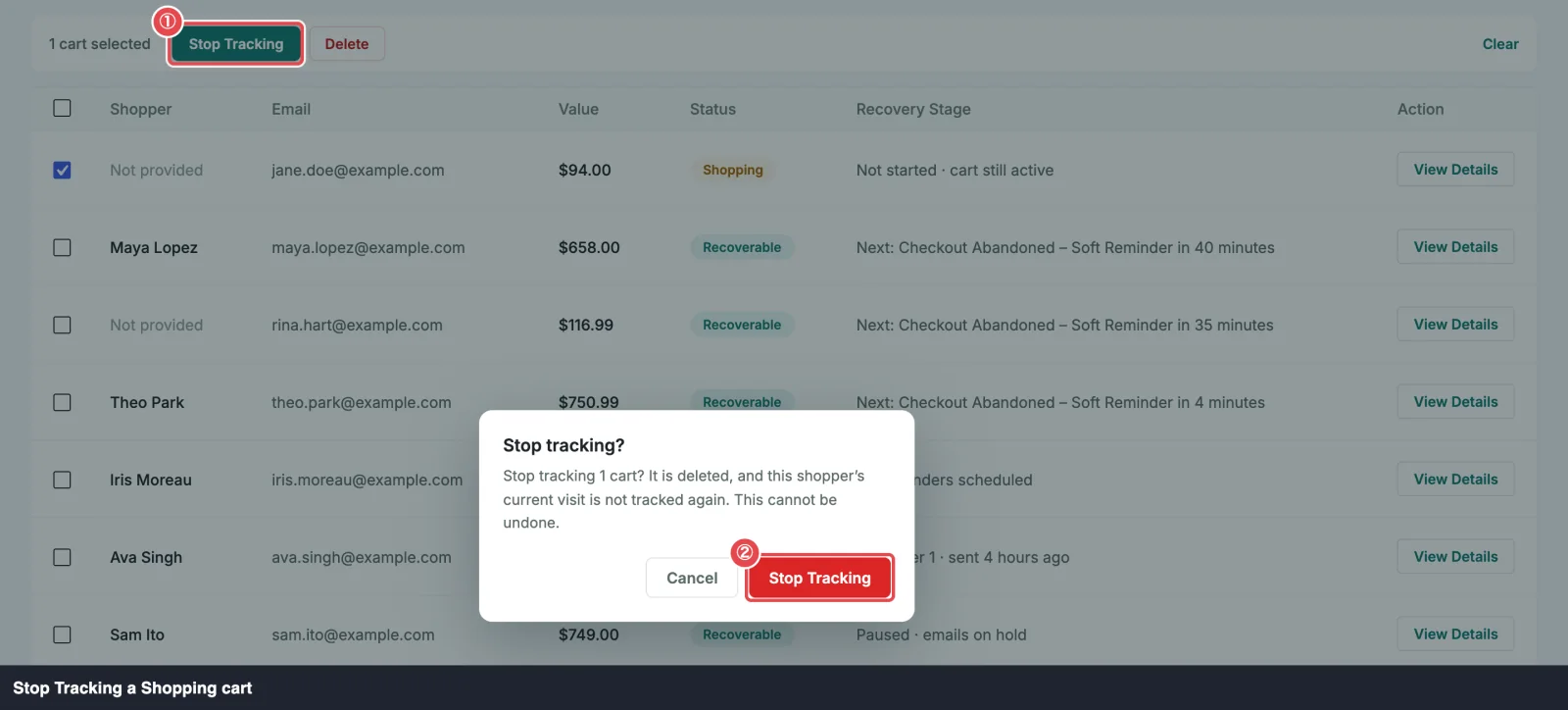
Sometimes you spot a cart in the Abandoned tab that shouldn't be there, like a colleague testing the checkout. For carts that are still Shopping, there's Stop Tracking:
- In the Abandoned tab, select the Shopping carts.
- Click Stop Tracking in the bar above the table.
- Confirm with Stop Tracking.
The confirmation reads: "Stop tracking 1 cart? It is deleted, and this shopper's current visit is not tracked again. This cannot be undone."
What happens:
- The cart is deleted, with its emails and recovery links.
- That shopper's current visit isn't tracked again for 2 days, the life of a WooCommerce session. Even if they change their cart or email, nothing is saved.
- After that, or on a new visit, they're tracked as usual.
For a logged-in shopper, the 2 days cover their account on any device. For a guest, they cover that browser. ShapedRecover doesn't keep their address, name or cart to do this: only a one-way code for the session, which is discarded after the 2 days.
A cart whose order is waiting for payment is never stopped. To block someone for good, add their address to Never Track instead. See Bulk Actions.
What isn't an exclusion
Unsubscribing stops emails, not capture. An unsubscribed shopper's carts are still saved and show in your data, but every email to them is skipped. See Unsubscribe & Privacy.
Unticking the consent box isn't an exclusion you control, but it has the strongest effect: nothing about that shopper is saved at all. See Consent Checkbox.
Where to go next
- General Settings: every field in Settings → General.
- Bulk Actions: Stop Tracking and the other actions on the Abandoned tab.
- Email Capture: what's saved for everyone else.