

Attribution & Audit
How ShapedRecover decides an order counts as recovered, and how to check every credited sale yourself.
It's easy for a recovery plugin to look impressive: credit every order from anyone it ever emailed. ShapedRecover doesn't do that. It only takes credit for a sale when it can show the recovery email did the work, and it shows you the evidence for each one.
Deciding which sales your emails get credit for is called attribution. This page explains the rule, the edge cases, and how to audit any sale in a couple of clicks.
The rule
An order counts as recovered only when all three of these are true:
- It came through the recovery link. The shopper clicked the link in one of your recovery emails, and placed the order in that same shopping session.
- Within 14 days of that email. The order was placed no more than 14 days after the email carrying the link was sent.
- It was paid. The order reached one of WooCommerce's paid statuses (Processing or Completed, by default).
If any one is missing, the order isn't credited. No exceptions, and no setting to loosen it.
Every revenue figure in ShapedRecover uses this rule: the Dashboard KPIs and chart, the Recovered Sales report and the Product Report.
1. Through the recovery link
Each recovery email carries its own link, with a unique token: a long random code tied to that cart and that email. When the shopper clicks it, ShapedRecover rebuilds their cart (see Recovery Link) and notes the click in their WooCommerce shopping session.
When they then place an order, ShapedRecover stamps the order with the cart, the email and the token, right there at checkout. That stamp is the evidence. In the report it shows as Matched by: Token.
What this means in practice:
- They don't have to buy straight away. A shopper can click the link, browse, leave the checkout and come back later in the same browser. As long as their WooCommerce session is still alive (about two days for a guest), the order still counts.
- The latest click wins. If the shopper clicked links in two different emails, the order is credited to the one they clicked last.
- Switching devices loses the trail for guests. If a guest clicks the link on their phone, then buys on their laptop without clicking it again, ShapedRecover can't prove the email brought them back. So it doesn't claim the sale. Your real recovery may be a little higher than the report says. It's never lower than what you see credited. A logged-in customer is different: their WooCommerce session follows their account, so the click goes with them to another device.
- The link has to work. Some page caches strip the link's code, so the shopper lands on an empty cart. See Page Caching.
The token itself is never stored, only a one-way fingerprint of it (a hash). That's why the audit shows it shortened, like 9f2a…c71b: enough to match it, not enough to reuse it.
A link you copied from the cart drawer
You can copy a fresh recovery link for any cart from its drawer, say to send in a personal email. That link belongs to the cart's latest sent email: the 14 days count from that email's send, not from when you copied it.
- If no email has been sent to the cart yet, the link still restores the cart, but an order through it is not credited.
- On a cart that's already Recovered or Ordered, the link restores the cart but the order isn't credited.
2. Within 14 days of the email
The 14 days start when the email was sent, and the order has to be placed within them. Payment can come later (see Paid).
Two different time limits are at work, and it helps to keep them apart:
| Limit | What it controls | Default |
|---|---|---|
| Attribution window | How long after the email an order can still be credited | 14 days, fixed |
| Link Expires After | How long the link keeps restoring the cart | 7 days (1 to 30), in Settings → Sending |
With the default 7-day links, a shopper who clicks on day 5 and orders on day 10 is credited, as long as their WooCommerce session is still alive: a guest who's away for more than about two days loses the click and has to click again. If you set links to last 30 days, a shopper who clicks and orders on day 20 gets their cart back, but the order isn't credited. Three weeks on, it's hard to say the email did it. See Sending Settings.
A cart that's already been marked Lost can still be recovered, as long as the link still works and the order is within the 14 days.
3. Paid
The order has to reach a paid status: Processing or Completed in a standard WooCommerce store. A sale is credited at the moment it's paid, and that moment decides which date range it lands in.
- On-hold orders (bank transfer, cheque). The cart's remaining emails stop as soon as the order is placed, so the shopper isn't nagged about something they've bought. But the sale isn't credited until you mark the order paid. Meanwhile the Dashboard counts it in In Recovery as awaiting payment.
- Off-site payment gateways. Some gateways send the shopper to their own site to pay and never bring them back to your thank-you page. That doesn't matter: the order was stamped when it was placed, so it's credited as soon as WooCommerce marks it paid.
- Failed or cancelled before payment. If the order through the link fails or is cancelled before it's paid, nothing is credited. The cart closes as Ordered.
What never counts
- Matching by email address alone. If Maya got your email, ignored it, and a week later came back through Google and bought, her email address matches but she didn't use the link. Her cart closes as Ordered, not Recovered. Her emails stop, but you don't get the credit.
- An order placed more than 14 days after the email, even through a link that still works.
- Orders not placed at your checkout, such as one you create in WooCommerce → Orders. They stop the shopper's emails and close the cart as Ordered.
- An order through a link copied before any email was sent.
Recovered vs Ordered
Both statuses mean the shopper bought. The difference is whether ShapedRecover can prove the email brought them back.
| Recovered | Ordered | |
|---|---|---|
| How they bought | Through the recovery link, within 14 days of the email, and paid | Without the link, or outside the rules above |
| Remaining emails | Cancelled | Cancelled |
| In Recovered Revenue and Orders | Yes | No |
| On the Dashboard | Recovered (Recovery Rate's count) | Ordered, not credited (Recoverable Revenue's tooltip) |
| Counted as lost | No | No |
Any order from the shopper stops their emails, whether or not it's credited. See How Recovery Works.
Refunds and cancellations take credit back
A credited sale isn't credited forever:
- Full refund or cancellation. When a recovered order is fully refunded, cancelled or marked failed, it drops out of every recovered total, on the Dashboard and in Reports. Its cart moves to Ordered, and the Recovery Rate for the range it was abandoned in goes down.
- This is final. If you later set that order back to Processing, it isn't credited again.
- Partial refund. The sale stays, at its lower value. A $100 order refunded $30 counts as $70. See Refunds and cancellations.
The audit
Every row in Recovered Sales has a View Audit button. It opens the Recovered Sales Audit: the evidence for that one sale.
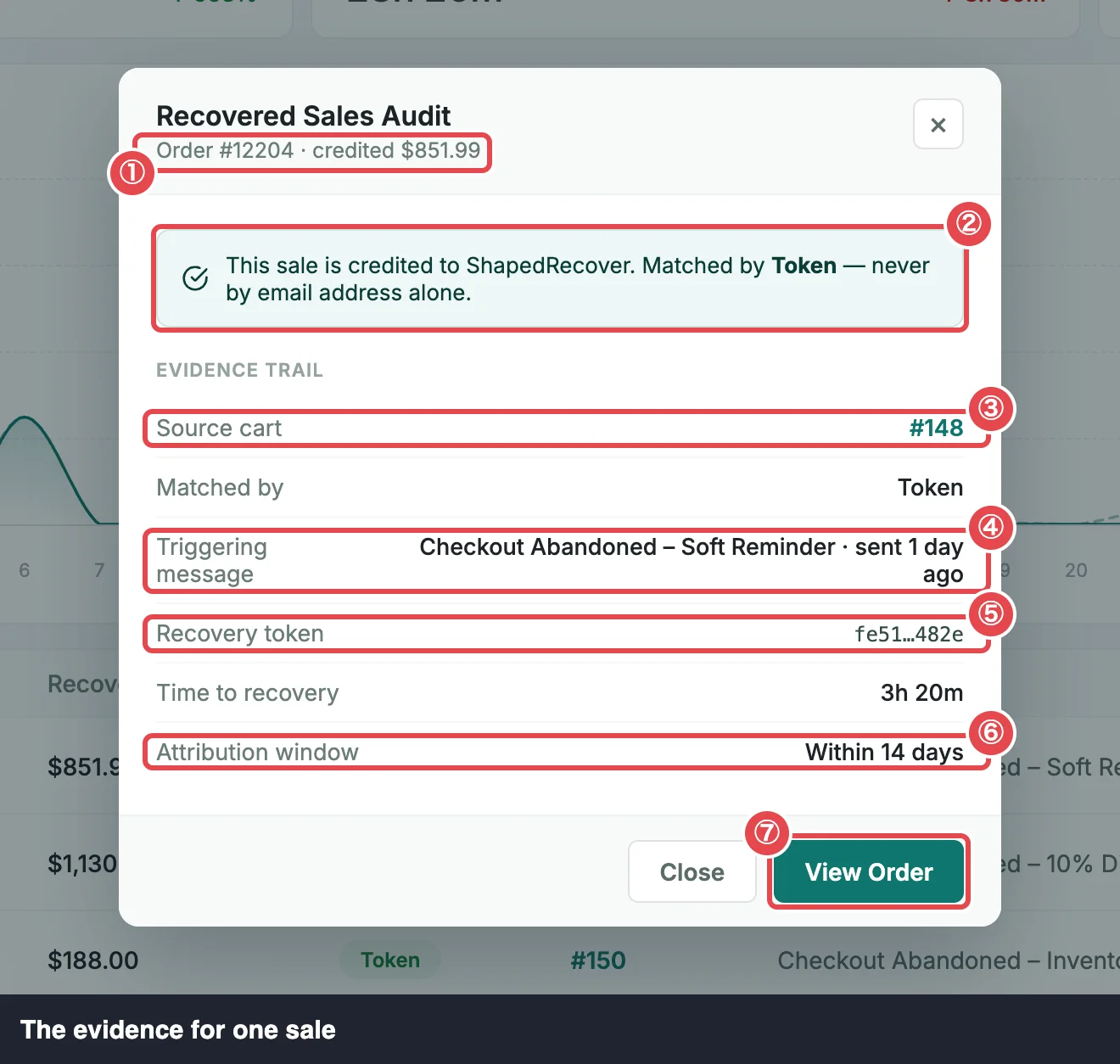 ① Order and credit · ② Notice · ③ Source cart · ④ Triggering message · ⑤ Recovery token · ⑥ Attribution window · ⑦ View Order
At the top, the order and its credited value, for example Order #1030 · credited $84.60, and a notice: This sale is credited to ShapedRecover. Matched by Token — never by email address alone.
Under Evidence Trail:
| Row | Shows |
|---|---|
| Source cart | The abandoned cart the sale came from, e.g. #214. Click it to open the cart drawer. |
| Matched by | Token: the order was placed through the recovery link. |
| Triggering message | The campaign whose link was used, and when that email was sent, e.g. Checkout Abandoned – Soft Reminder · sent 3 days ago. |
| Recovery token | The first and last four characters of the token's stored fingerprint, e.g. 9f2a…c71b. |
| Time to recovery | From the cart being abandoned to the order being placed, e.g. 1d 2h. |
| Attribution window | Within 14 days. |
View Order opens the order in WooCommerce. Close (or Esc) closes the audit.
Check a sale yourself
You don't have to take the report's word for it. To verify any sale:
- Go to ShapedRecover → Reports and find the order. The search takes an order number, name or email.
- Click View Audit. Note the Triggering message and when it was sent.
- Click the Source cart number. The cart drawer's Recovery Progress timeline shows the emails sent to that cart and when, so you can see the email went out before the order.
- Back in the audit, click View Order. Check the order is in a paid status, and that its total, less any refund, matches the Recovered Value.
Because every figure is built from these same credited sales, the Dashboard's Recovered Revenue for a range is exactly the sum of the Recovered Value column for that range.
Where to go next
- Recovered Sales: the full list of credited sales.
- KPIs & Chart: how the Dashboard counts recoveries.
- Recovery Link: what happens when a shopper clicks.
- Cart Statuses: Recovered, Ordered and the rest.