

General Settings
Turn tracking on, set when carts count as abandoned or lost, and choose who is never tracked.
Settings → General holds the settings that decide which carts ShapedRecover records and how long it works on them. It has three panels: Abandoned Tracking, Exclusions and Never Track.
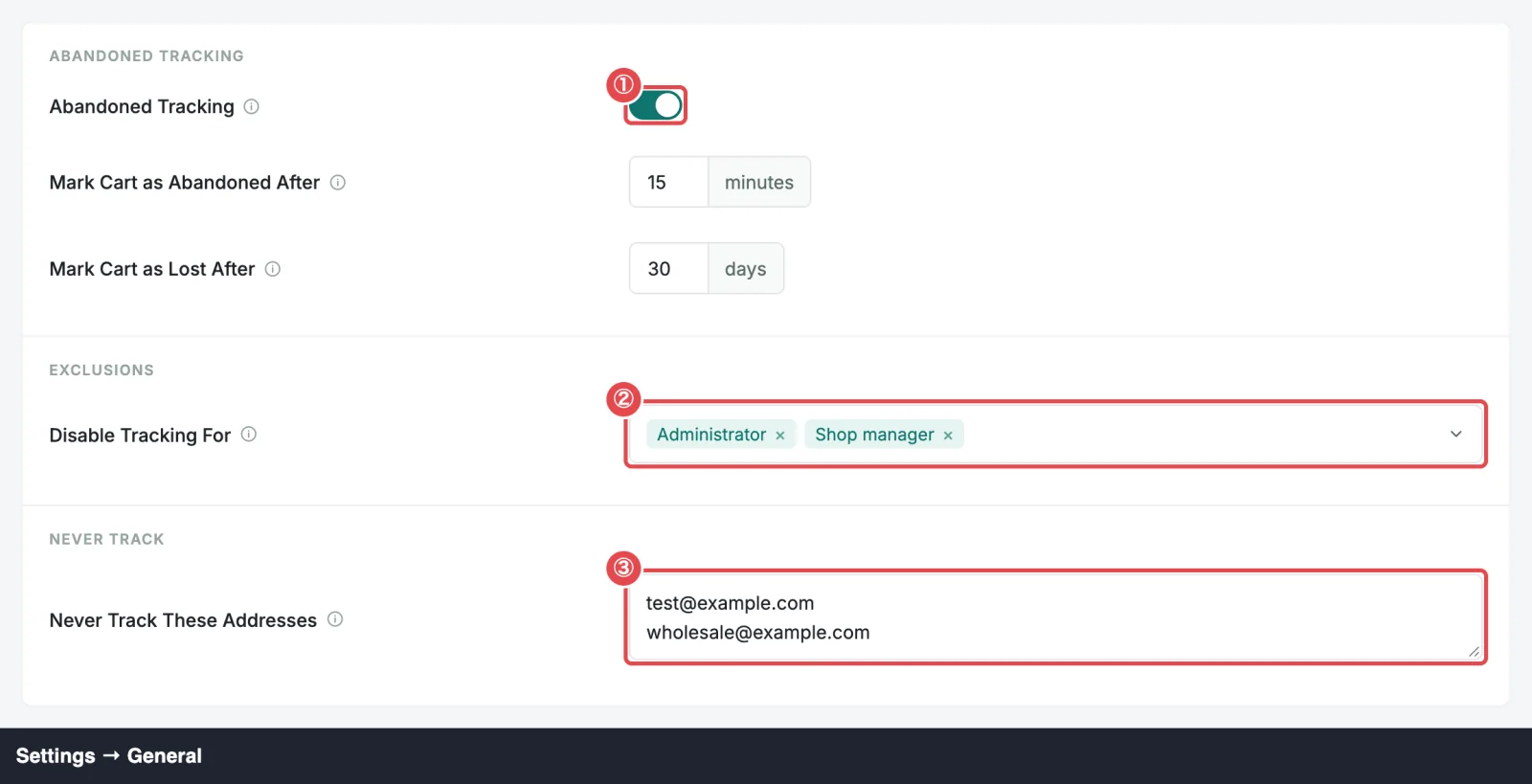
Abandoned Tracking
| Setting | What it does | Default | Range / options |
|---|---|---|---|
| Abandoned Tracking | The master switch. While it's on, carts are captured at checkout and recovery emails can send. While it's off, nothing new is captured, the consent checkbox disappears from your checkout, and scheduled emails wait. See The tracking switch. | Off | On, Off |
| Mark Cart as Abandoned After | How long a cart sits with no activity before it counts as abandoned (shown as Recoverable) and its recovery emails are scheduled. This is the abandonment cutoff. See How Recovery Works. | 15 minutes | 5 to 1,440 minutes (24 hours) |
| Mark Cart as Lost After | How long after abandonment ShapedRecover keeps trying before it marks the cart Lost. Lost carts get no more emails. This is the lost cutoff. See Cart Statuses. | 30 days | 1 to 365 days |
Turning Abandoned Tracking on and saving completes step 1 of the setup checklist. You can also do it from the Dashboard's welcome screen. See Quick Start.
Rules for Mark Cart as Lost After
The lost cutoff has to fit around two other settings, so a save can be refused for either reason.
It must be at least a day longer than your slowest active campaign. A campaign that sends after the cart is already Lost would never send. If your longest active campaign sends 3 days after abandonment, the cutoff must be at least 4 days, and a lower value is refused with:
Must be longer than your slowest campaign (sends at 3 days). Increase this to at least 4 days.
To go lower, first shorten or switch off that campaign. Only active campaigns count. See The lost cutoff.
It can't be longer than how long carts are kept. Recoverable Carts in Data & Storage sets how long finished carts are kept, and a cart still in recovery must never be old enough to be cleared out. Once you've saved a Recoverable Carts value, a longer lost cutoff is refused with:
Must be no longer than how long carts are kept (90 days). Increase Recoverable Carts first.
Until you save Recoverable Carts yourself, it follows the lost cutoff automatically (90 days, or the lost cutoff if that's longer), so this rule never gets in your way. See Retention.
Exclusions
| Setting | What it does | Default | Range / options |
|---|---|---|---|
| Disable Tracking For | While someone is logged in with one of these roles, nothing about their cart is recorded. Keeps your own test carts out of the data. Click the field to open the role menu and tick roles on or off (an empty field reads Add a role…). Remove a role with its ×. See User roles. | Administrator, Shop Manager | Any role on your site, including roles added by other plugins |
Role exclusions only apply while the person is logged in. To keep a specific address out whether or not they're logged in, use Never Track below.
Never Track
Pro
Never Track is part of ShapedRecover Pro. Without Pro, the field shows read-only with a Pro badge and no address is blocked. A list you saved with Pro is kept for when it's active again.
| Setting | What it does | Default | Range / options |
|---|---|---|---|
| Never Track These Addresses | Carts using these email addresses are never tracked, logged in or not. See Never Track These Addresses. | Empty | Valid email addresses, one per line |
A few things to know before you save:
- Upper and lower case don't matter, blank lines are ignored, and duplicates are removed when you save.
- A line that isn't a valid email address stops the save with This value is not allowed.
- Saving deletes every cart already stored for a listed address, with its scheduled emails, recovered carts included. Double-check the list before you click Save Changes.
Where to go next
- Exclusions: every way to keep carts out of your data.
- Triggers & Timing: how campaign delays fit between the two cutoffs.
- Data & Storage Settings: how long finished carts are kept.