

Email Options
Add the cart's products, copy yourself in, and match your WooCommerce email styling.
Below the timing fields in the Email Editor, each campaign has a set of switches that change how its email looks and who gets a copy. They're saved with the campaign, so each email in your sequence can be set up differently, and the preview shows every change before you save.
In the editor they appear in this order:
| Option | What it does | Default |
|---|---|---|
| Send a Copy to Admin | Copies you in on every real send. | Off |
| Use WooCommerce Email Styling | Wraps the email in your WooCommerce email template. | Off |
| Create a Coupon | Adds a personal discount code. See Coupons in Emails. | Off (on in the 10% Discount Offer starter) |
| Modify Product Data | Changes how the product table looks. | Off (on in the Inventory Hold Alert starter) |
Modify Product Data
Showing shoppers what they left behind reminds them why they wanted it. ShapedRecover does this with the Product table merge tag, {{cart.product_table}}: wherever you put it in the body, the email lists the cart's products with their images, names and prices, and a total.
To add one, open Merge Tags in the body toolbar and choose Product table. The Inventory Hold Alert starter already has it.
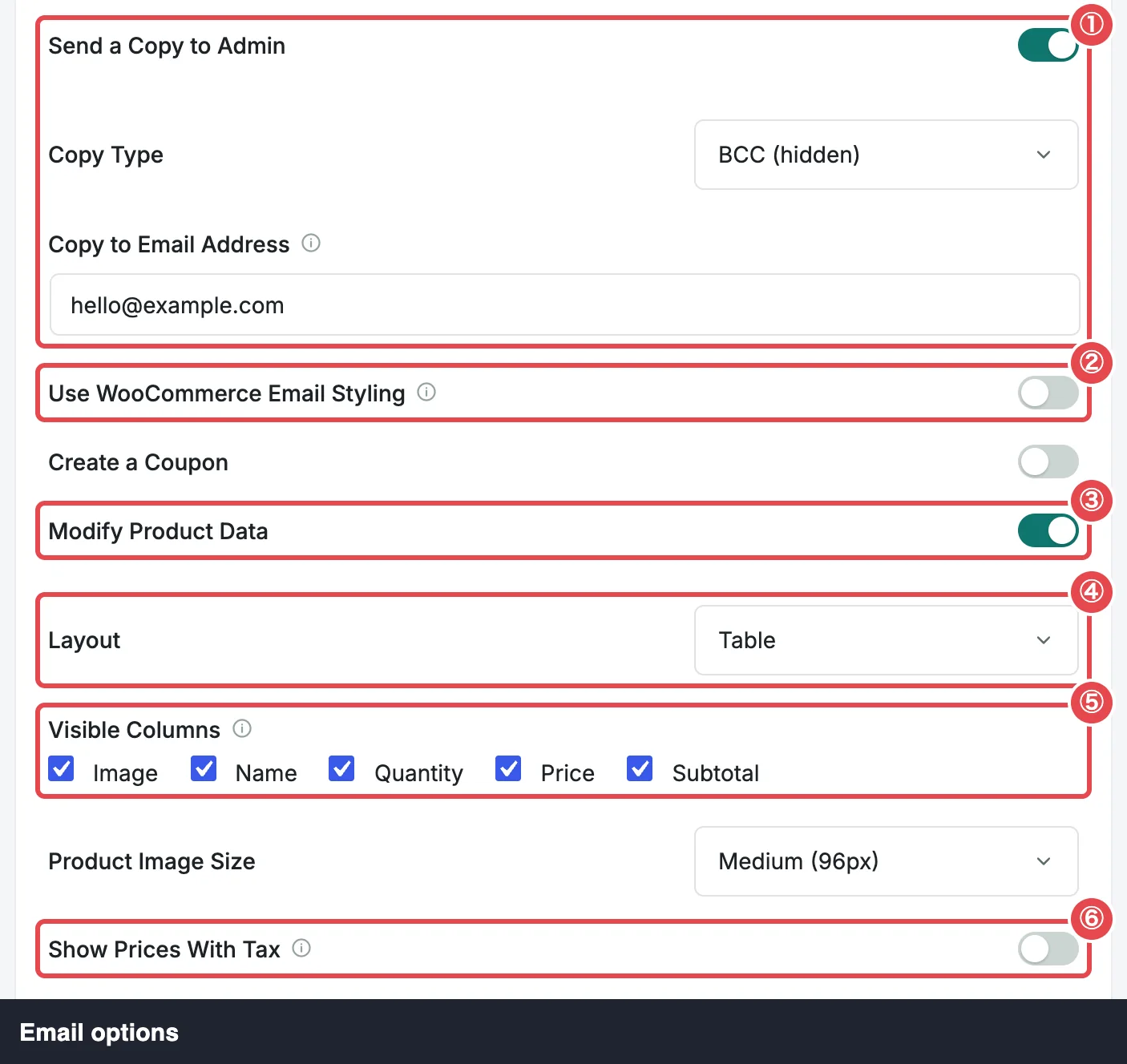
Modify Product Data changes how that table looks. Switched off, the table uses the defaults below, whatever you set while it was on. Switched on, these fields appear:
| Field | What it does | Default |
|---|---|---|
| Layout | Table, List, Grid or Compact. See Layouts. | Table |
| Visible Columns | Table only. Tick the columns to show: Image, Name, Quantity, Price, Subtotal. At least one is required. | All five |
| Product Image Size | Small (64px), Medium (96px) or Large (128px). Shown for Table with the Image column, List and Grid. | Medium (96px) |
| Columns per Row | Grid only. 2 per row or 3 per row. | 3 per row |
| Show Price | List and Compact only. Shows each item's price. | On |
| Show Quantity | List and Compact only. Shows how many of each item. | On |
| Show Prices With Tax | Include tax in prices shown in the abandoned products. | Follows WooCommerce's cart setting (Display prices during cart and checkout) |
The editor only shows the fields your layout uses. Fields it hides keep their values, so switching layouts back and forth loses nothing.
Removing every column from a Table layout stops the save with Choose at least one column.
Layouts
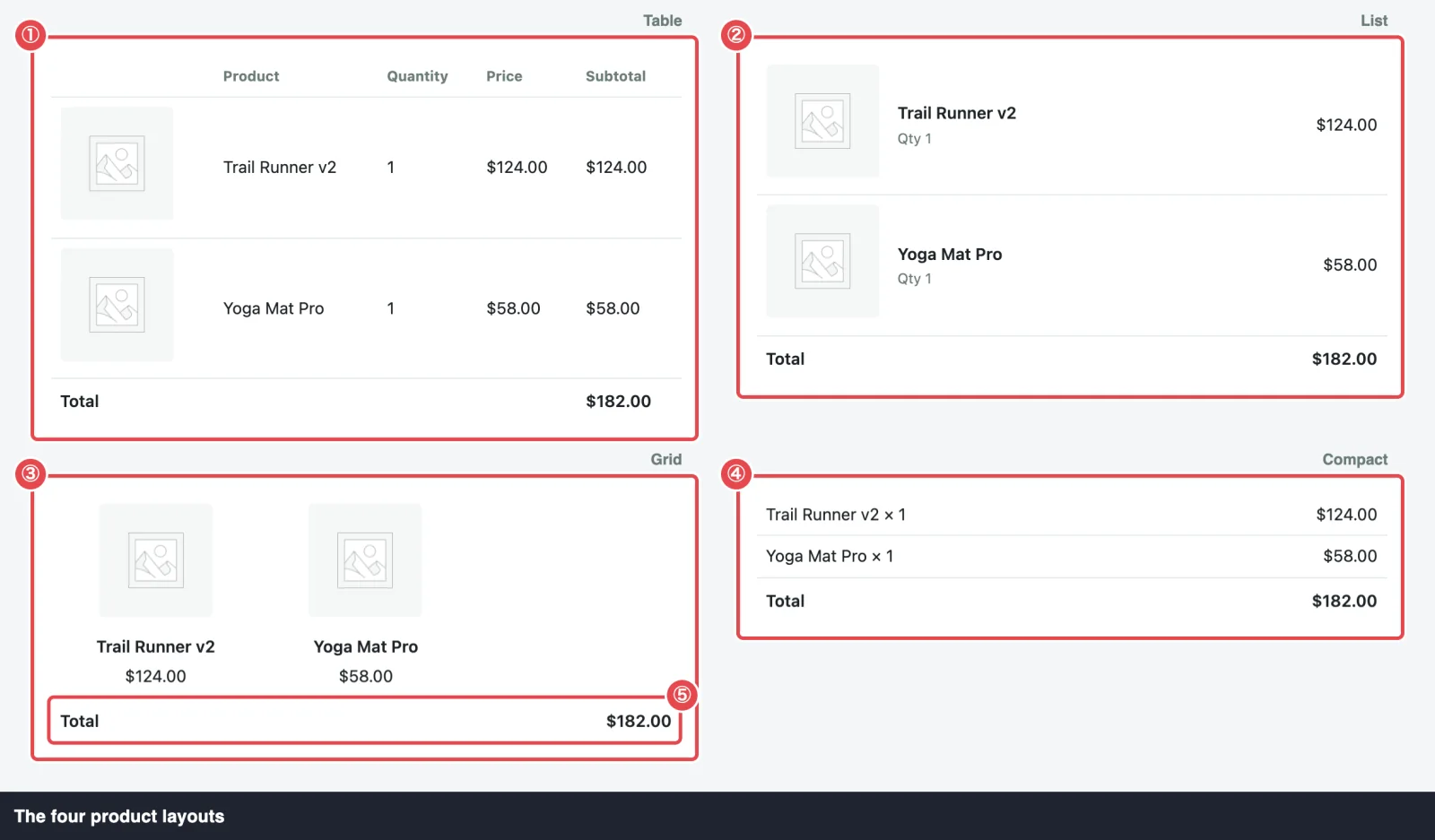
| Layout | What each item looks like | Best for |
|---|---|---|
| Table | One row per item, with the columns you ticked under a header row. | A clear, receipt-like summary. |
| List | One row per item: image, name, "Qty 2" under the name, and the price on the right. | A cleaner look on phones. |
| Grid | Cards of image, name and price, two or three to a row. | Visual products: fashion, decor, gifts. |
| Compact | One line per item: "Yoga Mat Pro × 2" and the price, no image. | Short, text-first emails. |
The total line
Every layout ends with the cart total. It reads Total, or Total (incl. tax) when the prices shown include tax.
Why the preview shows placeholder images
The preview and test emails use a made-up cart with two products, Trail Runner v2 and Yoga Mat Pro, which aren't in your store, so they show WooCommerce's placeholder image. Real emails show your product images, and the prices the shopper saw when the cart was captured. A product without an image, or one deleted since, also gets the placeholder.
Send a Copy to Admin
Switch this on to receive a copy of every email this campaign sends to a shopper. It's a simple way to see what customers actually get, or to let a sales team follow up personally.
| Field | What it does | Default |
|---|---|---|
| Copy Type | BCC (hidden): the shopper doesn't see that you were copied. CC (visible): your addresses appear in the email's Cc line. | BCC (hidden) |
| Copy to Email Address | Who gets the copy. Separate multiple email addresses with commas. | Your site's admin email (Settings → General → Administration Email Address in WordPress) |
If the list is empty or has an address that isn't valid, the save stops with Enter valid email addresses, separated by commas.
Good to know:
- Real sends only. A test email goes only to the address you type, never to the copy list.
- Use BCC unless you have a reason. With CC, the shopper sees your addresses, and a "Reply all" reaches them too.
- The copy is the shopper's email. Its recovery link and any coupon code are theirs. Don't click the recovery link in your copy: it rebuilds their cart in your browser and shows on their timeline as Shopper returned to cart.
Use WooCommerce Email Styling
Wraps this email in WooCommerce's template — its header, footer, colors, and fonts. Turn off to use your own styling.
| Setting | Default |
|---|---|
| Use WooCommerce Email Styling | Off |
- Off: the email sits on ShapedRecover's own clean layout, a white card up to 600px wide on a light grey background. It looks good everywhere with no setup.
- On: the email uses the same header image, colours and footer text as your WooCommerce order emails, set in WooCommerce → Settings → Emails. The email's subject shows as the heading in WooCommerce's header bar. Choose this if you want every email from your store to look alike.
The setting applies everywhere: the editor's preview, test emails and real sends all show the same wrapper.
Logo on both layouts
With WooCommerce styling on, your header image already shows at the top. With it off, add the Store logo merge tag to the top of the body. See Merge Tags.
Where to go next
- Coupons in Emails: add a personal discount to a campaign.
- Merge Tags: the product table and every other tag.
- Test Email: check the result in a real inbox.