

Installation & License
Install ShapedRecover, add Pro, activate your license and keep both plugins up to date.
ShapedRecover installs like any other WordPress plugin. If you only need the free features, Step 1 is all you do. If you bought Pro, there are two plugins: the free one and the Pro add-on on top of it. Both stay installed and active.
Before you start, check your site meets the Requirements. WooCommerce must be installed and active.
Install in 3 steps
- Install the free pluginFrom Plugins → Add New Plugin.
- Install ShapedRecover ProOnly if you bought Pro.
- Activate your licenseUnlocks Pro features, updates and support.
Step 1: Install the free plugin
The free plugin is on WordPress.org, so you can install it without leaving your site.
- Go to Plugins → Add New Plugin.
- Search for Shaped Recover.
- Click Install Now, then Activate.
A ShapedRecover item appears in your admin menu. That's where everything lives.
Nothing is tracked yet
Installing doesn't start tracking carts or sending emails. Abandoned Tracking ships switched off, and the three starter campaigns ship switched off too. You turn them on when you're ready, in the Quick Start.
Step 2: Install ShapedRecover Pro
Skip this step if you're using the free plugin only.
Pro isn't on WordPress.org. You download it from your ShapedPlugin account.
- Sign in at account.shapedplugin.com and download the Shaped Recover Pro zip. Don't unzip it.
- On your site, go to Plugins → Add New Plugin → Upload Plugin.
- Choose the zip, click Install Now, then Activate.
Can't activate Pro?
Pro needs the free Shaped Recover plugin installed and active. If it isn't, WordPress won't let you activate Pro and names the missing plugin. Do Step 1 first, then come back.
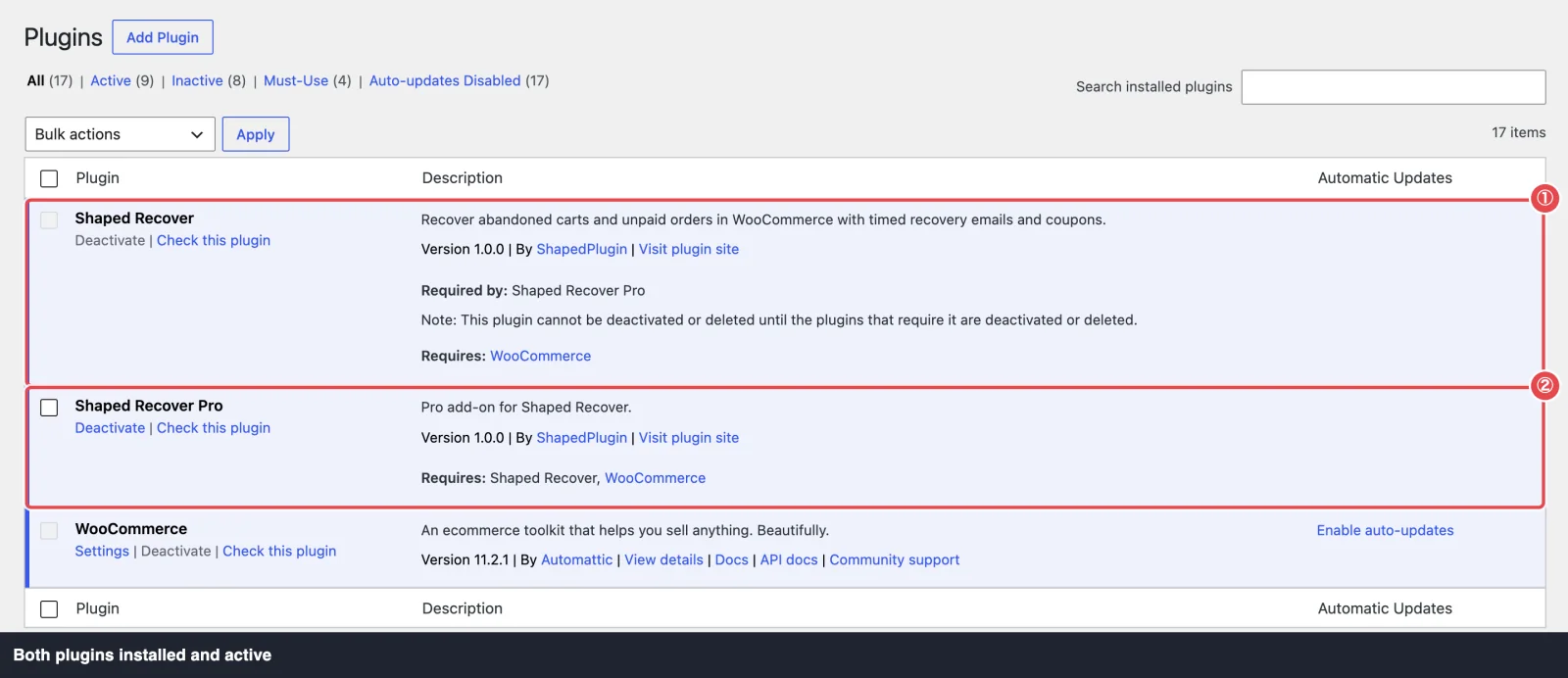
You should now have two active plugins: Shaped Recover and Shaped Recover Pro. That's correct. Pro adds features to the free plugin rather than replacing it, so never deactivate the free plugin while Pro is installed.
Step 3: Activate your license
Pro features stay locked until a license is active. Until then, administrators see a notice across the WordPress admin asking them to activate it.
- Go to ShapedRecover → Settings → License.
- Copy your key from your ShapedPlugin account and paste it into the key field (it says Enter your license key).
- Click Activate.
When it works, the screen reads Your License Is Active and shows a card with the license's Status, Plan (how many sites it covers), Sites in use, when it Expires, and the key masked to its last four characters. Every Pro badge in the plugin disappears.
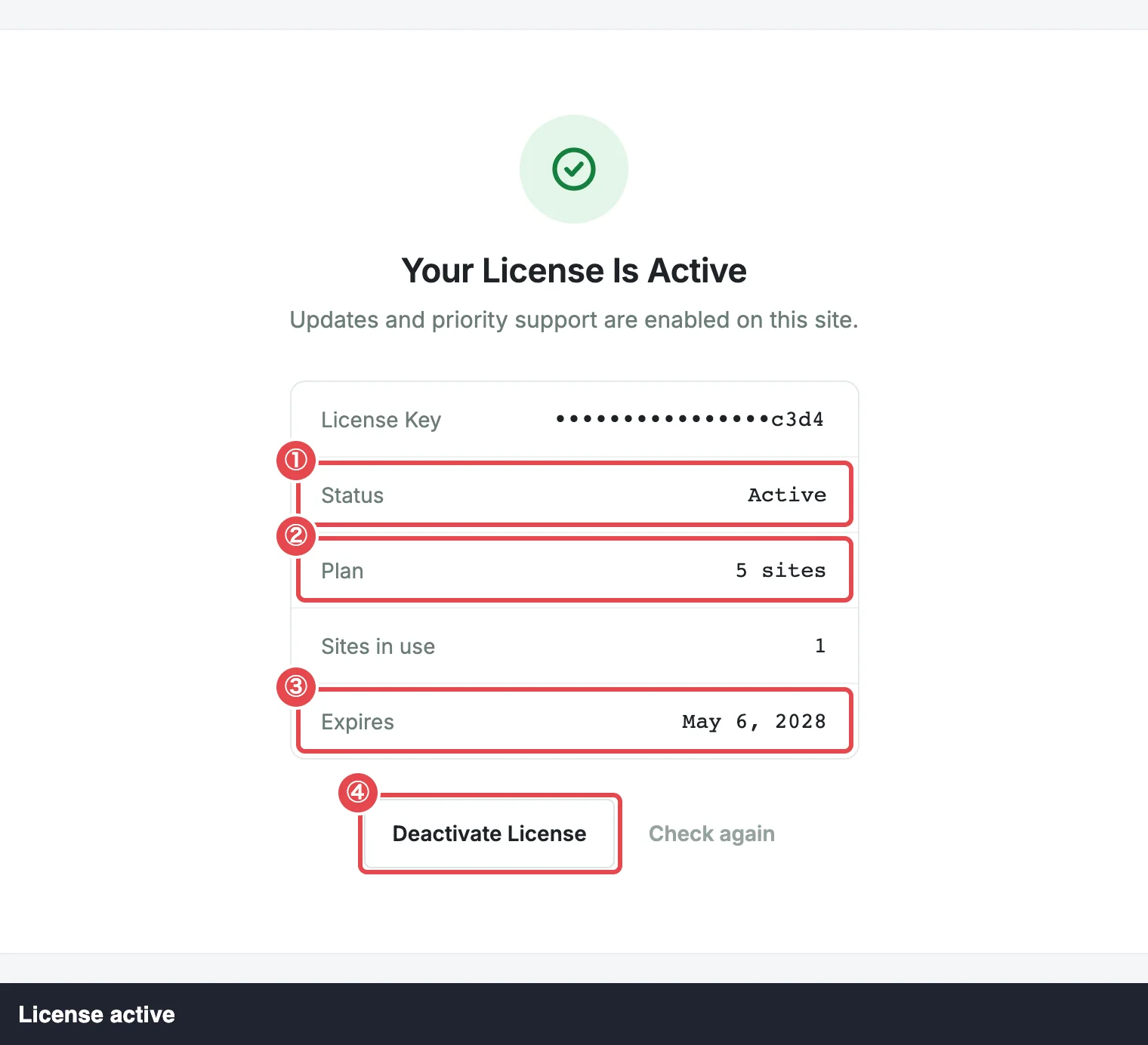
Only administrators can activate or deactivate the license. A shop manager who opens the License screen sees its status and a note to ask an administrator.
If activation is refused, the screen tells you why: an invalid key, no activations left, an expired license and so on. License lists every message and what to do about it.
An expired license keeps Pro working
If your license expires, Pro's features keep working. Only automatic updates and support stop until you renew. If the license is deactivated or never activated, Pro's features lock again, but every setting you saved is kept and comes back as soon as you activate.
Updating
- The free plugin updates from WordPress.org like any other plugin.
- Pro updates from Dashboard → Updates and the Plugins screen while your license is active.
Update both together when you can. Pro is built against a minimum version of the free plugin. If the free plugin is older than that, Pro waits and shows a notice naming both versions until you update it.
Upgrading from Free to Pro
You don't need to reinstall anything or move any data. Keep the free plugin active, then do Step 2 and Step 3. Your carts, campaigns, reports and settings stay exactly as they were, and the Pro features unlock in place.
Deactivating
- Deactivating Pro puts the store back on the free features. Recovery keeps running, nothing is deleted, and your Pro settings come back if you reactivate.
- Deactivating the free plugin stops tracking and sending and removes its scheduled jobs. Your carts, campaigns and settings stay put for when you reactivate.
Deleting the plugin is different. See Uninstalling & Data.
Where to go next
- Quick Start: get recovery running in four steps.
- How Recovery Works: what happens to a cart after it's captured.
- License: manage, check or move your license.