

Product Report
See which products shoppers abandon most, and how many of those your emails win back.
Some products get left in carts far more than others. Maybe the price is a stretch, the shipping cost surprises people, or it's the kind of thing shoppers think twice about. The Product Report widget on the Dashboard shows your top five, so you know where to look.
Pro
The Product Report is a Pro feature. In the free plugin you see the widget locked, with sample data. See Free vs Pro.
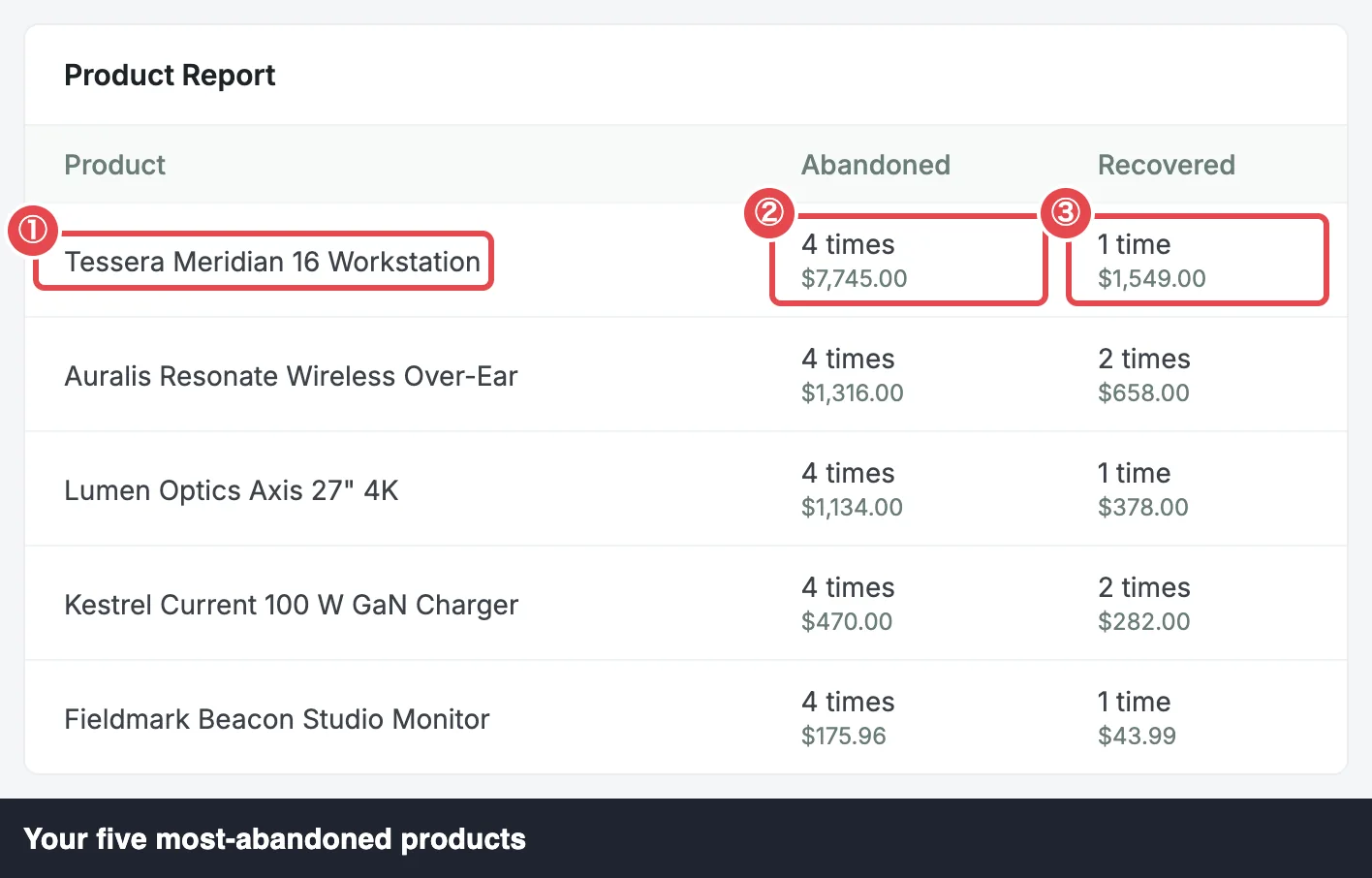 ① Product · ② Abandoned · ③ Recovered
What it shows
The five products that turned up in the most abandoned carts during your date range, most-abandoned first:
| Column | Shows |
|---|---|
| Product | The product's name. |
| Abandoned | How many abandoned carts held it, as "{n} times", with their value for this product underneath. |
| Recovered | How many recovered sales held it, as "{n} times", with their value for this product underneath. |
When two products were abandoned the same number of times, the one with the higher abandoned value ranks first.
How it counts
- Abandoned counts carts whose latest abandonment falls in the range and that hold the product. (The KPIs place a cart by its first abandonment, so a cart abandoned twice can fall in a different range here.)
- Recovered counts sales credited in the range whose cart held the product. "Credited" follows the same rule as everywhere else: paid through the recovery link within 14 days of the email. See Attribution & Audit.
- Times count carts, not quantities. A cart with three of the same mug counts as 1 time.
- The value is the product's line in the cart: price × quantity. It includes tax or not, the same way your store shows prices in the cart (WooCommerce → Settings → Tax → Display prices during cart and checkout).
- Variations count under their parent. A T-shirt abandoned in small, medium and large is one product, "T-shirt", here.
- Deleted products keep the name they had when they were in the cart.
Recovered uses the same credit-date clock as Recovered Revenue, while Abandoned uses the abandonment date. A product's recovered carts may have been abandoned in an earlier range, so don't read the two columns as a strict rate. KPIs & Chart explains the two clocks.
What to do with it
- A product that's abandoned a lot and rarely recovered is a good candidate for a closer look: its price, its shipping cost, or a discount campaign. See A Discount Sequence.
- A product your emails recover well tells you the reminder is working. You might feature it in your email content.
There's no full product report beyond the top five in this version.
In the free plugin
Without Pro, the widget shows sample rows (Wireless Earbuds, Trail Runner v2 and so on), blurred, with the line See which products are abandoned and recovered most. and an Unlock Pro link to the pricing page.
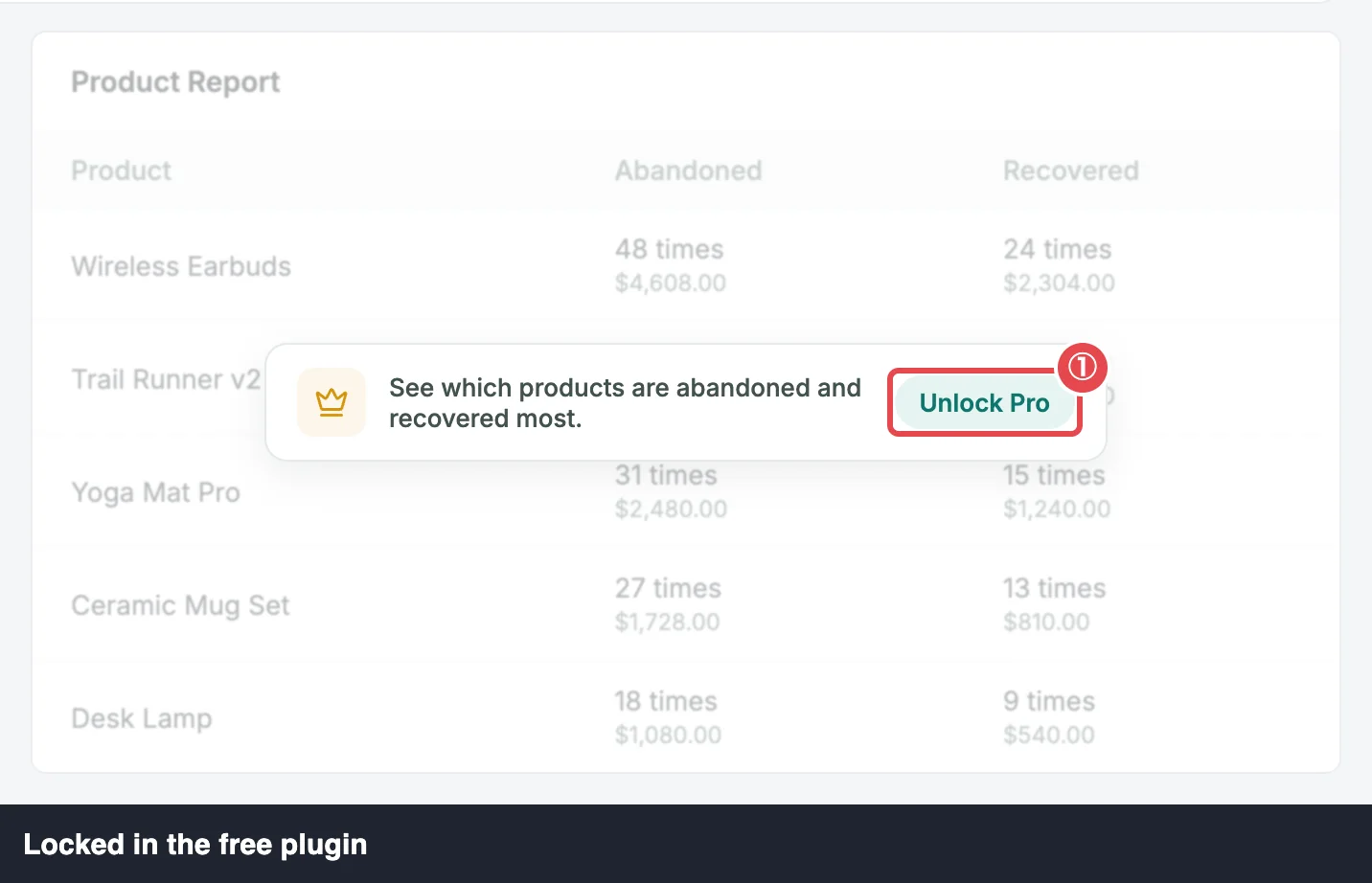
These are never your store's products. Without Pro, your product data isn't even sent to the browser, so nothing is hidden behind the blur.
If Pro is installed but its license isn't active yet, the link reads Activate License instead and takes you to Settings → License. A shop manager, who can't change the license, sees Needs an active license instead. See Installation & License.
When it's empty
With Pro, if no carts were abandoned in the range, the widget reads No products yet — your most-abandoned products will appear here. Try a longer date range.
Where to go next
- KPIs & Chart: the headline numbers above this widget.
- Free vs Pro: everything Pro adds.
- Recent Activity: the widget beside this one.