

Recent Activity
The latest abandonments and recoveries as they happen, one click away from the cart behind them.
Recent Activity sits under the chart on the Dashboard. It's a quick pulse check: which shoppers have been active lately, and where their carts stand. When something catches your eye, one click takes you to the full story.
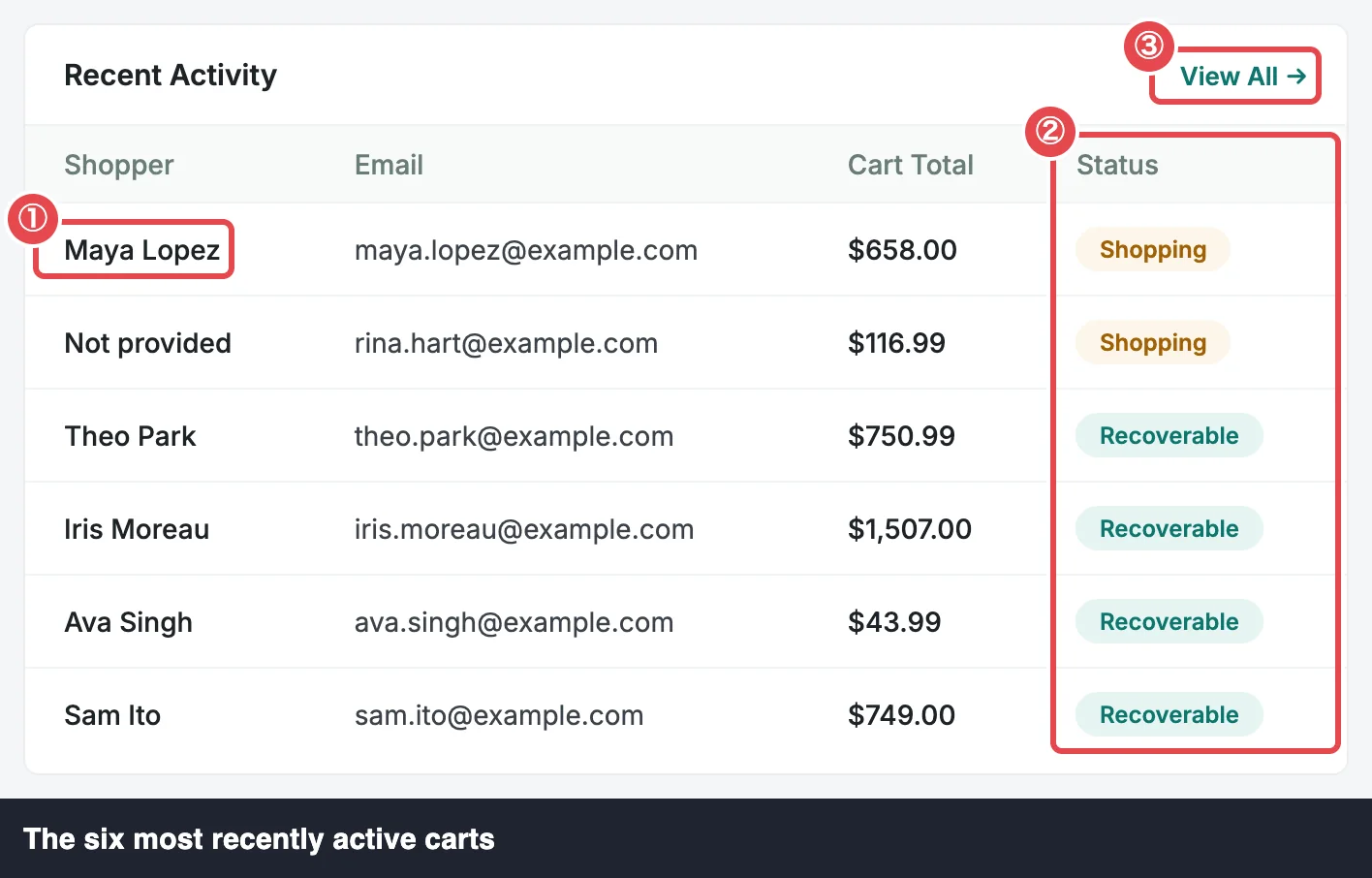 ① Shopper link · ② Status · ③ View All →
What it shows
The six carts with the most recent activity, newest first:
| Column | Shows |
|---|---|
| Shopper | The name the shopper typed at checkout, or Not provided if they only typed an email. Click it to open the cart. |
| The shopper's email address. | |
| Cart Total | The cart's total as last captured, in the cart's own currency. |
| Status | The cart's status: Shopping, Recoverable, Recovered, Ordered or Lost. See all five statuses. |
"Activity" is the shopper's last change to their cart or email, so a cart a shopper has just edited moves to the top.
The date range doesn't apply
Unlike the rest of the Dashboard, Recent Activity ignores the date range. "Recent" means now. Even with the range set to Today, a cart last active three days ago still appears if it's among the six latest.
Open a cart
Click a shopper's name to open that cart's drawer on the Abandoned tab. The drawer shows what was in the cart, every email scheduled or sent for it, and the actions you can take, such as sending the next email now or copying a recovery link. See Cart Drawer.
View All → at the top of the card opens the Abandoned tab with every cart. That tab does use the shared date range, matched against each cart's last activity, so a cart you saw here may be outside it if your range is short. See Carts Table.
When it's empty
Before any cart is captured, the card reads No activity yet — recovered and in-progress carts will appear here. Carts start showing once shoppers type an email at checkout with tracking on. If you're still waiting for the first one, Test the Recovery Flow shows you how to create one yourself.
Where to go next
- Cart Drawer: everything about one cart.
- Cart Statuses: what each status means and when it changes.
- Product Report: the widget beside this one.