

Sending Settings
Who recovery emails come from, how the recovery link behaves, and a quick check that your site can send email.
Settings → Sending controls the parts of every recovery email that aren't in the campaign itself: the sender shoppers see in their inbox, where the recovery link takes them and how long it works. At the bottom, Delivery Check sends a test message so you can confirm your site's email works at all.
Email Sender
| Setting | What it does | Default | Range / options |
|---|---|---|---|
| From Name | The sender name shoppers see in their inbox, such as your store's name. | Your WooCommerce sender name | Up to 200 characters. Empty means WooCommerce's sender name. |
| From Address | The address emails are sent from. Use an address on your own domain for the best delivery. | Your WooCommerce sender address | A valid email address. Empty means WooCommerce's sender address. |
| Reply-to Address | Where replies go when a shopper hits Reply. Leave it blank to use the from address. | Your WooCommerce sender address, suggested until you save | A valid email address, or empty |
These also apply to admin notification digests.
From Address matters most for delivery. An address on a different domain from your site, like a Gmail address, is likely to land in spam or be rejected. If you're not sure your mail is set up properly, see Set Up SMTP.
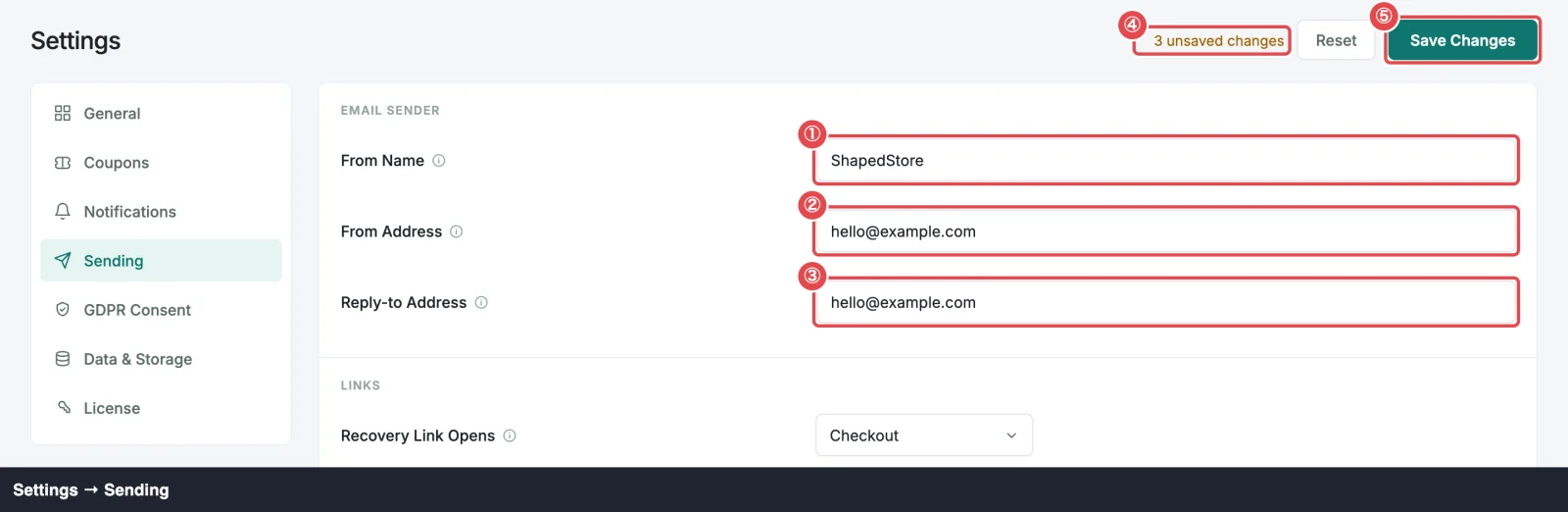
The WooCommerce sender suggestion
Until you've saved a sender, ShapedRecover uses the one in WooCommerce → Settings → Emails. To make that a conscious choice, whenever you open Sending before saving one, it fills each empty sender field with WooCommerce's sender name and address, as unsaved changes:
- The header counts them, for example 3 unsaved changes, and Save Changes is ready to click.
- Save Changes stores them. Once both From Name and From Address are saved, step 2 of the setup checklist is complete. See Quick Start.
- Reset goes back to these suggestions, not to empty fields.
- Leaving without saving asks whether to save, like any other unsaved change. See Leaving with unsaved changes.
After you save, your sender no longer follows WooCommerce: changing WooCommerce's sender later doesn't change ShapedRecover's. A Reply-to Address you clear on purpose stays empty.
If you later clear From Name or From Address and save, emails use WooCommerce's sender for that field again, and the next time you open Sending it's suggested again as an unsaved change. Setup step 2 also counts as not done until both are saved again.
Links
| Setting | What it does | Default | Range / options |
|---|---|---|---|
| Recovery Link Opens | Where the recovery link takes the shopper. See Where it lands. | Checkout | Checkout, Cart |
| Link Expires After | Recovery links stop working after this, counted from when each email was sent. Shorter is safer. See How long it works. | 7 days | 1 to 30 days |
A link's expiry is fixed when its email is sent, so a change applies to emails sent from then on. Keep Link Expires After at least as long as the gap between your emails, so each link still works when the next reminder arrives.

Delivery Check
Delivery Check answers one question: can your site send email at all? It's worth running once when you set up, and again whenever you change hosting or your mail setup.
- Send Test Email to starts with your own account's email address. Change it if you like.
- Click Send Test Email.
ShapedRecover sends a short plain-text message, Shaped Recover delivery check, through your site's normal WordPress mail, and shows what really happened:
- Test email sent to you@example.com means WordPress handed the message to your mail system. Check that it arrived, including in your spam folder. If it didn't, your site's mail isn't being delivered.
- An error message means WordPress couldn't send it. The text is the error your mail system reported, or WordPress could not send the email. if it gave none. See Set Up SMTP.
You don't need to save first, and the check doesn't change any setting. It's a plain message, not a recovery email, so it doesn't show your From Name, design or links. To see a real recovery email exactly as shoppers will, use Send test on a campaign. See Test Email.
It doesn't tick off a setup step
The delivery check is a tool, not a setup step. Step 2 of the checklist completes when you save your sender. Step 4, Send a Test Email, needs a campaign test. See Test Email.

Where to go next
- Set Up SMTP: make sure your emails reach inboxes.
- Recovery Link: what happens when a shopper clicks the link.
- Test Email: preview a real recovery email in your inbox.