

Dashboard Overview
Your recovery at a glance: the setup checklist on first run, then the status banner, the date range and the headline numbers.
ShapedRecover → Dashboard is the first tab you see. It answers three questions: is recovery switched on, how much has it brought back, and what's happening right now. This page walks through the screen from top to bottom. The numbers themselves are explained in KPIs & Chart.
Page tour
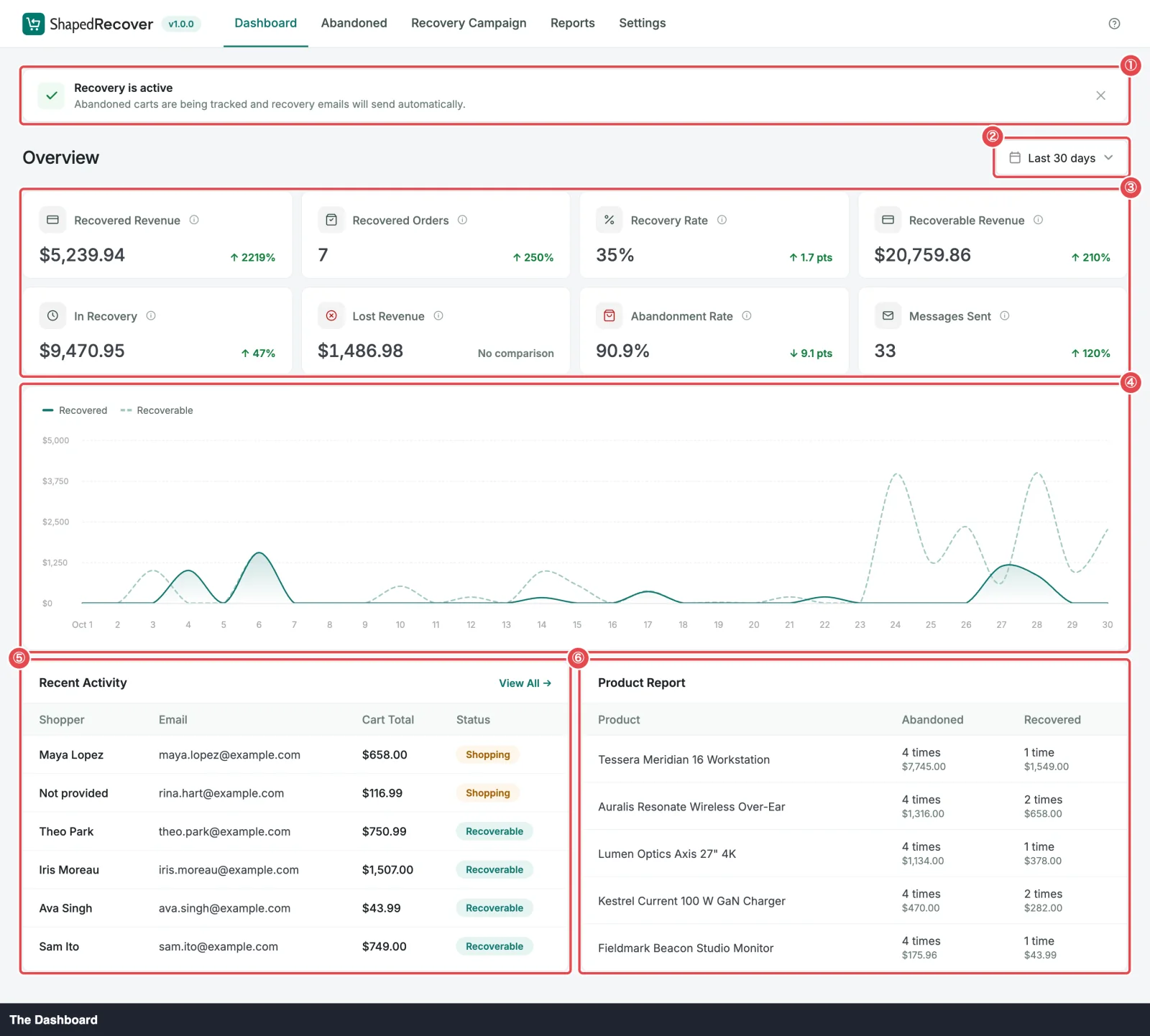 ① Status banner · ② Date range · ③ KPI cards · ④ Chart · ⑤ Recent Activity · ⑥ Product Report
From top to bottom, the Dashboard shows:
- The welcome screen or the status banner. On first run, a welcome screen with the setup checklist. After that, a one-line banner that says whether recovery is running. See First run and The status banner.
- Overview with the date range button on the right. The range decides what every number below it counts. See The date range.
- Eight KPI cards, four per row on a wide screen (two per row on a narrower one). Each has an ⓘ icon that explains how it's counted, and a comparison with the previous period. See KPIs & Chart.
- The chart: recovered revenue against recoverable value, day by day. See The chart.
- Recent Activity: the six carts with the latest activity. See Recent Activity.
- Product Report: your five most-abandoned products, with Pro. See Product Report.
First run
Until ShapedRecover has captured its first cart, the top of the Dashboard is a welcome screen, Bring Back the Sales You Almost Lost, with an Enable Abandoned Tracking button and the Set Up Recovery checklist under it.
The checklist has four steps, and each one ticks itself off when the real thing is done:
| Step | Link | Done when | Shows when done |
|---|---|---|---|
| Enable Abandoned Tracking | Enable → | Tracking is on | Enabled |
| Configure Email Sending | Set Up → | From Name and From Address are saved | Configured |
| Review and Activate a Campaign | Activate → | At least one campaign is active | Active |
| Send a Test Email | Send → | A test email has been sent successfully | Sent |
The counter at the top right reads {n} of 4 completed. The Quick Start walks through each step: 1, 2, 3, 4.
The KPI cards, chart and widgets still show underneath, empty. On first run the cards show a faint — with no comparison, because there's nothing to count yet.
When all four steps are done, the counter is replaced by Dismiss. Dismissing hides the checklist for good, for every user of the site. You can only dismiss it once every step is done.
When the first cart arrives
The welcome screen is tied to "no cart stored yet", not to the checklist. As soon as ShapedRecover captures its first cart, the welcome screen and checklist make way for the status banner, even if you haven't finished or dismissed the checklist. The banner then tells you if anything important is still missing.
Deleted every cart?
"First run" means no cart is stored. If you delete every cart (or they're all cleaned up), the welcome screen comes back. A checklist you already dismissed stays dismissed.
The status banner
After the first run, a banner at the top tells you, in one line, whether recovery is actually working. It checks two things: is tracking on, and is at least one campaign active.

| Banner | What it means | Button |
|---|---|---|
| Recovery is active (green) | Abandoned carts are being tracked and recovery emails will send automatically. | None |
| Tracking is off | No carts are captured and no recovery emails send. | Turn On switches tracking on right there. |
| No campaign is active | Carts are captured, but no recovery email will send. | Review Campaigns → opens the Recovery Campaign tab. |
If both are missing, the banner shows Tracking is off first. Fix that, and it moves on to the campaign.
Closing the banner. Click the ✕ to hide it. That's remembered for you only, and only for the message you closed. If the situation changes, the new message shows again. For example, if you close Recovery is active and later turn tracking off, Tracking is off appears, because that's something you need to know.
The date range
The button next to Overview sets the period every figure on the page counts: all eight KPIs, their comparisons, the chart and the Product Report. (Recent Activity is the exception: it always shows what's happening now.)
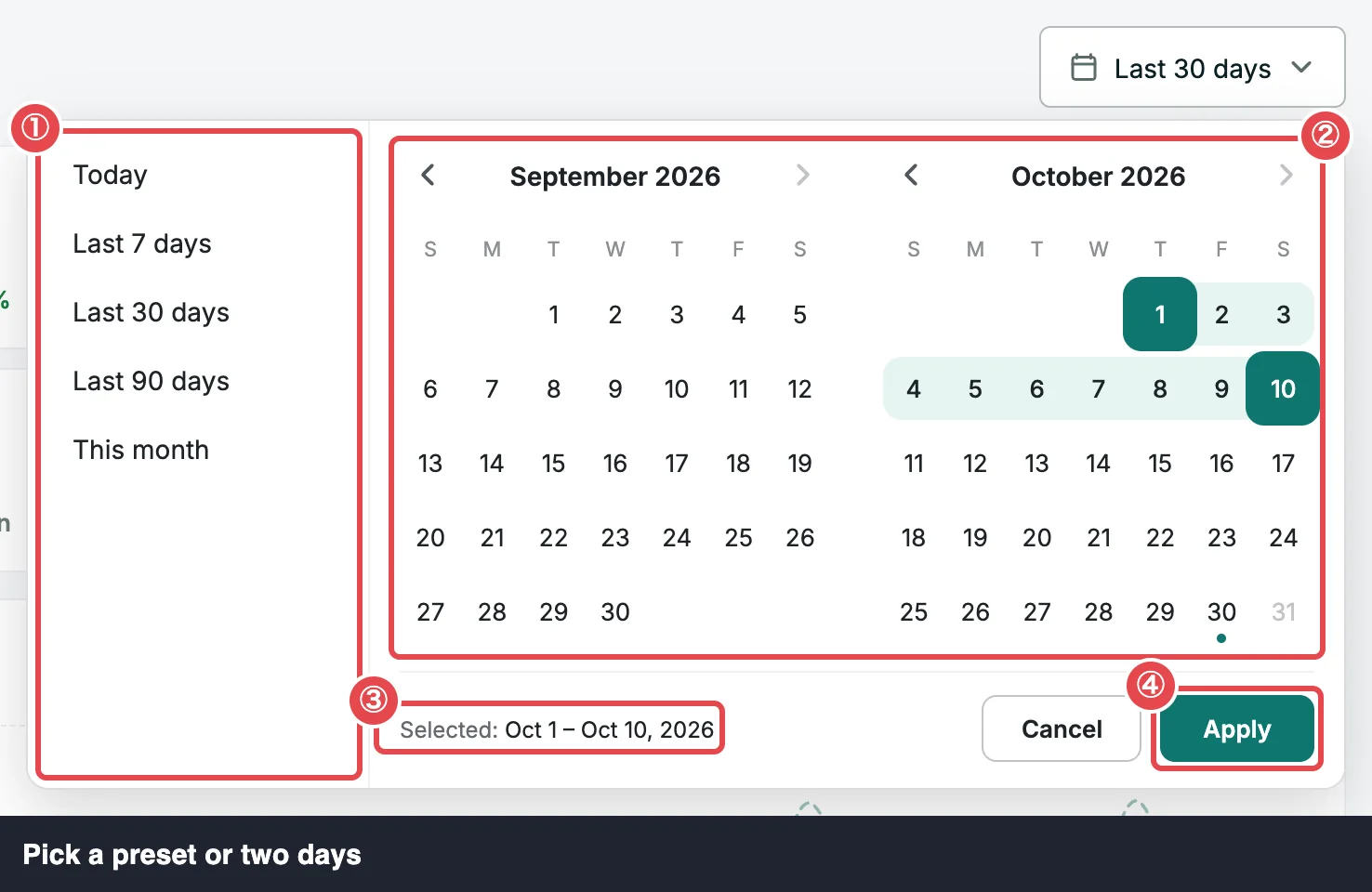 ① Presets · ② Calendar · ③ Selected range · ④ Apply
Click it to open a panel with the presets on the left and a two-month calendar on the right:
| Preset | Covers |
|---|---|
| Today | Since midnight |
| Last 7 days | Today and the 6 days before it |
| Last 30 days (default) | Today and the 29 days before it |
| Last 90 days | Today and the 89 days before it |
| This month | Since the 1st of this month |
Pick a preset and click Apply. A range that includes today counts up to the moment you load the page.
Days are your store's days. Every day starts at midnight in the time zone set in WordPress Settings → General, not your computer's. If your shop is in Dhaka and you're travelling in London, "Today" still means today in Dhaka.
Custom range
To pick your own dates, click a start day and then an end day on the calendar. Both days are counted in full. The line at the bottom shows what you've picked (Selected: Oct 1 – Oct 10, 2026), and Apply stays greyed out until you've picked both days. Days after today can't be picked.
Once applied, the button shows the two dates instead of a preset name, for example Oct 1 – Oct 10, 2026. Cancel (or Esc) closes the panel without changing anything.
Remembered and shared
- Shared across tabs. One range is used by Dashboard, Abandoned and Reports. Change it on any of them and the other two follow, so you're always comparing the same period.
- Remembered for you. Your choice is saved on your WordPress account, so it's the same in every browser you use. Other users have their own range, and someone who's never picked one sees Last 30 days.
- Presets keep moving. A preset is remembered as the preset: Last 7 days tomorrow means tomorrow's last 7 days. A custom range is remembered as its two dates.
If saving fails (say, you lost your connection), the new range still applies while you stay on the page, and a message tells you it couldn't be saved.
Where to go next
- KPIs & Chart: what each number counts and how they add up.
- Recent Activity: the latest carts, one click from their details.
- Quick Start: finish the setup checklist.
- Recovered Sales: every credited sale behind the Dashboard's revenue.