

Data & Storage Settings
How much ShapedRecover stores, how long it keeps carts and email history, and what uninstalling removes.
Settings → Data & Storage is where you see how much recovery data your store holds and decide how long it's kept. ShapedRecover clears out old records on its own every day, so most stores never need to change anything here. It has three panels: Storage Summary, How Long We Keep Things and Uninstall.
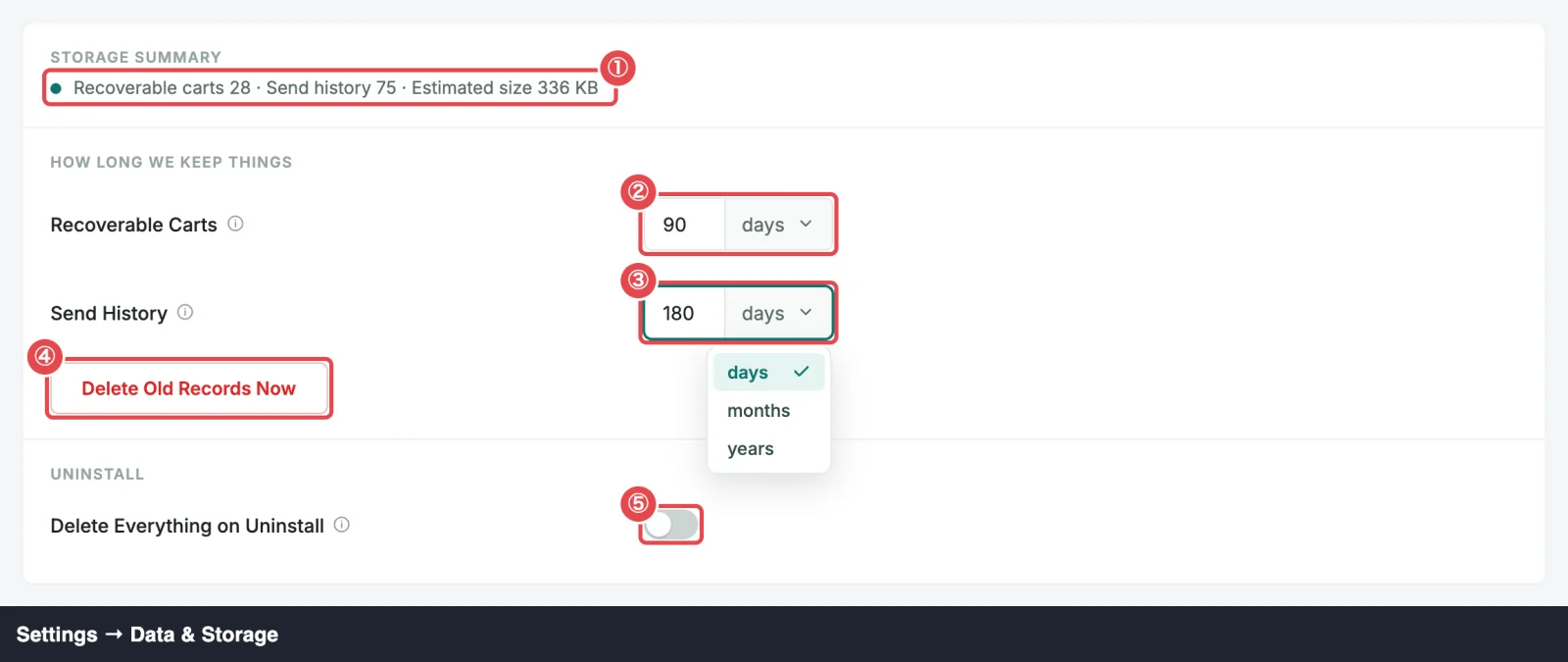
Storage Summary
One line, read each time you open the section:
Recoverable carts 1,204 · Send history 3,518 · Estimated size 4.2 MB
- Recoverable carts counts every cart ShapedRecover has stored, whatever its status, not only those shown as Recoverable.
- Send history counts every recovery email record: scheduled, sent, skipped or failed. Test emails are never stored.
- Estimated size is how much space ShapedRecover's database tables take, as your database reports it. Some hosts don't report it, and then it reads Unknown.
It shows Counting… while loading, and The summary could not be loaded. if something went wrong. Reload the page to try again.
How Long We Keep Things
| Setting | What it does | Default | Range / options |
|---|---|---|---|
| Recoverable Carts | How long finished carts are kept, with their contact details, for reporting after their emails end. After this, Lost and Ordered carts are deleted and Recovered carts are anonymised. | 90 days, or your Mark Cart as Lost After if that's longer | 1 to 3,650 days, 1 to 120 months, or 1 to 10 years |
| Send History | How long the record of recovery emails sent to finished carts is kept. | 180 days | 1 to 3,650 days, 1 to 120 months, or 1 to 10 years |
Pick the unit, days, months or years, from the menu beside each number. A few things to know before you save:
- Both periods count back from the cart's last activity, not from when it was captured or closed.
- Months and years are calendar months and years. One month before 31 March is the last day of February.
- Recoverable Carts can't be shorter than Mark Cart as Lost After. Otherwise a cart could be removed while it's still in recovery. A shorter value is refused with "Must be at least as long as Mark Cart as Lost After (30 days)." See Rules for Mark Cart as Lost After.
- Until you save Recoverable Carts yourself, its default follows your lost cutoff. Raise Mark Cart as Lost After to 120 days and Recoverable Carts reads 120 days too.
- A value outside the range stops the save with This value is not allowed.
For the privacy side of retention, see How long data is kept. To hand a shopper their data or remove it on request, use WordPress's own tools: see Export and Erase.
What the daily clear-out does
Every day, ShapedRecover's background job removes what's past your periods. It has no on/off switch, and it only touches finished carts: Recovered, Ordered or Lost.
| Cart | Past Recoverable Carts | Past Send History |
|---|---|---|
| Lost or Ordered | Deleted, with its recovery emails and recovery links | Its recovery emails are deleted; the cart stays |
| Recovered | Anonymised: email, name, account link, session and consent record are cleared. The status, dates, total, products and order link stay, so the sale stays in Recovered Sales and on the Dashboard. | Its recovery emails are deleted. The sale and its value stay, but Reports shows its campaign as Deleted campaign and the audit's recovery token goes blank. |
| Shopping or Recoverable, or any cart whose order is awaiting payment | Never removed, however old | Never removed |
The clear-out works in batches of 200 records and keeps going in the background until it's done, so a big backlog doesn't slow your site. It needs WordPress's scheduled tasks to run. See Background jobs.
Two things are never cleared by retention:
- The unsubscribe list, so an unsubscribed address is never emailed again. See Unsubscribe & Privacy.
- Generated coupons, which follow Coupon Cleanup instead.
Delete Old Records Now
The Delete Old Records Now button, under the two periods, runs the clear-out straight away with your saved periods. It's handy right after you shorten a period.
Save any change to the periods first. While either has unsaved changes, the button is disabled with Save your changes first.
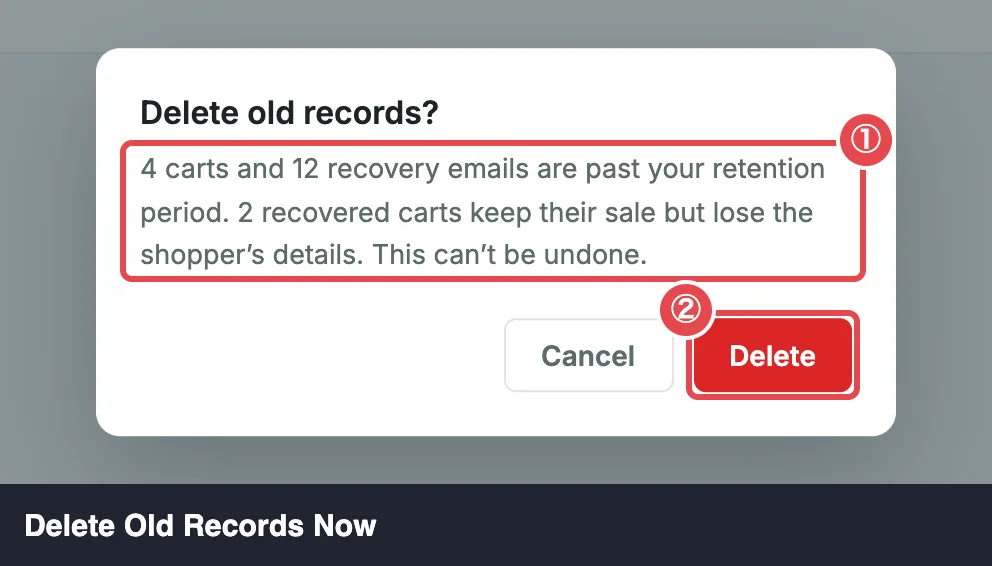
Click Delete Old Records Now. ShapedRecover counts what's affected and asks:
Delete old records? 3 carts and 5 recovery emails are past your retention period. 1 recovered cart keeps its sale but loses the shopper's details. This can't be undone.
The recovered-cart sentence only appears when a Recovered cart is affected.
Click Delete, or Cancel to leave everything.
The deleting runs for up to about 20 seconds. You'll see, for example, 8 old records deleted, and the Storage Summary updates. If there's more than fits in that time, the message adds The rest are being deleted in the background.
If nothing is past your periods, it says Nothing is past your retention period. under the button and asks nothing.
Uninstall
| Setting | What it does | Default | Range / options |
|---|---|---|---|
| Delete Everything on Uninstall | Removes all recovery data and settings when the plugin is deleted. Leave it off if you might reinstall. | Off | On, Off |
It only acts when you delete ShapedRecover from Plugins. Deactivating never removes anything.
With it on, deleting the plugin removes ShapedRecover's database tables (carts, campaigns, recovery emails, recovery links and the unsubscribe list), all its settings, its scheduled jobs, the consent saved on customer accounts, its attribution details on your orders (the orders themselves stay), and every coupon it generated, used or not. Codes in emails shoppers haven't opened yet stop working. Your own coupons, orders and customers are never touched.
With it off, deleting the plugin removes nothing, so a reinstall picks up exactly where you left off.
See Uninstalling & Data before you delete the plugin.
Where to go next
- Unsubscribe & Privacy: unsubscribing, and WordPress's personal data export and erase tools.
- Uninstalling & Data: what deactivating and deleting each do.
- General Settings: the lost cutoff that Recoverable Carts must cover.