

Test the Recovery Flow
Play the shopper: abandon a cart, get the email, click the link and watch the order get credited.
Test emails show you what a recovery email looks like. This guide goes further. You'll play the shopper, from typing an email at checkout to placing the order through the link, and watch each stage land in ShapedRecover the way a real cart would. It's for anyone who wants proof the whole loop works on their setup (their checkout, their mail and their caching) before trusting it with real customers.
Plan on about 30 minutes, most of it waiting for timers.
Use a staging or development site
Do this on a copy of your store, not the live one. You'll shorten timers that affect every cart, and place orders that land in your sales figures. Never use a real customer's cart or email address to test. If you only have a live site, at least use your own email address, put the settings back straight away, and cancel the test orders.
The full flow in 8 steps
- Prepare the test siteTracking on, mail you can read, a payment method that completes.
- Shorten the timersA 5-minute cutoff and a 5-minute campaign.
- Abandon a cart as a guestA private window, a test email, then close it.
- Find the cart in AbandonedRecoverable, with its email scheduled.
- Get the email and click the linkYour cart comes back at checkout.
- Place the orderThrough the link, and paid.
- See it creditedRecovered, in Reports, with an audit.
- Clean upRestore your settings and remove test data.
Why your admin account isn't tracked
If you try this logged in as yourself, nothing happens. That's on purpose: Disable Tracking For in Settings → General excludes Administrator and Shop Manager by default, so your own browsing never pollutes your data. Rather than changing that, you'll test as a logged-out guest in a private browser window. See User roles.
Test emails sent from a campaign don't help here either. They use a sample shopper and never create a cart, a click or an order. You need a real checkout.
1. Prepare the test site
- Tracking on. In Settings → General, check Abandoned Tracking is on.
- At least one campaign on. In Recovery Campaign, switch on the campaign you'll test, for example Checkout Abandoned – Soft Reminder. Use the 10% Discount Offer instead if you want to see a coupon apply itself.
- Mail you can read. Pick an email address you can check for the "shopper", and make sure the site can send to it. Many local and staging environments don't send real email at all; they catch it in a mail catcher (such as Mailpit or MailHog) built into the local tool. That's ideal: every email lands there, whatever address you typed. If the delivery check in Settings → Sending fails, see Set Up SMTP.
- A payment method that completes. For a credited sale, the order has to reach a paid status. In WooCommerce → Settings → Payments, enable Cash on delivery, which usually puts orders straight into Processing. A check or bank transfer payment works too, but leaves the order On hold until you mark it paid yourself.
- Scheduled jobs running. On a quiet test site nobody visits, so background jobs can run late. Keep an admin tab open and refresh it now and then, or set up a server cron job.
2. Shorten the timers
With the defaults, a cart counts as abandoned after 15 minutes and the first email waits another hour. For a test, shorten both. Write down the original values first.
- In Settings → General, set Mark Cart as Abandoned After to 5 minutes, the minimum, and click Save Changes.
- Open the campaign you're testing and set Send This Email After to 5 minutes, the minimum. The live sentence should read Sends 5 minutes after checkout is abandoned. Click Save Changes.
Do this before you abandon the test cart. A changed delay only applies to carts abandoned from then on. If saving is refused because another active campaign already sends at that time, switch the other one off for the test. See General Settings and Triggers & Timing.
Don't want to wait for the delay?
Once the cart shows as Recoverable (step 4), open it and click Send Now in its drawer. That sends the next email straight away, with a real recovery link. See Send Now.
3. Abandon a cart as a guest
- Open a private (incognito) browser window. You're logged out there, so you're a guest.
- Go to your store, add a product or two to the cart, and go to the checkout.
- Type a first name, then your test email address, so you can check the greeting later. On the classic checkout the name is saved together with the email, so a name typed after the email isn't picked up. Leave the consent box under the email ticked; it's ticked by default.
- Wait a couple of seconds. The cart is saved about a second after you stop typing.
- Close the private window without placing the order. That's your abandoned checkout.
4. Find the cart in Abandoned
Back in your normal, logged-in window, go to ShapedRecover → Abandoned.
- Straight away, the cart is listed as Shopping.
- After the 5-minute cutoff, plus up to 5 minutes for the background job that checks for abandoned carts, it becomes Recoverable.
Click View Details to open the Cart Drawer. The Recovery Progress timeline shows the email as Scheduled, with its send time.
Nothing listed at all? See the troubleshooting box below.
5. Get the email and click the link
About 5 minutes after the cart became Recoverable (again, give the background job up to 5 minutes more), the email arrives. The drawer's timeline now shows it as Sent.
- Open the email. Check the greeting uses your test name, the sender is right and the products are the ones you left.
- Open a new private window, and from it open the email's link. (If your mail catcher runs in the browser, copy the link from it and paste it into the private window. Opening it in your logged-in window would put the cart into your admin session instead.)
- You land on the checkout, with the cart rebuilt and your email and name filled in. If the email carried a coupon with Auto Apply Coupon on, the discount is already in the totals.
In the drawer, a Clicked event, Shopper returned to cart, appears in the timeline.
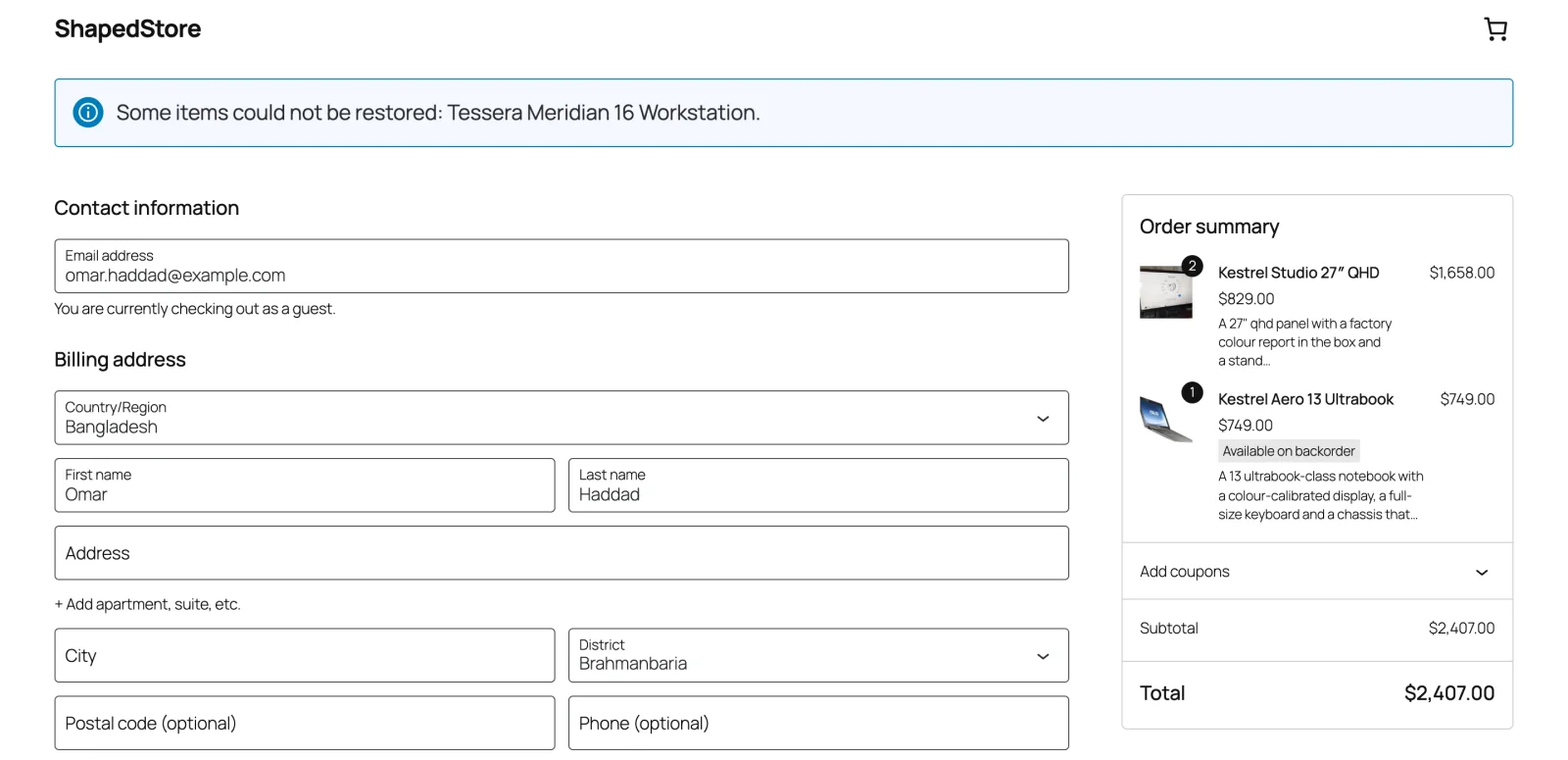
Landed on your home page with an empty cart instead? Something between the email and WordPress removed the link's code, usually a cache or CDN. See Page Caching.
6. Place the order
In the same private window, fill in the address and place the order with Cash on delivery. The order must be placed in the same browsing session that opened the link; that's how ShapedRecover knows the email brought you back.
If you used a check or bank transfer payment instead, the order is On hold. Open it in WooCommerce → Orders and change its status to Processing. Until then the cart's Recovery Stage reads Order #… · awaiting payment.
7. See it credited
Within moments of the order being paid:
- In Abandoned, the cart's status is Recovered. Its drawer timeline ends with Order #… placed, Recovered.
- In Reports → Recovered Sales, the order appears with Matched by: Token and the campaign under Message.
- Click View Audit on that row for the evidence: the source cart, the email that carried the link, the shortened token and the 14-day window. See Attribution & Audit.
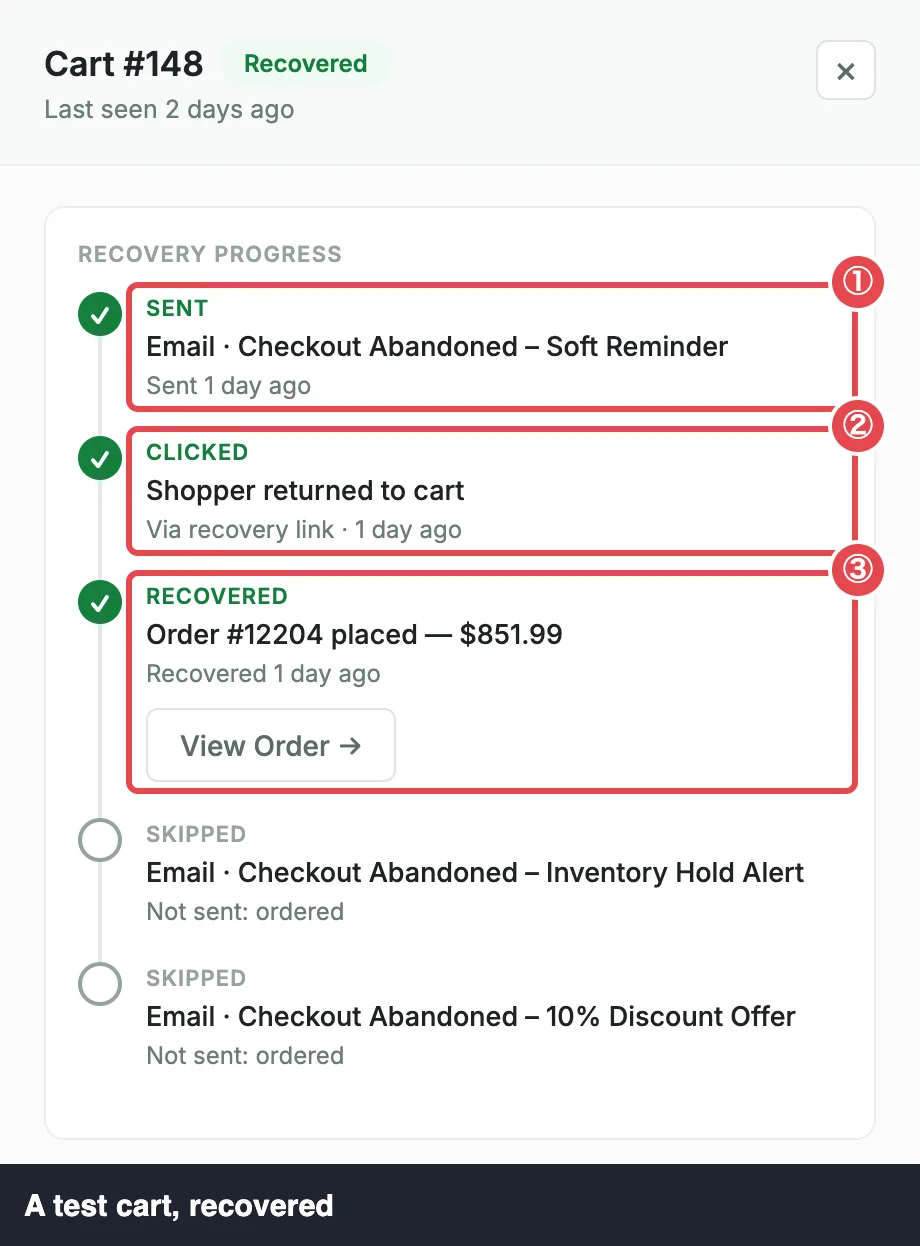 ① Sent · ② Clicked · ③ Recovered
That's the whole loop working: capture, abandonment, email, link, restore and credit.
Also test the "Ordered" path
It's worth seeing the other ending too: a shopper who comes back on their own, without the link.
- Close every private window, then open a fresh one.
- Fill a cart and type a different test email address at checkout, as in step 3. This time, leave the window open and don't touch it.
- Wait until the cart shows as Recoverable in Abandoned.
- Back in the private window, reload the checkout yourself, without clicking any email link, and place the order.
The cart closes as Ordered: any remaining emails stop, but the sale is not credited, and it doesn't appear in Recovered Sales. That's ShapedRecover refusing to take credit for a sale it can't prove. See Recovered vs Ordered.
8. Clean up
- Put the timers back. Restore Mark Cart as Abandoned After (15 minutes by default) and the campaign's Send This Email After to the values you wrote down. Switch back on any campaign you turned off for the test.
- Take back the credit. A recovered test cart can't be deleted, because it backs a sale in your reports. In WooCommerce → Orders, change the test order's status to Cancelled. The cart moves to Ordered and drops out of your recovered figures.
- Delete the test carts. In Abandoned, select them and choose Delete from the bulk bar. See Bulk Actions.
- Tidy WooCommerce. Trash the cancelled test orders. If you tested a coupon, its generated code is deleted at the next cleanup run after it expires, or 7 days after it's used.
Troubleshooting
The cart never appears in Abandoned
- You were logged in. Use a private window, logged out.
- The consent box was unticked. Nothing is stored without it.
- Abandoned Tracking is off in Settings → General.
- The address is on your Never Track list (Pro).
- You chose Stop Tracking on an earlier cart from this same private window in the last 2 days. Stop Tracking blocks that browser session, so close the window and open a fresh one.
The cart stays Shopping, or the email never sends
Background jobs aren't running. On a test site with no visitors, refresh an admin page to nudge them, and check WooCommerce → Status → Scheduled Actions for shaped_recover. See Set Up SMTP.
If the timeline shows the email as Failed, or the drawer's Send Now reports an error, your site can't send email. See Set Up SMTP.
The order isn't credited
- The order was placed in a different browser or window from the one that opened the link.
- You opened the link in your logged-in admin window, then ordered from the private window.
If the cart's Recovery Stage reads Order #… · awaiting payment, it isn't Ordered: the order just isn't paid yet. Mark it Processing or Completed. See Attribution & Audit.
Where to go next
- Page Caching: if the link didn't bring the cart back.
- How Recovery Works: the same flow, explained.
- Cart Statuses: every way a cart can move.