

Carts Table
Find, filter and act on every cart ShapedRecover is tracking, and see at a glance where each one is in its recovery.
ShapedRecover → Abandoned is where captured carts show up. Despite the tab's name, it lists every cart ShapedRecover has captured, whatever its status. That includes carts whose shopper is still browsing, carts waiting for their next email, and carts that already ended as recovered, ordered or lost. The filter narrows it down to the ones you care about right now.
A cart lands here the moment it's captured: once the shopper has typed a valid email at checkout and kept the consent box ticked. See How Recovery Works if you're not sure why a shopper isn't listed.
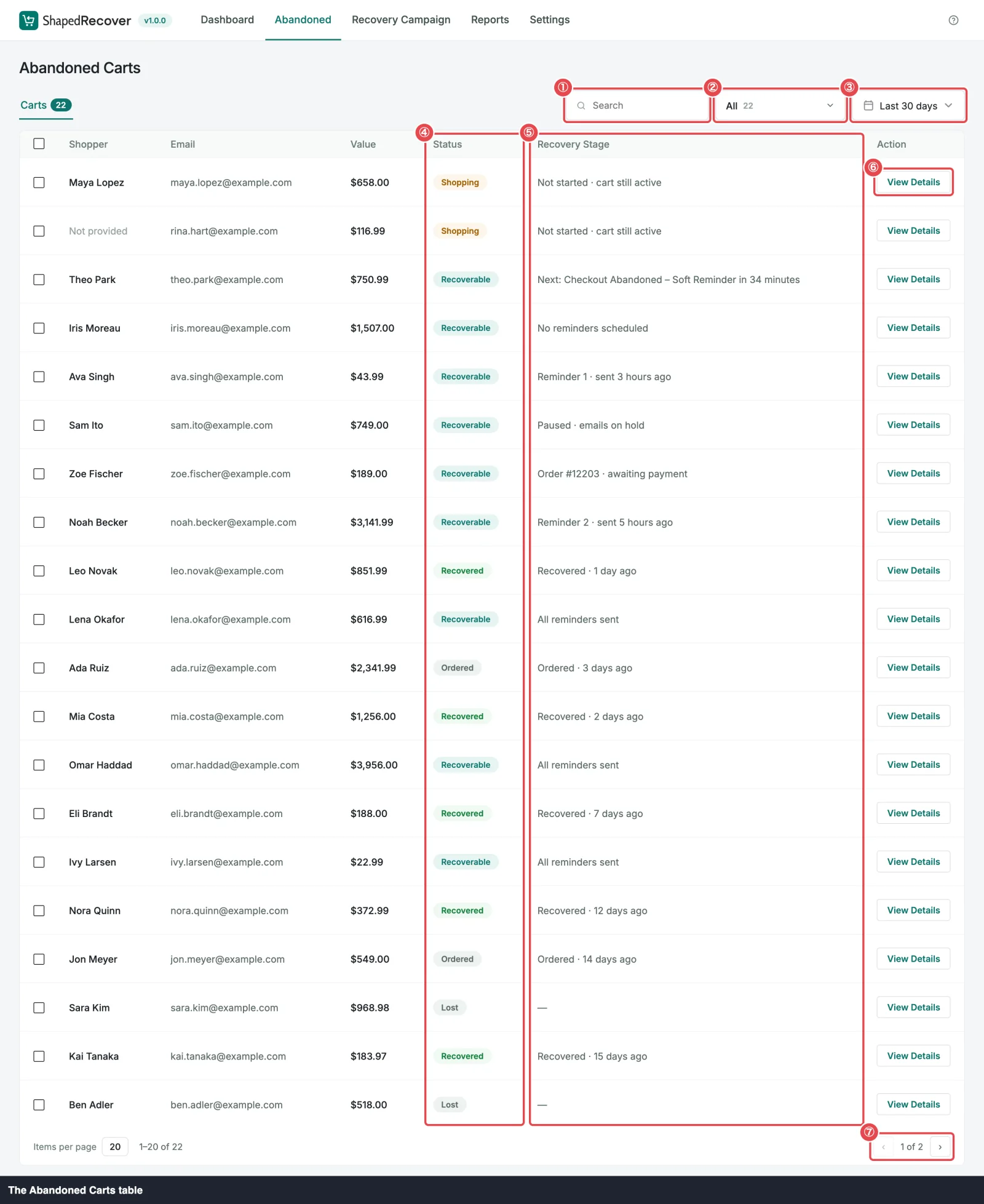 ① Search · ② Status filter · ③ Date range · ④ Status · ⑤ Recovery Stage · ⑥ View Details · ⑦ Pagination
The columns
| Column | What it shows |
|---|---|
| (checkbox) | Selects the cart for a bulk action. The checkbox in the header selects every cart on the page. |
| Shopper | The first and last name the shopper typed. If they didn't type one, you'll see a muted Not provided. Click the name to open the cart. |
| The address the cart was captured with. Every cart has one, since an email is what starts tracking. | |
| Value | The cart's total as last captured, in the cart's own currency. |
| Status | The cart's status as a coloured badge: Recoverable, Shopping, Recovered, Ordered (grey) or Lost. |
| Recovery Stage | One line on where the cart is in its email sequence. See Recovery Stage below. |
| Action | View Details opens the cart drawer, with the cart's full timeline, the shopper's details and what was in the cart. |
Recoverable is how the table labels the Abandoned status: a cart with no order and no activity for the abandonment cutoff, so recovery emails can go to it. The cutoff is Mark Cart as Abandoned After, 15 minutes by default. The statuses table explains all five, and Cart Statuses covers what moves a cart from one to another.
Recovery Stage
The Status column tells you what a cart is. The Recovery Stage tells you what happens next: which email is coming and when, how many have gone out, or why nothing is scheduled. It's the quickest way to spot a cart that needs your attention.
ShapedRecover checks these from top to bottom and shows the first line that fits:
| You see | When |
|---|---|
| Order #1234 · awaiting payment | The shopper placed an order through the recovery link, but it isn't paid yet (a bank transfer on hold, for example). The cart stays open until the order is paid. |
| Not started · cart still active | The cart is Shopping: the shopper is still active, so no email is due yet. |
| Paused · emails on hold | You paused this cart's emails. It's still Recoverable, but nothing sends until you resume it. |
| All reminders sent | At least one email has gone out, and none is left to send. |
| Reminder 2 · sent 1 day ago | At least one email has been sent. The number counts the emails sent so far; the time is when the latest one went. |
| Next: Soft Reminder in 40 minutes | Nothing has been sent yet, and this campaign's email is next. Once its time arrives it reads Next: Soft Reminder due now until the background job sends it. |
| No reminders scheduled | The cart is Recoverable, but nothing has been sent and nothing is scheduled. Usually no active campaign matched its trigger when it was abandoned. |
| Recovered · 2 hours ago | The cart was recovered, this long ago. |
| Ordered · 3 days ago | The cart closed as Ordered, this long ago: usually the shopper ordered without the recovery link. It also shows when an order through the link failed or was cancelled before payment, or when a recovered order was later fully refunded, cancelled or failed; then the time is when that happened. |
| — | The cart is Lost. |
Only emails that were actually sent count as reminders. An email that was skipped (because the shopper unsubscribed, say) or that failed isn't counted. The drawer's timeline shows every one of them with its reason.
If a campaign has been deleted since it was scheduled, its name shows as Deleted campaign.
"No reminders scheduled" on lots of carts?
That usually means no campaign was switched on when those carts were abandoned. Switching a campaign on schedules it for carts that are already Recoverable, as long as its send time is still ahead. See Campaign List.
Times such as "in 40 minutes" and "2 hours ago" keep moving while the tab is open, so you don't need to reload to see them change.
Filter by status
The status filter sits in the toolbar above the table. Its options are All, Recoverable, Shopping, Recovered, Ordered and Lost, and each one shows how many carts it holds for the current date range.
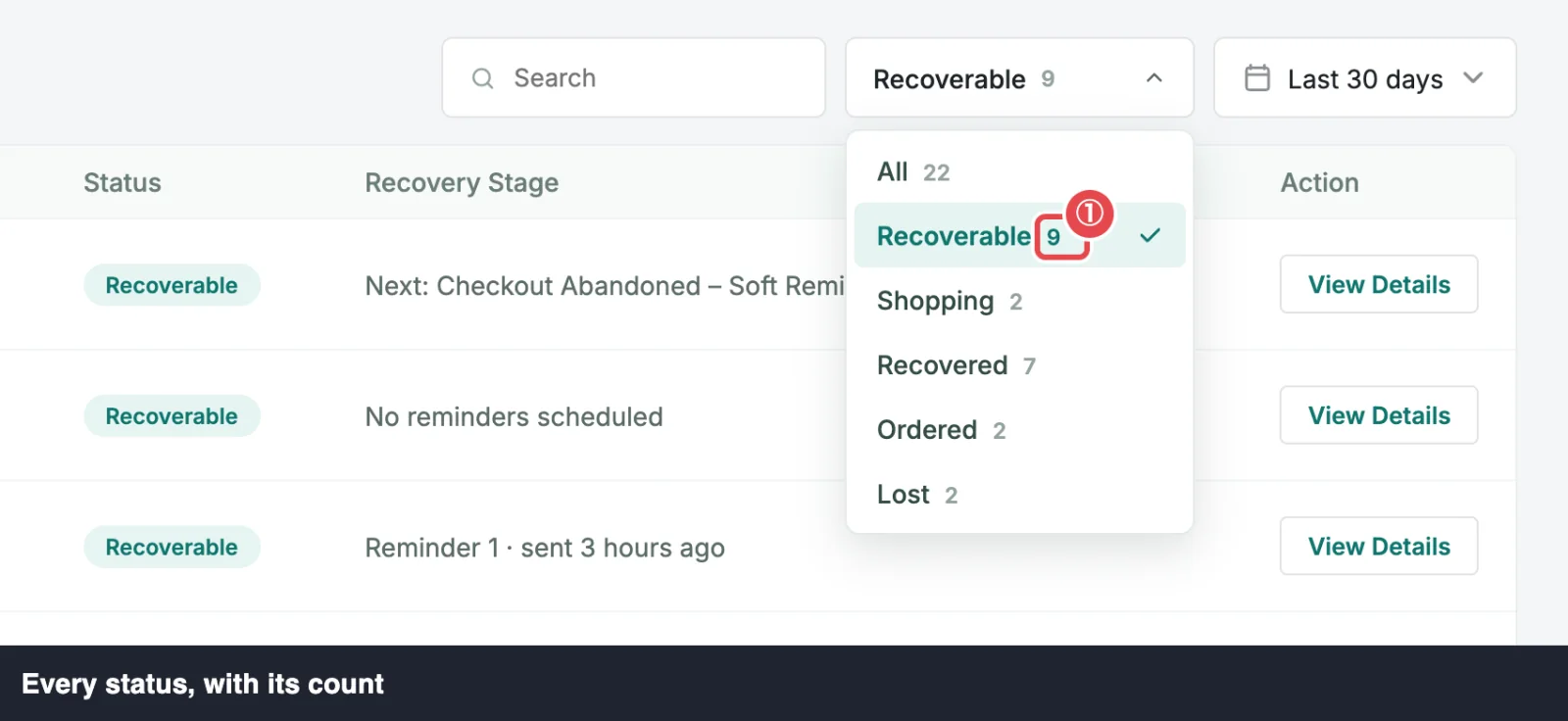
The counts describe the date range only, not your search. So if you search for one shopper, the filter still tells you how many Recoverable carts the whole range holds. The Carts tab label above the table shows the total for the range too.
Picking a filter takes you back to page 1.
Search
Type in the Search field to find carts by the shopper's name or email address. It matches any part of either, and ignores case: searching olivia finds "Olivia Park" and OLIVIA@example.com alike. The table updates as you type.
Search works inside the date range and status filter you've chosen. If a shopper you're sure exists doesn't show up, set the filter to All and widen the date range.
Sort
Out of the box, carts are sorted by last activity, newest first, so the carts that changed most recently are at the top.
Click the Shopper, Value or Status header to sort by that column instead. The first click sorts ascending, the next one descending, and an arrow beside the header shows which way. A few details:
- Shopper sorts by last name, then first name, then email.
- Status sorts in the order Shopping, Recoverable, Recovered, Ordered, Lost (or the reverse).
- The Email, Recovery Stage and Action columns don't sort.
To go back to the newest-first order, leave the tab and come back, or reload the page.
Date range
The date range picker shows carts whose last activity falls in the range. Activity is any change to the cart or the shopper's email, so a cart abandoned five weeks ago that the shopper came back to yesterday counts as yesterday's.
Click the picker to choose Today, Last 7 days, Last 30 days (the default), Last 90 days or This month. For your own dates, click a start and an end day on the calendar, then Apply.
The range is shared with the Dashboard and Reports tabs: change it in one place and the others follow. It's saved on your user account, so it's the same in every browser you use, and other admins keep their own. A preset moves with the calendar ("Last 7 days" is always the last 7 days); custom dates stay fixed.
Why is a cart missing?
The most common reason is the date range. A cart whose last activity was 40 days ago doesn't appear under Last 30 days, and isn't in any of the filter's counts either. Widen the range to Last 90 days, or pick custom dates.
Pages
The table shows 20 carts per page. Under the table you'll see which rows you're looking at (for example 21–40 of 57), the page you're on (2 of 3) and the ‹ and › buttons to move between pages. The page size is fixed at 20.
Selecting carts
Tick a cart's checkbox, or the header checkbox to select every cart on the page, and the bulk bar appears above the table with the actions those carts support. Bulk Actions explains each one.
A selection covers the current page only. Changing the filter, the search, the date range or the page clears it, so you never act on a cart you can no longer see.
When the table is empty
- No abandoned carts yet — they appear here once shoppers leave items behind. Nothing has been captured on this site so far. Check that Abandoned Tracking is on: it ships switched off. See Quick Start.
- No carts match these filters. Carts exist, but none fit the current status filter, search and date range. Clear the search, pick All, or widen the range.
- Carts could not be loaded. Reload the page to try again. The list didn't load from your site. Reloading usually fixes it. If it keeps happening, see Troubleshooting.
Where to go next
- Cart Drawer: open one cart to see its full timeline and act on it.
- Bulk Actions: send, pause, restart or delete many carts at once.
- Cart Statuses: what moves a cart from one status to another.
- Dashboard Overview: the same carts, as totals and trends.