

Test Email
Send yourself a test before a campaign goes live, and know what in it is real and what is sample data.
The editor's preview is accurate, but it's still worth seeing the email in a real inbox: how your mail provider shows the sender, whether the subject gets cut off on a phone, how Gmail or Outlook draws the layout. A test email takes ten seconds.
Send a test
You can send one from two places:
- In the editor: click Send Test Email in the header. This sends what's on screen right now, including unsaved changes, so you can try a new subject before saving it.
- From the list: open a campaign's ⋮ menu and choose Send test. This sends the campaign as saved.
Either way, a small box opens:
- Send Test Email to is filled in with your own WordPress account's email. Change it to any single address, such as a Gmail account you check on your phone.
- Click Send Test Email.
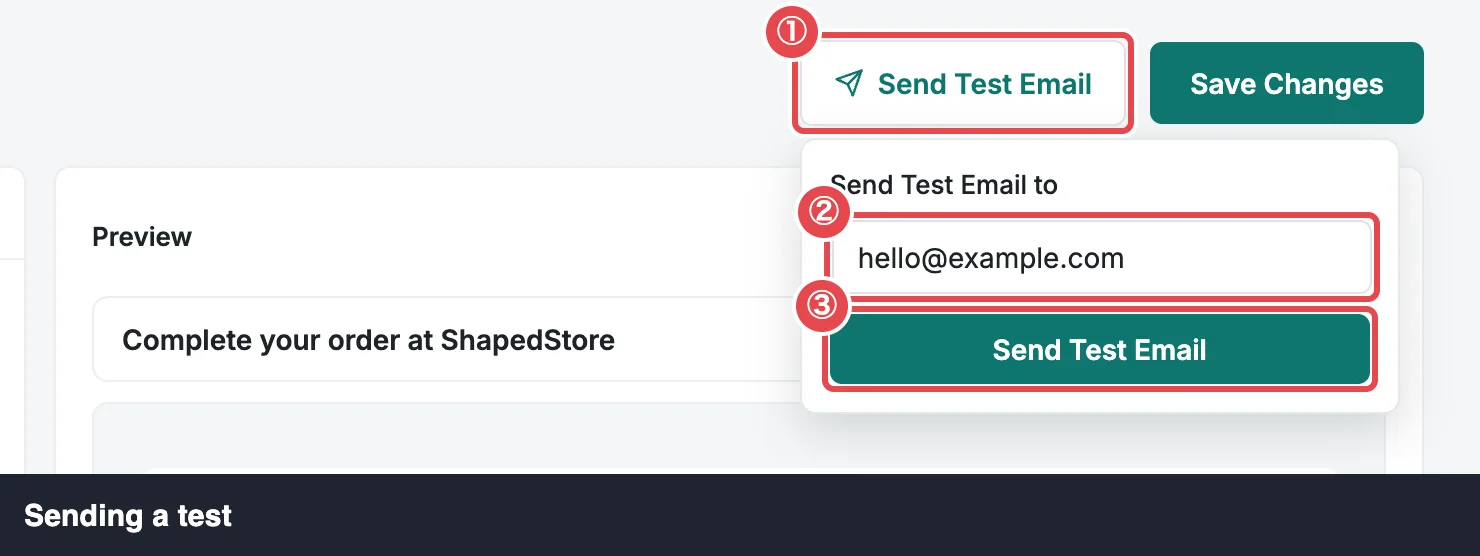
When WordPress accepts the email, you'll see Test email sent to your address. Check your spam folder if it doesn't arrive within a minute or two.
If the test fails
If WordPress can't send the email, the box stays open and shows the real error from your mail system, or WordPress could not send the email. when it gives no detail. ShapedRecover never shows a fake success.
A failed test almost always means your site can't send email reliably at all, which would stop your real recovery emails too. Set Up SMTP fixes this on most sites, and Requirements explains why it matters.
"Sent" isn't "delivered"
The success message means WordPress handed the email to your mail system. If it never reaches your inbox, the problem is further along: your host or mail service. Again, Set Up SMTP is the usual fix.
The sample shopper
A test isn't sent about a real cart. Every merge tag (a placeholder like the shopper's first name) is filled in from the same made-up shopper the preview uses:
| Detail | Sample value |
|---|---|
| Name | Rina Patel |
| rina@example.com | |
| Cart | Trail Runner v2 and Yoga Mat Pro, one of each |
| Total | 182.00 in your store's currency |
| Abandoned | An hour ago |
The two products aren't in your store, so the product table shows WooCommerce's placeholder image for them.
What's real and what's sample
The test is built exactly like a real recovery email. Only the data differs, plus anything that would affect a real customer.
| In the test | Real or sample? |
|---|---|
| Subject, preheader, body, layout | Real: your campaign as it stands, the same rendering a shopper gets |
| Email Options: product table style, WooCommerce styling | Real |
| From name and address, Reply-To | Real: from Sending Settings |
| Plain-text version for text-only mail apps | Real |
| Shopper, cart, total | Sample: Rina's cart, above |
| Recovery link ("Customer's cart") | Works but restores nothing: it opens your home page |
| Unsubscribe link | Works but unsubscribes no one: it opens your home page |
| Coupon | Sample: see below |
| Send a Copy to Admin | Not sent: a test goes only to the address you typed |
Because the links don't do anything real, sending yourself tests never adds clicks, carts or unsubscribes to your data.
Coupons in tests
If the campaign has Create a Coupon switched on, the test shows a coupon so you can see the full email, but no coupon is created in WooCommerce:
- For a generated coupon, the test shows a sample code in your coupon format, with the campaign's discount and expiry.
- For an existing coupon you picked, it shows that coupon's real code and values.
So there's nothing to clean up after testing. In real sends, each shopper gets their own coupon, created at the moment their email sends. See Coupons in Emails.
It completes setup step 4
The first test email that sends successfully ticks off Send a Test Email, the last step of the Dashboard's setup checklist. Any campaign counts. See Quick Start.
Where to go next
- Test the Recovery Flow: go further and abandon a real cart to get a real email.
- Email Editor: adjust what you saw.
- Set Up SMTP: if the test didn't arrive.