

Coupon Settings
Code format, Pro restrictions and the coupon cleanup schedule.
Settings → Coupons sets the store-wide rules for the coupons ShapedRecover generates for campaigns: what the codes look like, how they combine with your other discounts, and when used ones are tidied away. Whether a campaign carries a coupon at all, and how big the discount is, is set in the campaign. See Coupons in Emails.
These settings only affect generated coupons. An existing coupon you pick for a campaign keeps its own code and rules, and cleanup never touches it.
Coupon Codes
| Setting | What it does | Default | Range / options |
|---|---|---|---|
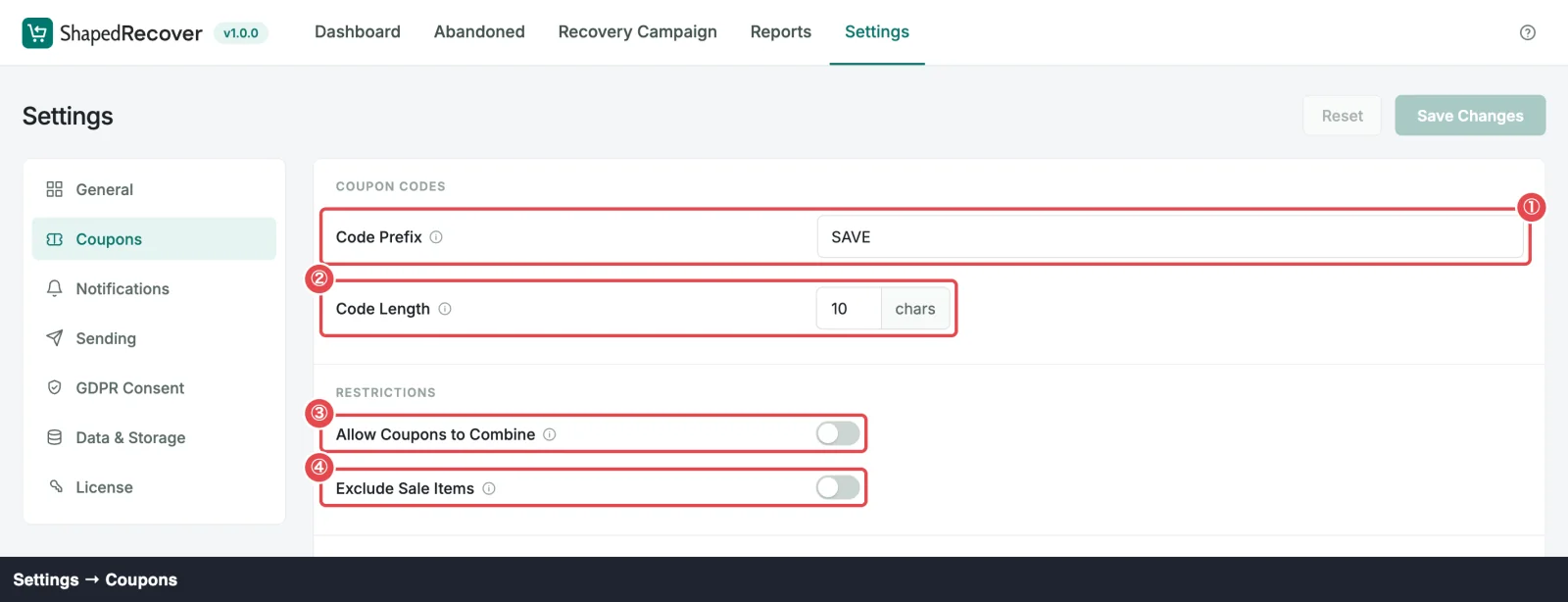
| Code Prefix | Letters and digits at the start of every generated code, so ShapedRecover's coupons are easy to spot in your coupon list. It's always used in capitals. Leave it empty for fully random codes. See Code format. | SAVE | Letters and digits only, up to 10 |
| Code Length | The whole code's length, prefix included. Longer codes are harder to guess. | 10 chars | 6 to 20 characters, and at least 4 more than the prefix |
With the defaults, codes look like SAVE7HKQ2M. Changes apply to codes generated from then on. Coupons already sent keep their codes.
A save can be refused with:
- Use letters and digits only, up to 10. The prefix has spaces, dashes or other symbols, or is longer than 10 characters.
- Make the code at least 4 characters longer than the prefix. The length leaves fewer than 4 random characters. With a 10-character prefix, the length must be at least 14.
Restrictions
Pro
Allow Coupons to Combine and Exclude Sale Items are part of ShapedRecover Pro. Without Pro, both show locked with a Pro badge, and generated coupons behave as if both were off: they can't be combined with other coupons, and they do apply to sale items. Choices you saved with Pro are kept for when it's active again.
| Setting | What it does | Default | Range / options |
|---|---|---|---|
| Allow Coupons to Combine | When off, a recovery coupon can't be used alongside other coupons (WooCommerce's Individual use only). Turn it on to let shoppers stack it with your other codes. See Restrictions. | Off | On, Off |
| Exclude Sale Items | Stops the recovery discount stacking on products that are already reduced. | Off | On, Off |
Restrictions are written into each coupon when it's created, so a change affects new coupons only. To keep particular products out of one campaign's discount, use that campaign's Exclude Products.

Coupon Cleanup
| Setting | What it does | Default | Range / options |
|---|---|---|---|
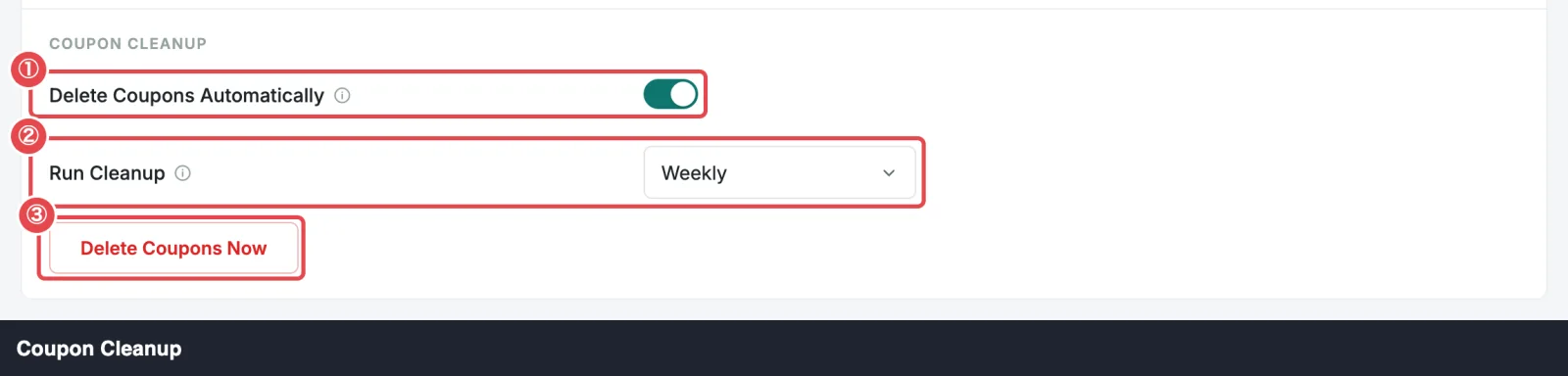
| Delete Coupons Automatically | Removes used and expired recovery coupons on a schedule so your coupon list stays clean. See What gets deleted. | On | On, Off |
| Run Cleanup | How often the automatic cleanup runs. Only shown while Delete Coupons Automatically is on. See Automatic cleanup. | Weekly | Daily, Weekly, Monthly (every 30 days) |
Cleanup deletes generated coupons that have expired, or were used more than 7 days ago. Why wait 7 days?
Delete Coupons Now
The Delete Coupons Now button at the bottom of the panel runs the same cleanup straight away. It works whether automatic cleanup is on or off.
- Click Delete Coupons Now. ShapedRecover counts the coupons that qualify.
- Confirm in the Delete coupons? dialog, which shows the count: "Delete 5 used and expired coupons? This cannot be undone."
- Click Delete. Large numbers are deleted in batches until none are left, then you'll see Used and expired coupons deleted.
If nothing qualifies, it says No used or expired coupons to delete. under the button and asks nothing. See Delete Coupons Now.
Where to go next
- Codes & Restrictions: how codes are built and why the restrictions matter.
- Coupon Cleanup: what cleanup deletes and when.
- Coupons in Emails: add a coupon to a campaign.