

Templates
Start a campaign from one of the ready-made emails, or from a blank page.
You don't have to write a recovery email from nothing. ShapedRecover ships three ready-made emails as templates: a gentle reminder, an urgency nudge and a discount. They're also installed as your first three campaigns, switched off, so you can review them and turn them on.
The template gallery
Click Create New Campaign in the Campaign List. The Start a Recovery Campaign window opens.
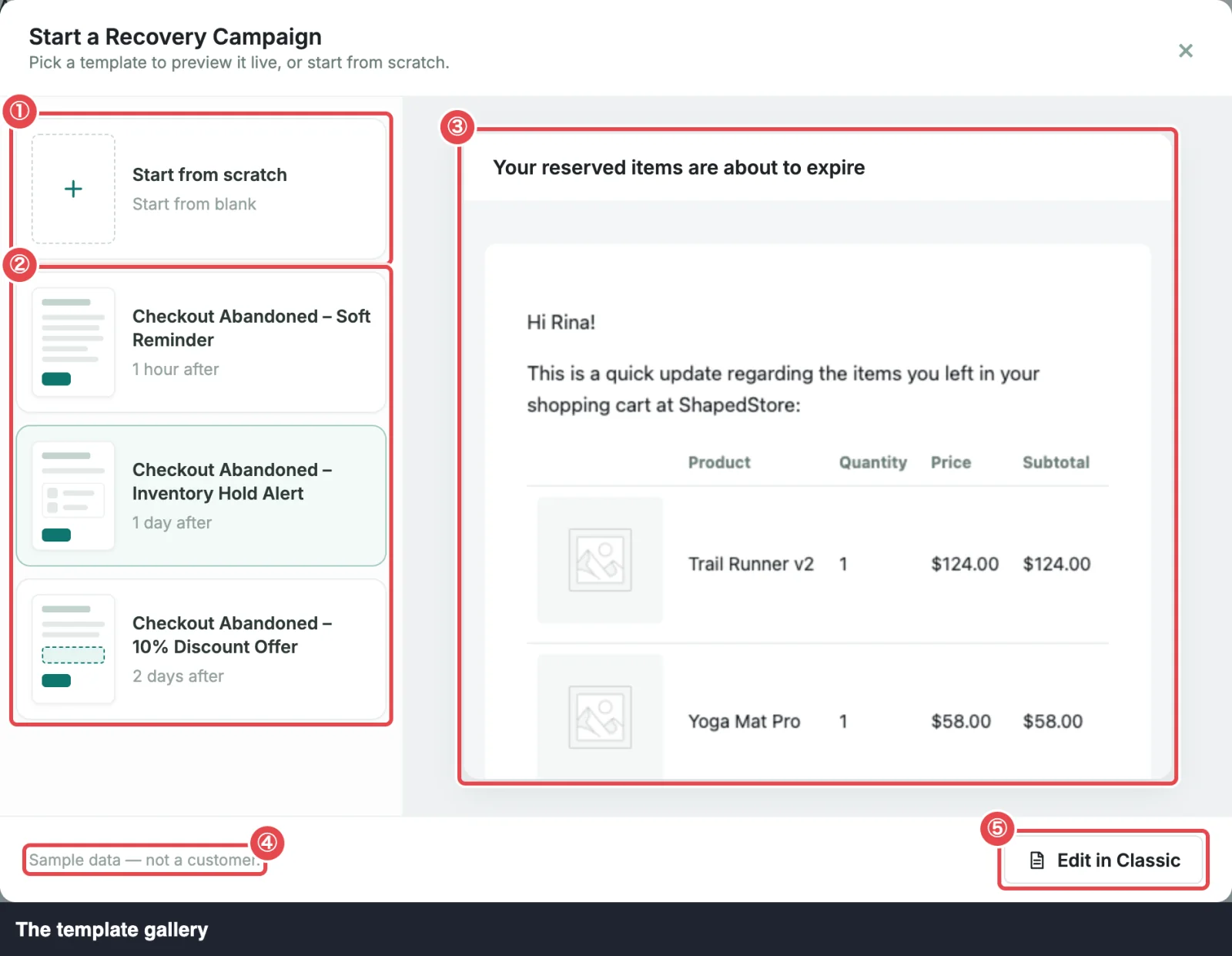
- Pick a template on the left. Each card shows its name and when it sends, like 1 day after. The Soft Reminder is selected when the window opens.
- Read the live preview on the right. It's the real email, rendered with a sample shopper and cart, so you see exactly what a customer would get. The note Sample data — not a customer. is a reminder that the name and products are made up.
- Click Edit in Classic to open your pick in the Email Editor.
The editor opens a new, unsaved campaign with the template's content. Change whatever you like, then Save Changes. The new campaign is saved switched off; turn it on from the list when you're ready. Starting from a template never changes the starter campaign of the same name.
Start from scratch
Start from scratch (Start from blank) is the first card. It opens the editor with:
- no name, subject or body text, just the Unsubscribe block, which every email carries;
- the Checkout abandoned trigger;
- a delay of 1 hour.
Change the trigger and delay before you switch it on. Another active campaign may already send at 1 hour; see Triggers & Timing.
The three starters
All three use the Checkout abandoned trigger. That covers every guest and anyone who reached your checkout, which is most abandoned carts. Their full names start with "Checkout Abandoned –".
| Campaign | Sends after | Subject | Extras |
|---|---|---|---|
| Checkout Abandoned – Soft Reminder | 1 hour | Complete your order at {{store.name}} | None |
| Checkout Abandoned – Inventory Hold Alert | 1 day | Your reserved items are about to expire | Product table |
| Checkout Abandoned – 10% Discount Offer | 2 days | Exclusive 10% coupon for your {{store.name}} cart | Personal coupon: 10% off, expires after 1 day, applied automatically |
{{store.name}} is a merge tag: a placeholder ShapedRecover replaces with real details when the email sends, here your store's name. Each starter opens with "Hi {{customer.first_name|there}}!", which greets the shopper by first name, or says "Hi there!" when there's no name. See Merge Tags.
Switched on together, they make a classic sequence: a reminder, then urgency, then a discount.
Soft Reminder
A short, friendly note an hour after the cart is abandoned (about an hour and a quarter after the shopper left, with the default 15-minute cutoff). It mentions they didn't quite finish checking out, invites them to reply if something went wrong, and links back to their cart with Continue Your Purchase Now. It's signed with your From Name.
Inventory Hold Alert
A day later, a nudge that their items can't be held much longer. It includes a product table of everything in the cart, with image, name, quantity, price and subtotal, and a Claim Your Saved Items Now link. The table's look is set by Modify Product Data, which this starter has switched on.
10% Discount Offer
Two days in, the shopper gets a personal 10% coupon. The email names the products they left, shows their code, and says the offer expires in 24 hours; the coupon is set to expire after 1 day to match. Complete Your Purchase Now >> takes them back with the coupon already applied.
The coupon is created for that one shopper at the moment the email sends. Coupons in Emails explains how the coupon works and how to change it.
Starters are seeded switched off
ShapedRecover adds the three starters to your list the first time it's activated, all off, so nothing goes out until you've read them and decided. Reactivating or updating the plugin never adds duplicates.
A deleted starter stays deleted
Each starter is created once per site. If you delete one, ShapedRecover respects that and never puts it back, whether you deactivate, reactivate or update.
Want it again later? The gallery always has all three templates. Pick it there and save it as a new campaign.
Where to go next
- Email Editor: change the wording and layout.
- Triggers & Timing: change when a campaign sends.
- Your First Campaign: put the starters live, step by step.
- Build a Discount Sequence: plan a reminder-then-discount series.