

Campaign List
Your recovery emails in one list: switch them on and off, and see when each one sends.
A campaign is one recovery email: what it says, which abandoned carts it's for (its trigger), and how long after abandonment it goes out (its delay). Open ShapedRecover → Recovery Campaign and you'll see every campaign you have, in the order a shopper would receive them.
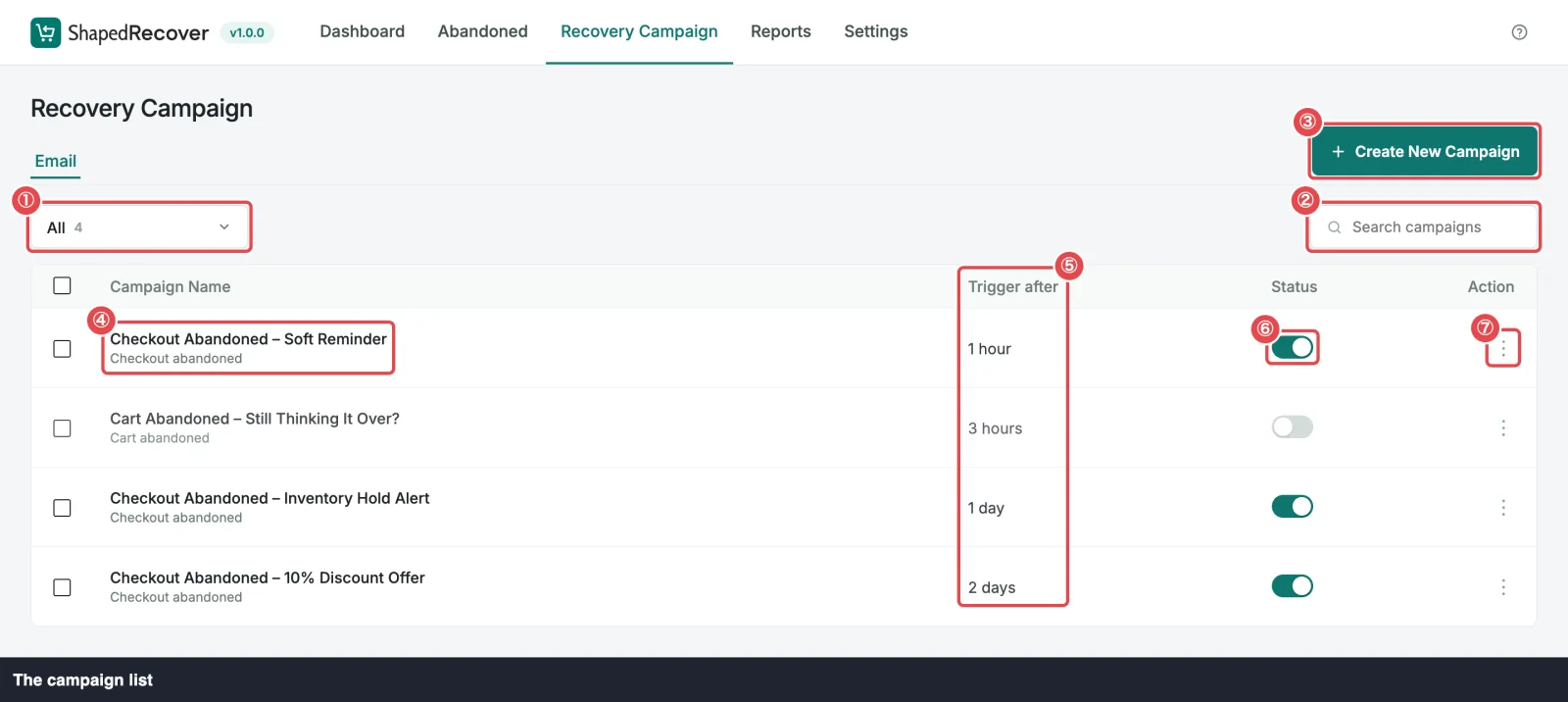
What's on the list
Each row is one campaign:
| Column | What it shows |
|---|---|
| Checkbox | Selects the row for bulk delete. |
| Campaign Name | The name you gave it. Click it to open the Email Editor. Under the name, a small line lists its triggers, such as Checkout abandoned. |
| Trigger after | Its delay: how long after a cart is abandoned it sends, like 1 hour or 2 days. |
| Status | The on/off toggle. |
| Action | The ⋮ menu: Edit, Duplicate, Send test, Delete. |
Rows are listed in send order: shortest delay first. Campaigns with the same delay keep the order you created them in. So the list reads like the sequence a cart gets.
A fresh install has three starter campaigns, all switched off. Nothing sends until you turn at least one on. Templates describes them.
All switched off?
While every campaign is off, a note above the list reads No messages are active — nothing will send until you turn one on. Carts are still captured; they just don't get emails.
Find a campaign
- Filter by trigger. The filter menu offers All, Cart abandoned and Checkout abandoned, each with a count. A campaign set to both triggers counts under both.
- Search. Type in Search campaigns to narrow the list by name.
If nothing matches, the table says No campaigns match this filter. Clear the search or pick All to see everything again.
Switch a campaign on or off
Use the toggle in the Status column. It takes effect straight away; there's nothing to save.
- Switching on makes the campaign part of every matching cart's sequence. That includes carts that are already abandoned, as long as their send time is still ahead. See Carts already waiting.
- Switching off stops its future emails. Any email it had scheduled is skipped when its time comes, and the timeline in the Cart Drawer shows it as Not sent: campaign off. Emails it already sent aren't affected, and the cart's later campaigns still send.
Switching off and on again never sends a cart a second copy of the same email. Each campaign emails a cart once at most.
Why a campaign won't switch on
Two rules can stop the toggle. When one does, the toggle stays off and a red message appears under it.
Another campaign already sends at that time. Two active campaigns for the same trigger can't share a delay, or the shopper would get two emails at once:
Another active campaign for Checkout abandoned already sends at 1 hour.
Change one campaign's delay in the editor, or switch the other one off. Delays are compared as real time, so 24 hours and 1 day count as the same. See Triggers & Timing.
The cart would be lost before the email sends. A cart becomes Lost after Mark Cart as Lost After (30 days by default), and a Lost cart gets no more emails. A campaign has to send at least a day before that:
This campaign sends at 30 days, after carts are marked lost. Increase "Mark Cart as Lost After" to at least 31 days to turn it on.
Raise the cutoff in General Settings, or shorten the delay. See Triggers & Timing.
Carts already waiting
Switching a campaign on doesn't only affect future carts. ShapedRecover also schedules it for carts that are already abandoned right now, as if the campaign had been on all along, provided the email's send time hasn't passed yet.
When that happens, a message confirms it:
Also scheduled for 3 carts already abandoned.
No message means no waiting cart needed it, which is normal on a quiet store or when every waiting cart is past that send time. ShapedRecover never sends a burst of overdue emails just because you switched a campaign on. The full rules are in Triggers & Timing.
The ⋮ menu
Click ⋮ at the end of a row:
| Action | What it does |
|---|---|
| Edit | Opens the campaign in the Email Editor. Same as clicking its name. |
| Duplicate | Makes a copy named "{name} (copy)", switched off, with the same content, timing and options. Handy for trying a variation. |
| Send test | Opens the Send Test Email to box right there, so you can test the saved campaign without opening it. See Test Email. |
| Delete | Asks Delete 1 campaign? This cannot be undone., then deletes it. |
Deleting campaigns
Deleting a campaign also removes the emails it had scheduled. Emails it already sent stay in each cart's history, labelled Deleted campaign.
To delete several at once, tick their checkboxes. A bar shows how many are selected, with Delete and Clear. Changing the filter or search clears the selection, so you never delete rows you can't see.
Deleted starters don't come back
If you delete one of the three starter campaigns, ShapedRecover never re-creates it, not even after reactivating or updating the plugin. You can still start a fresh copy from the template gallery any time. See Templates.
Create a new campaign
Click Create New Campaign at the top right. It opens the Start a Recovery Campaign gallery, where you start from a blank email or one of the ready-made templates. See Templates.
With no campaigns at all, the list shows No campaigns yet, with the same button. Without a campaign, abandoned carts don't get any recovery emails.
Where to go next
- Templates: what the starters say and how to start a new campaign.
- Email Editor: write and preview a campaign.
- Triggers & Timing: how a cart's sequence is built.
- Your First Campaign: a guided walkthrough.