

Notification Settings
Get an email digest of recovered sales and abandoned carts, on a schedule you choose.
Settings → Notifications emails you and your staff a short summary, called a digest, of what ShapedRecover has been doing: which sales it recovered, which carts were abandoned, or both. Instead of logging in to check the Dashboard, you get it once or twice a day, once a week, or as things happen.
Pro
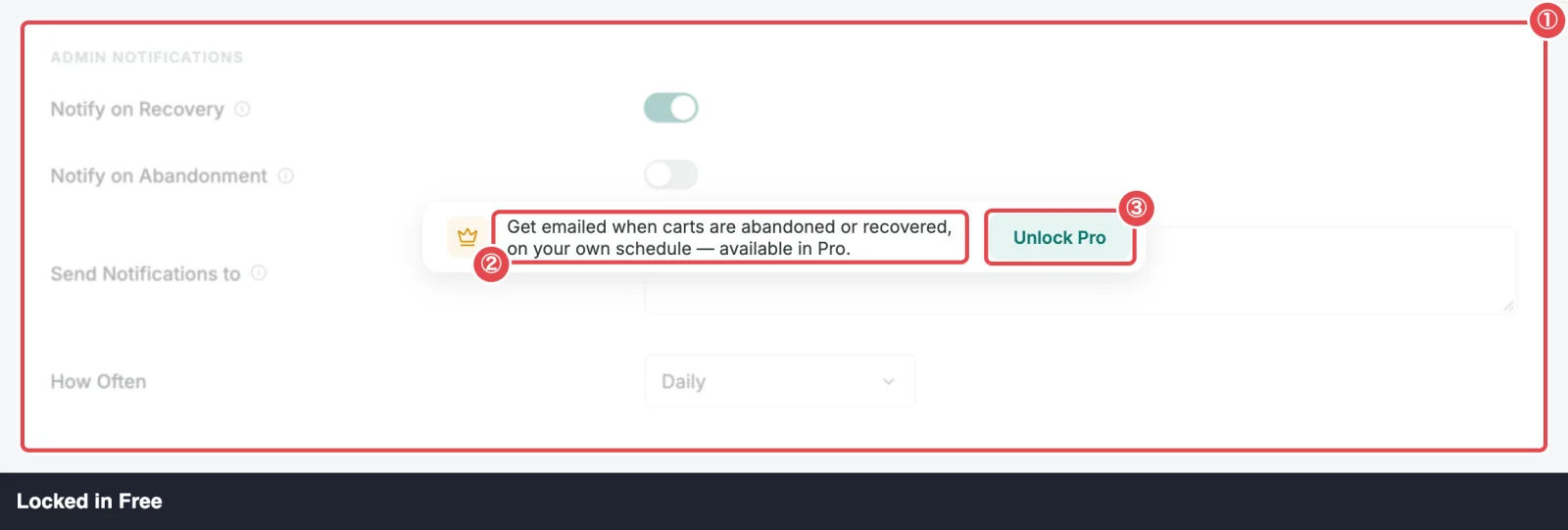
Admin Notifications are part of ShapedRecover Pro. Without Pro, the section shows locked and no digest is sent. See Without Pro.
The settings
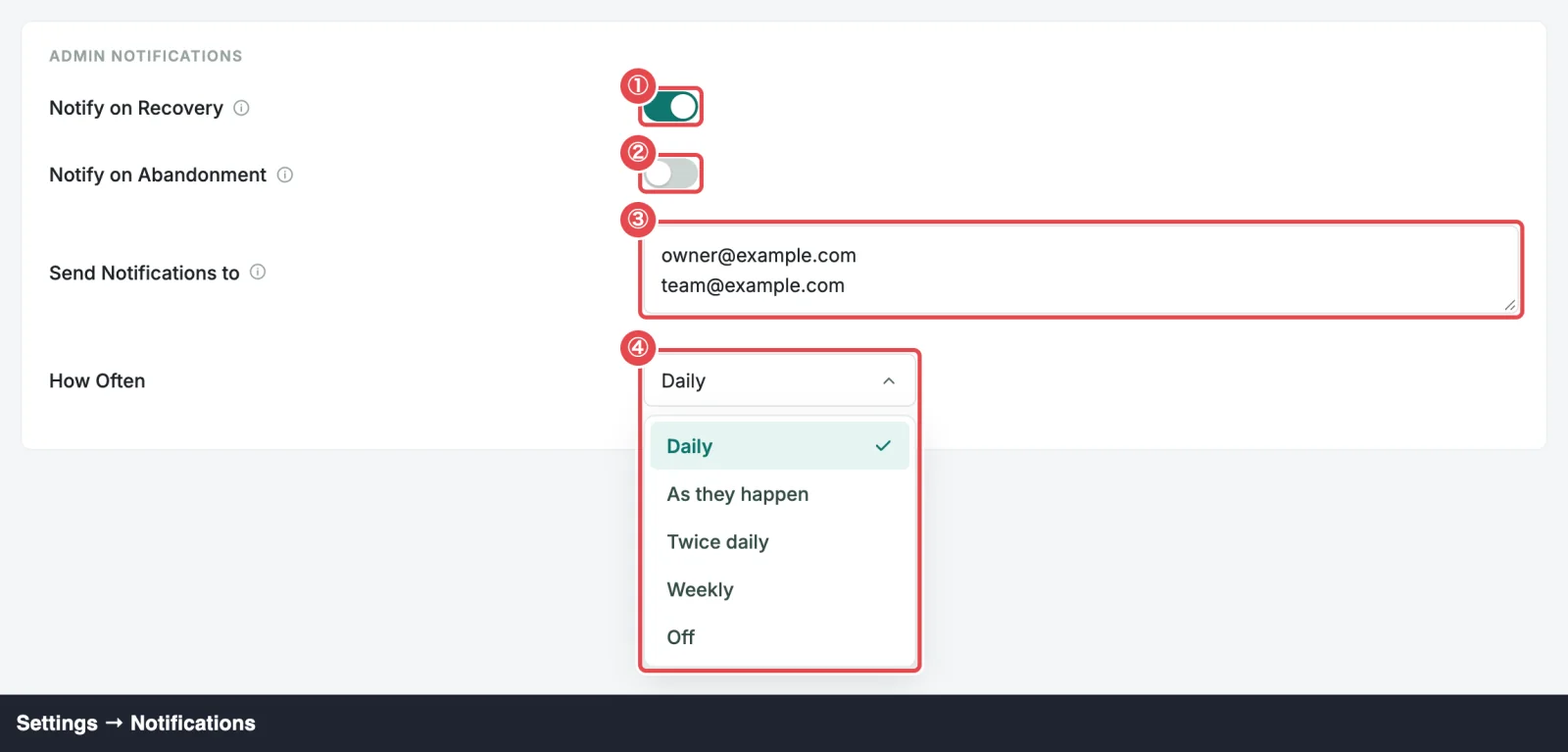
All four settings are in the Admin Notifications panel.
| Setting | What it does | Default | Range / options |
|---|---|---|---|
| Notify on Recovery | Includes the sales ShapedRecover recovered. | On | On, Off |
| Notify on Abandonment | Includes the carts that were abandoned. Busy stores should leave this off. | Off | On, Off |
| Send Notifications to | Who gets the digest. | Your site's administration email address (Settings → General in WordPress) | One email address per line; at least one |
| How Often | When digests are sent. See When digests are sent. | Daily | Daily, As they happen, Twice daily, Weekly, Off |
A few things to know when you save:
- Every line in Send Notifications to must be a valid email address. A line that isn't stops the save with This value is not allowed.
- You can't leave Send Notifications to empty: that's refused with Add at least one address. To stop the emails, set How Often to Off instead.
- With both Notify on Recovery and Notify on Abandonment off, nothing is sent, whatever How Often says.
When digests are sent
Send times use your site's time zone (Settings → General → Timezone in WordPress).
| How Often | When it's sent | Covers at most |
|---|---|---|
| Daily | Once a day, soon after 08:00 | The last day |
| As they happen | Within about 5 minutes of something happening. Several events close together arrive in one email. | The last day |
| Twice daily | Soon after 08:00 and soon after 20:00 | The last 12 hours |
| Weekly | Soon after 08:00 on the first day of your week (Week Starts On in WordPress's Settings → General) | The last 7 days |
| Off | Never | — |
Each digest picks up where the last one stopped, so nothing is reported twice. It never reaches back further than the period in the last column, though. If notifications were off for a month, or your license was inactive, the next digest covers only the last day (or 12 hours, or week), not the whole gap. The very first digest starts from when notifications began running, not from your store's history.
Digests are sent by ShapedRecover's background check, which runs every 5 minutes by default. If your site relies on WordPress's built-in scheduler and has no visits at 08:00, the digest goes out at the first check after that. See Background jobs.
What's in a digest
One email goes to every address in Send Notifications to together, so each recipient can see who else got it. It comes from the sender you set in Sending Settings.
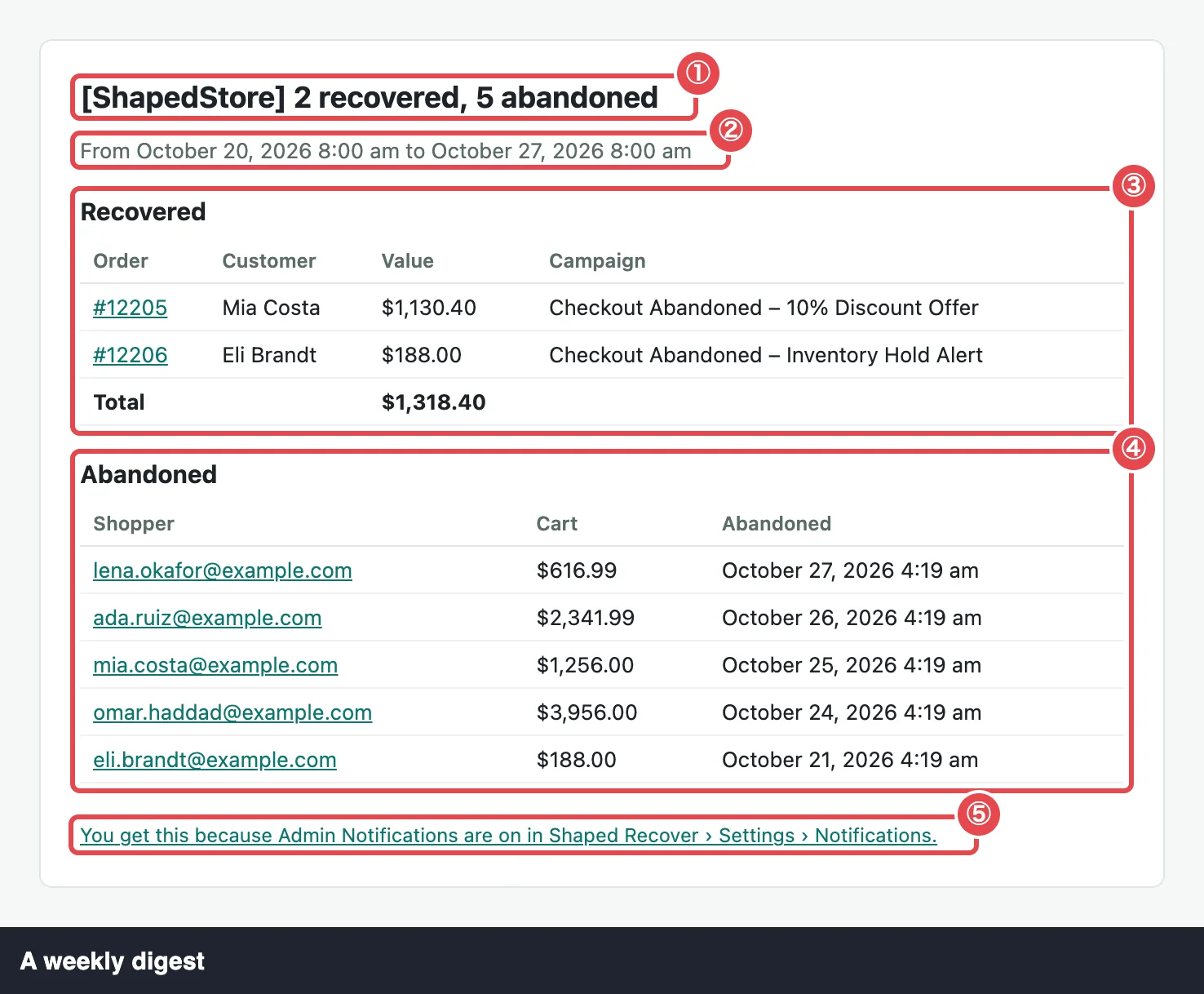
- Subject: your store name and the counts, such as [Maple & Co.] 2 recovered, 3 abandoned. A list you've switched off is left out: [Maple & Co.] 2 recovered.
- The period the digest covers, in your site's date and time format.
- Recovered: each sale with its order number (linked to the order), the customer, the order value and the campaign that recovered it, then a Total. These are sales credited during the period that are still credited when the digest is built, so a sale refunded in the meantime is left out. They match your Recovered Sales report. See Attribution & Audit.
- Abandoned: each cart that became abandoned during the period, with the shopper's email (linked to the cart in the Abandoned tab), the cart value and when it was abandoned. A cart is listed even if it has since been recovered or ordered.
- Each list shows the 20 most recent items, then a link such as and 12 more that opens Recovered Sales or the Abandoned tab. The total still counts every sale.
- At the bottom: "You get this because Admin Notifications are on in Shaped Recover › Settings › Notifications.", linked to this section.
If both lists are on and only one has anything in it, the other says Nothing was recovered in this period. or No cart was abandoned in this period.
Quiet periods and failed sends
Nothing to report means no email. If nothing was recovered or abandoned during the period (counting only the lists you've switched on), no digest is sent. With only Notify on Recovery on, a day with abandoned carts but no recoveries sends nothing.
A failed send isn't retried, but nothing is lost: the next digest covers that period too, up to the limit in When digests are sent. If digests never arrive, check your site's mail delivery. See Set Up SMTP.
Without Pro
With only the free plugin, the Notifications section shows the Admin Notifications panel locked: sample values (Notify on Recovery on, you@store.com, Daily), faded out, under the line "Get emailed when carts are abandoned or recovered, on your own schedule — available in Pro." and an Unlock Pro link to the pricing page.
With Pro installed but its license inactive, the link reads Activate License and opens Settings → License. A shop manager, who can't change the license, sees Needs an active license instead. See License.
Either way, no digest is sent. Settings you saved while Pro was active are kept, and digests start again as soon as the license is active or expired.
Where to go next
- Recovered Sales: the full report behind the Recovered list.
- Carts Table: where the Abandoned list's links lead.
- Sending Settings: the sender your digests come from.