

Cart Drawer
Open one cart to see its full timeline, who the shopper is, what was in the cart, and every action you can take on it.
The table gives you one line per cart. When you want the whole story (which emails went out, whether the shopper clicked, why an email was skipped), open the cart's drawer: a panel that slides in from the right, over the table.
Opening and closing it
In ShapedRecover → Abandoned, click a shopper's name or the View Details button on their row. Clicking a shopper's name in the Dashboard's Recent Activity list opens the same drawer.
Each cart's drawer has its own address in the browser (ending in #/abandoned/42 for cart 42), so you can bookmark it or send it to another admin on your site.
Close it with the ✕ button, the Escape key, or a click on the dimmed table behind it. If a cart has been deleted since the link was made, the drawer says This cart no longer exists.
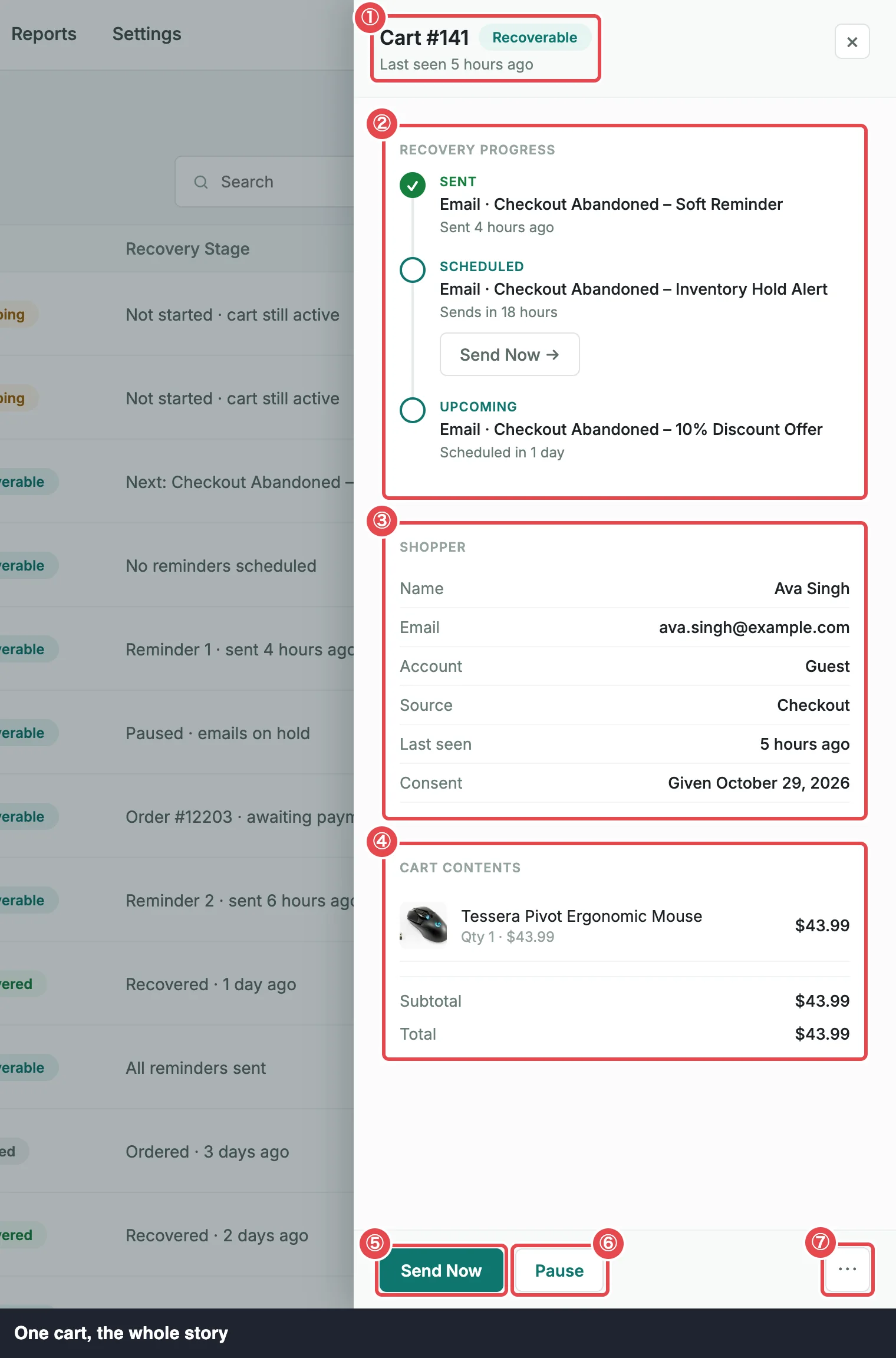 ① Header · ② Recovery Progress · ③ Shopper · ④ Cart Contents · ⑤ Send Now · ⑥ Pause · ⑦ ⋯ menu
The header
The top of the drawer shows the cart number (Cart #42), its status badge and Last seen, which is how long ago the cart last saw activity. A cart whose emails you've paused also shows a Paused badge.
Recovery Progress
Recovery Progress is the cart's timeline, oldest event first. Everything on it really happened, or is really scheduled: it's built from the emails and orders ShapedRecover recorded, not from a template.
Each event has a state on the left, a title, and a line of detail under it.
| State | Title | Detail | What it means |
|---|---|---|---|
| Waiting | Sequence not started | Shopper is still active — the cart is not abandoned yet | The cart is Shopping. No email is due until it's abandoned. |
| Upcoming | Email · campaign | Sends 1 hour after abandonment | Shown under "Sequence not started": each active campaign for the cart's trigger. A campaign that already emailed this cart, before the shopper came back, is listed too, but it won't send again. |
| Sent | Email · campaign | Sent 2 hours ago | The email went out. |
| Scheduled | Email · campaign | Sends in 22 hours, or Due now | The next email. Shows Paused instead while the cart is paused. |
| Upcoming | Email · campaign | Scheduled in 2 days | A later email, after the next one. |
| Skipped | Email · campaign | Not sent: reason | The email was checked right before sending and didn't go. See the reasons below. |
| Failed | Email · campaign | Not sent: mail error | The email couldn't be sent and won't be tried again. Usually WordPress's mail failed on every retry; the detail is the error it returned, or empty if the send run died mid-flight (reason interrupted). |
| Clicked | Shopper returned to cart | Via recovery link · 4 hours ago | The shopper opened a recovery link. One event per email's link: if they open the same link again, the time moves to the latest click. |
| Awaiting | Order #1234 placed — total | Awaiting payment | An order came through the recovery link but isn't paid yet. |
| Recovered | Order #1234 placed — total | Recovered 3 hours ago | A paid order through the recovery link. The sale is credited. |
| Ordered | Order #1234 placed | Not through a recovery link — not credited | The shopper ordered without the link. |
| Ordered | Order #1234 placed | Refunded or cancelled — no longer credited | A recovered order that was later fully refunded or cancelled. |
| Ended | Sequence complete — not recovered | No further messages will send | The cart is Lost. |
| Waiting | No reminders scheduled | No active campaign matched this cart when it was abandoned | The cart is Recoverable but has no email at all. |
The Scheduled event carries a Send Now → button while sending is possible, and the order events carry View Order →. If a campaign was deleted after it emailed the cart, its events show Email · Deleted campaign.
Why an email was skipped
ShapedRecover checks every email right before it sends. When a check fails, the email is skipped for good and the timeline says why:
| Reason | What happened |
|---|---|
| overdue | Several emails fell due at once (the site was asleep, or the cart was paused), so only the latest was sent. Or the cart had already received a later email in the sequence. |
| not abandoned | The cart was no longer Recoverable when the email fell due. Emails a lost cart never received show this too. |
| ordered | The shopper had placed an order. |
| unsubscribed | The address had unsubscribed. See Unsubscribe & Privacy. |
| campaign off | The campaign was switched off. |
| no items in stock | None of the cart's products exists or is in stock anymore, so there was nothing to bring back. |
| marked lost | You marked the cart as lost. |
How Sending Works covers the checks, retries and failures in full.
Opens aren't tracked, so no event says whether the shopper opened an email. Clicked tells you they came back.
Shopper
| Row | What it shows |
|---|---|
| Name | The first and last name the shopper typed, or Not provided. |
| The address the cart was captured with. | |
| Account | Registered for a customer with an account on your site, Guest otherwise. |
| Source | Checkout when the cart was captured at checkout. Cart when a logged-in customer was tracked from their cart without visiting checkout (the Cart abandoned trigger). |
| Last seen | How long ago the cart last saw activity. |
| Consent | When the shopper agreed to recovery emails. See below. |
The consent line
Consent reads Given followed by a date, in your site's date format: the day ShapedRecover recorded the shopper's consent at checkout. It's your record that this shopper agreed to be emailed, which is useful if a customer ever asks why they got a reminder. It shows — when no consent date is stored for the cart.
See Consent Checkbox for how consent is collected.
Cart Contents
Each product in the cart is listed with its thumbnail, name, any variation attributes (size, colour and so on), Qty 2 · $25.00 for the quantity and unit price, and the line total on the right.
- Prices are the ones captured when the shopper was at your store, not today's. They're shown with or without tax, following your WooCommerce cart setting for displaying prices.
- Thumbnails are the product's current image. A deleted product, or one with no image, shows a grey box.
- Subtotal adds up the items. Total is the cart total WooCommerce had at capture, which includes things like shipping, tax and discounts, so it can differ from the subtotal. The drawer doesn't break that difference down.
Actions
The buttons at the bottom of the drawer depend on the cart's status. Less common actions are in the ⋯ menu.
| Status | Buttons | ⋯ menu |
|---|---|---|
| Recoverable | Send Now, Pause / Resume | Copy Recovery Link, View Customer, Delete Cart |
| Shopping | Send Now (disabled), Pause / Resume | Copy Recovery Link, View Customer, Delete Cart |
| Recovered | View Order | Copy Recovery Link, View Customer |
| Ordered | View Order | Copy Recovery Link, View Customer, Delete Cart |
| Lost | (none) | Copy Recovery Link, View Customer, Delete Cart |
Two exceptions:
- View Customer shows only for a registered shopper.
- A cart whose order is awaiting payment also gets View Order, and has no Delete Cart: once that order is paid, the cart is the record of the recovery.
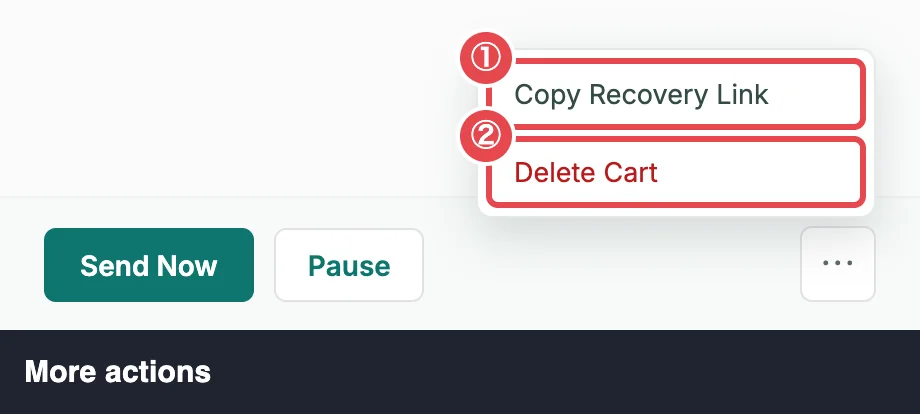 ① Copy Recovery Link · ② Delete Cart
Send Now
Send Now sends the cart's next email immediately, instead of waiting for its scheduled time. It's the same email the background job would send next, and it goes through the same checks, so an unsubscribed shopper still isn't emailed. It doesn't add an extra email to the sequence: it just brings the next one forward.
- Later emails keep their spacing. If the next email was due in 1 hour and the one after in 24 hours, sending now makes the later one due 23 hours from now. Nothing is added or dropped.
- It works while the cart is paused. Sending is your own decision, so the pause doesn't block it. The cart stays paused afterwards.
- After a long pause, several emails may already be overdue. The latest of them is sent and the earlier ones are skipped as overdue, so a shopper never gets an older reminder after a newer one.
What you'll see:
- Email sent: it went out, and the timeline now shows it as Sent.
- Not sent: reason: a check stopped it (for example Not sent: unsubscribed). It's recorded as skipped.
- Not sent: error, followed by It will be retried.: WordPress couldn't send it. It's retried on the usual schedule: 15 minutes, 1 hour, then 4 hours later.
When Send Now is greyed out, hover over it to see why:
| Message | Why |
|---|---|
| The cart is not abandoned yet. | The cart is Shopping. Emails only go to Recoverable carts. |
| No email left to send. | Every email has been sent, or none was ever scheduled. |
| An order is waiting for payment. | The shopper ordered through the recovery link; the cart waits for that payment. |
| Turn on tracking to send. | Abandoned Tracking is off, which holds every email. Turn it on in General Settings. |
Pause and Resume
Pause holds the cart's emails. The cart keeps its status, the header shows a Paused badge, and the table's Recovery Stage reads Paused · emails on hold. Nothing sends while it's paused, except an email you send yourself with Send Now.
Use it when you're talking to the shopper directly, say they emailed you a question, and you don't want an automatic reminder landing in the middle of the conversation.
Resume lets the emails send again at their original times. If a time passed during the pause, that email sends on the next run of the background job. If several passed, only the latest is sent and the earlier ones are skipped as overdue.
To pause many carts at once, use Pause Emails in the bulk bar. Resuming is done here, one cart at a time.
Copy Recovery Link
Copy Recovery Link makes a fresh recovery link for the cart and copies it to your clipboard (Recovery link copied). Paste it into a personal email or a support reply. The shopper lands on your checkout (or cart, depending on Recovery Link Opens) with their cart rebuilt, just as if they'd clicked the link in a recovery email. See Recovery Link.
- Each click makes a new link. Links you copied earlier keep working until they expire.
- It expires after your Link Expires After setting (7 days by default), counted from when you copied it. See Sending Settings.
- Credit follows the cart's latest email. An order through the link counts as recovered only within 14 days of the latest email sent to the cart. That email's auto-apply coupon is applied when the cart is restored.
- With no email sent yet, the link still restores the cart, but an order through it isn't credited.
- On a Recovered or Ordered cart, the link restores the cart, but an order through it isn't credited: that cart already ended in an order.
Link not copied?
Browsers can refuse clipboard access, especially on a site without HTTPS. If the copy fails, the drawer shows the link in a box under Copy this recovery link: so you can select and copy it by hand.
View Order
View Order opens the cart's order in WooCommerce, the same edit screen you'd reach from WooCommerce → Orders. It's there for Recovered and Ordered carts, and for a cart whose order is awaiting payment.
View Customer
For a registered shopper, View Customer opens their WordPress user profile.
Delete Cart
Delete Cart asks first: Delete cart #42? Its scheduled emails are cancelled. This cannot be undone. Confirming removes the cart with its email history and recovery links, and closes the drawer.
Recovered carts can't be deleted, because they're the source of your Recovered Sales report. Neither can a cart whose order is awaiting payment. To remove many carts at once, use Delete in the bulk bar.
Where to go next
- Bulk Actions: act on many carts at once.
- Cart Statuses: what each status change in the timeline means.
- How Sending Works: retries, failures and the background job.
- Attribution & Audit: how a recovered order is credited.