

Codes & Restrictions
Control how generated coupon codes look and how they combine with other offers.
When ShapedRecover generates a coupon for a shopper, it follows two sets of store-wide rules from Settings → Coupons: the shape of the code, and (with Pro) how the coupon behaves alongside your other discounts. Both apply to every campaign, so you set them once.
These rules apply to generated coupons only. An existing coupon you pick for a campaign keeps its own code and the restrictions you gave it in WooCommerce.
Code format
Every generated code is your prefix followed by random characters, making up the length you choose. With the defaults, that's SAVE plus six characters, such as SAVE7HKQ2M.
| Field | What it does | Default |
|---|---|---|
| Code Prefix | Letters and digits at the start of every code, up to 10 characters. Makes ShapedRecover's coupons easy to spot in your coupon list. | SAVE |
| Code Length | The whole code's length in characters, prefix included: 6 to 20. Longer codes are harder to guess. | 10 |
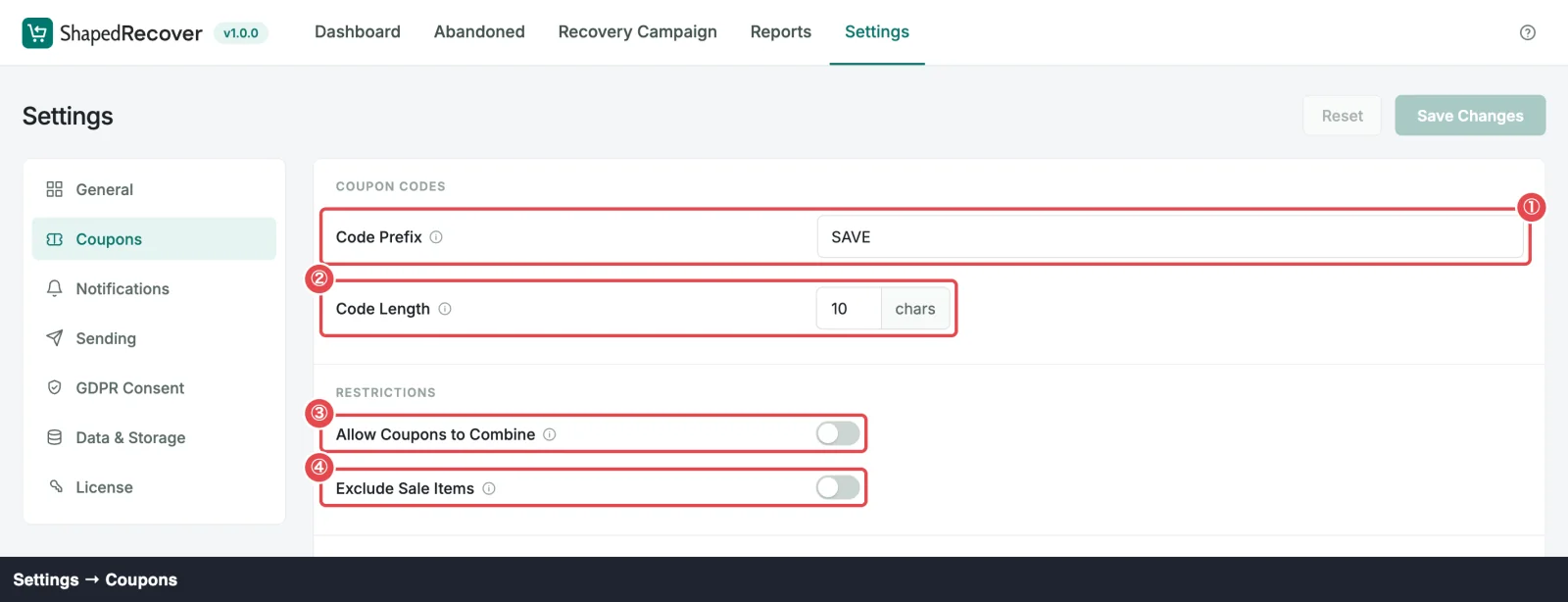
A few things happen behind the scenes so codes stay readable and unique:
- The random part is at least 4 characters. So a longer prefix needs a longer code: with the 10-character prefix
WINTERSALE, the length must be at least 14. - Codes are in capitals, and the random part skips characters that are easy to misread: no 0, O, 1 or I. Your prefix is used as you typed it, in capitals, so a prefix like
BOGO10keeps its O, 1 and 0. - A code is never reused. If a random code matches any coupon in your store, ShapedRecover picks another.
- Changes apply to new codes only. Coupons already sent keep the codes they were given.
If the save is refused, the field tells you why: "Use letters and digits only, up to 10." for a prefix with spaces, dashes or more than 10 characters, or "Make the code at least 4 characters longer than the prefix." when the length leaves too little room.
Pick a prefix you'll recognise
Something like BACK or CART makes recovery coupons stand out in Marketing → Coupons and on your orders, so you can see at a glance which orders used one.
Restrictions
Pro
Allow Coupons to Combine and Exclude Sale Items are part of ShapedRecover Pro. Without Pro, both show locked with a Pro badge, and generated coupons can't be combined with other coupons and do apply to sale items.
| Field | What it does | Default |
|---|---|---|
| Allow Coupons to Combine | When off, a recovery coupon can't be used alongside other coupons (WooCommerce's Individual use only). Turn it on to let shoppers stack it with your other codes. | Off |
| Exclude Sale Items | Stops the recovery discount stacking on products that are already reduced. | Off |
Leaving Allow Coupons to Combine off is the safe choice for most stores: a shopper can't pair a recovery discount with a sitewide sale code and end up with more off than you planned. Turn Exclude Sale Items on if your sale prices are already as low as you want to go.
The restrictions are written into each coupon when it's created. Changing them later affects coupons generated from then on, not ones already in shoppers' inboxes. To keep particular products out of one campaign's discount, use that campaign's Exclude Products instead.
If Pro is deactivated or its license becomes inactive, your choices are kept, and the fields show locked. Until Pro works again, new coupons go back to the Free behaviour: individual use, sale items included. An expired license keeps Pro features working.

Where to go next
- Coupons in Emails: add a coupon to a campaign.
- Coupon Cleanup: delete used and expired recovery coupons.
- Coupon Settings: every field in Settings → Coupons.