

Your First Campaign
Go from a fresh install to a live three-email recovery sequence that sounds like your store.
ShapedRecover ships with three ready-made recovery emails, called starter campaigns: a gentle reminder after 1 hour, a "we can't hold these much longer" nudge after 1 day, and a 10% coupon after 2 days. A campaign is one recovery email plus the rules for when it sends. Switched on together, the three make a complete sequence.
They're installed switched off, so nothing reaches a shopper until you've read them. This guide takes you from that point to a sequence that's live, tested and written in your store's voice. It takes about half an hour, most of it spent on the wording.
Live in 7 steps
- Open the startersFind the three campaigns in Recovery Campaign.
- Make the words yoursSubject, preheader and body, in your store voice.
- Check timing and triggersRead the live sentence under each email.
- Decide on the couponKeep the 10% offer, change it or drop it.
- Send yourself testsSee each email in a real inbox, on your phone.
- Switch on, earliest firstToggle the campaigns on in send order.
- Confirm it is liveThe Dashboard banner and a cart timeline.
Before you start
- Tracking should be on. If you haven't done the Quick Start, do its first two steps: turn on Abandoned Tracking and save your sender.
- Email should work. If you aren't sure your site's email reaches inboxes, do Set Up SMTP first. A perfect campaign is no use in a spam folder.
1. Open the starters
Go to ShapedRecover → Recovery Campaign. You'll see three campaigns, all switched off:
| Campaign | Sends after | What it does |
|---|---|---|
| Checkout Abandoned – Soft Reminder | 1 hour | A short, friendly "you didn't quite finish" note with a link back to the cart. |
| Checkout Abandoned – Inventory Hold Alert | 1 day | A nudge that items can't be held much longer, with a table of what's in the cart. |
| Checkout Abandoned – 10% Discount Offer | 2 days | A personal 10% coupon that expires after a day and applies itself. |
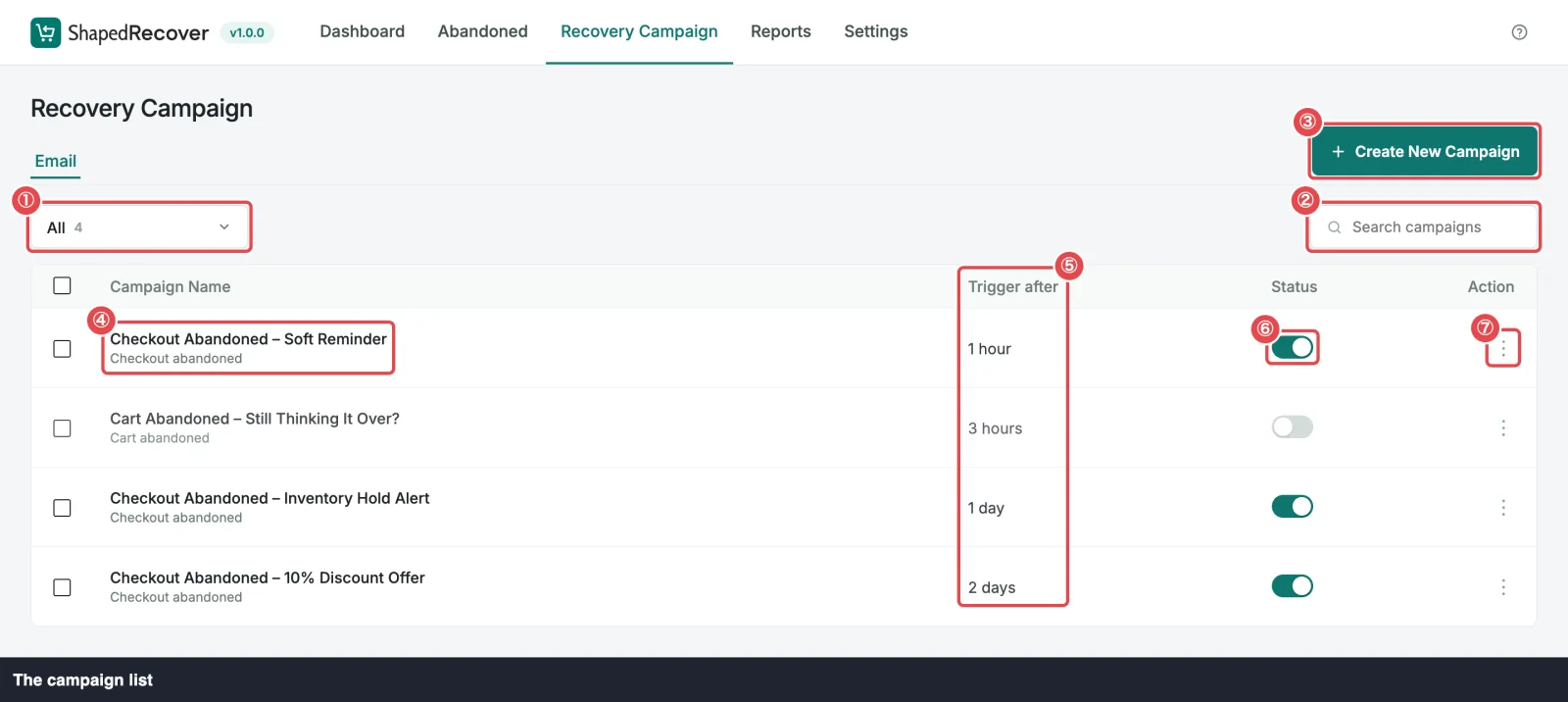
Don't see all three? If one was deleted, it doesn't come back by itself, but you can recreate it from Create New Campaign. See Templates.
2. Make the words yours
Click the first campaign's name to open it in the Email Editor. Work through the three campaigns in send order, and for each one:
- Email Subject. Keep it short and specific; it's most of what decides whether the email is opened. The starters use your store's name through a merge tag, a placeholder like
{{store.name}}that's swapped for real details when the email sends. - Preheader. The starters leave it empty. Add one: it's the grey preview line after the subject. Without it, many inboxes show the email's first line, the greeting, instead. Something like "Your cart is saved, finish in one click" works.
- Body. Rewrite the text the way you'd talk to a customer at your counter. Keep these pieces as they are:
- the greeting's merge tag,
{{customer.first_name|there}}, which says "Hi Rina!" or "Hi there!" when there's no name; - the link back to the cart ("Continue Your Purchase Now" and similar). That's the shopper's personal recovery link, and the only way a sale gets credited to your emails;
- the product table in the Inventory Hold Alert, if you want shoppers to see their items;
- the unsubscribe line at the bottom. You can reword it, but not remove it.
- the greeting's merge tag,
- Check the preview with both Desktop and Mobile. Most recovery emails are read on a phone.
- Click Save Changes.
Keep the words in step with the timing
The starters' text mentions time and money: the Soft Reminder says "earlier today", the discount email says "a couple of days ago", "10%" and "expires in 24 hours". If you change a delay, a discount or an expiry later, update those words too, or the email will say something that isn't true.
Saving never switches a campaign on, so take your time. Merge Tags lists every placeholder you can use.
3. Check timing and triggers
Below the body, two settings decide when the email sends and to whom:
- Send This Email After: the delay, counted from the moment the cart became abandoned. A cart counts as abandoned after 15 minutes with no activity, so the 1-hour email reaches a shopper about an hour and a quarter after they left.
- Send This Email for: the trigger, meaning which kind of abandoned cart gets it. The starters use Checkout abandoned, which covers every guest and anyone who reached your checkout. If many of your shoppers browse while logged in to an account, tick Cart abandoned as well.
Under them, a sentence spells out what you've set, like Sends 1 day after checkout is abandoned. Read it for each campaign. It's the fastest way to catch "1 hour" where you meant "1 day".
Two rules to know:
- No two active campaigns on the same trigger can share a delay, or the shopper would get two emails at once.
- The lost cutoff must be at least a day longer than your slowest active campaign. After Mark Cart as Lost After (30 days by default, in Settings → General), a cart is marked Lost and gets no more emails. Every campaign has to send at least a day before that. The starters' 2-day maximum is well inside the default, but if you add a later win-back email, check the cutoff first.
Triggers & Timing explains both in full.
4. Decide on the coupon
Open Checkout Abandoned – 10% Discount Offer and look at Create a Coupon. As shipped, it generates a personal code for each shopper: 10% off, expires after 1 day, with Auto Apply Coupon on, so the discount is already in the cart when they click through.
You have three choices:
- Keep it. Nothing to change.
- Change it. Adjust Discount Amount, Discount Type or Expires After. Then update the subject, the campaign name and the body text, which all say "10%" and "24 hours".
- Drop it. Switch off Create a Coupon, remove the sentence that mentions the code, and rename the campaign. Or simply leave this campaign switched off and run a two-email sequence.
Not sure? A Discount Sequence covers when a coupon pays and how to measure it. Coupons in Emails explains every coupon setting.
5. Send yourself tests
For each campaign, open its ⋮ menu in the list and choose Send test, or click Send Test Email inside the editor. Send it to an inbox you check on your phone.
Look at:
- The sender: your From Name and an address on your own domain.
- The subject and preheader together, as your inbox shows them.
- The layout on a phone, especially the product table and the coupon.
- Spam: if a test lands there, fix your mail setup before going live. See Set Up SMTP.
A test uses a made-up shopper, Rina Patel, with a sample cart, and it never creates a real coupon or cart. Its links open your home page rather than restoring anything. See Test Email.
Your first successful test also ticks off the last step of the Dashboard's setup checklist.
6. Switch on, earliest first
Back in the Recovery Campaign list, use the toggle in the Status column. There's nothing to save; it takes effect at once.
Switch them on in send order: the Soft Reminder, then the Inventory Hold Alert, then the discount. That way, if you're interrupted halfway, shoppers are getting plain reminders, never a discount with no reminder before it.
When a campaign switches on, ShapedRecover also schedules it for carts that are already abandoned, as long as their send time is still ahead. You'll see a message like Also scheduled for 3 carts already abandoned. It never sends a burst of overdue emails. See Carts already waiting.
If a toggle refuses to switch on, a red message under it says why: usually a delay clash or the lost cutoff. See Why a campaign won't switch on.
7. Confirm it is live
On the Dashboard. Once ShapedRecover has captured its first cart, the Dashboard shows a banner that reads Recovery is active while tracking is on and at least one campaign is active. Until that first cart arrives, you'll see the setup checklist instead. See The status banner.
On a cart. Go to Abandoned and click View Details on any cart to open its Cart Drawer. Its Recovery Progress timeline shows your sequence for that cart:
- A Shopping cart shows Sequence not started, with an Upcoming line for each active campaign that will send once it's abandoned.
- A Recoverable (abandoned) cart shows the next email as Scheduled, with its send time, and later ones as Upcoming.
If you see all three campaigns lined up, you're live. From here, recovery runs on its own.
Troubleshooting
- No carts show up under Abandoned. Carts are captured only when a shopper types an email at checkout with the consent box ticked, and never for logged-in administrators or shop managers. See Email Capture.
- A cart says "No reminders scheduled". No active campaign matched it when it was abandoned, for example a Cart abandoned cart when every campaign uses Checkout abandoned.
- Emails are scheduled but go out late. Your site's scheduled jobs aren't running on time. See Set Up SMTP.
Where to go next
- Test the Recovery Flow: abandon a cart yourself and come back through a real email.
- A Discount Sequence: fine-tune the coupon email.
- Dashboard Overview: what your numbers mean once carts come in.