

Coupons in Emails
Give each shopper their own discount code, applied automatically when they come back.
A discount is often the nudge that turns an abandoned cart into an order. ShapedRecover can put a coupon into any recovery email: either a fresh code made for that one shopper, or a coupon you already have in WooCommerce. Every coupon is a real WooCommerce coupon, so it shows up under Marketing → Coupons and works with the rest of your store.
Most stores keep the discount for a later email in the sequence and send plain reminders first. The Checkout Abandoned – 10% Discount Offer starter campaign is set up that way: it sends 2 days after abandonment with a 10% coupon that expires after 1 day and applies itself when the shopper comes back. A Discount Sequence walks through building one.
Add a coupon to a campaign
- Open a campaign in Recovery Campaign.
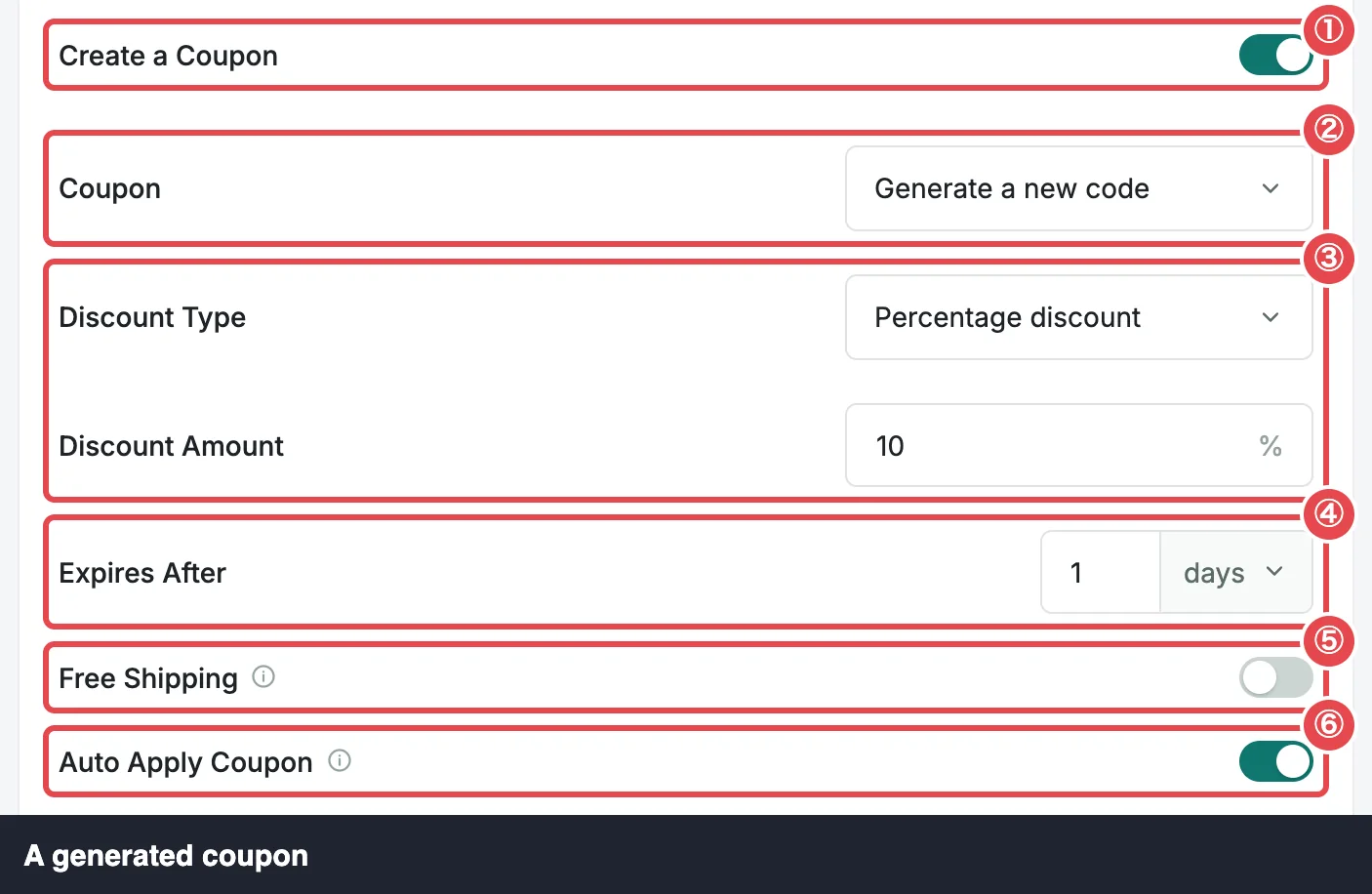
- Switch on Create a Coupon. The coupon settings appear under it.
- Choose what the coupon is with Coupon, set it up, and pick a style.
- Click Save Changes.
Switching Create a Coupon on also places the coupon block (the {{coupon.box}} merge tag) in your email: after the product table if the email has one, otherwise just above the unsubscribe line. You can move it anywhere in the body; in HTML mode it's the line <div>{{coupon.box}}</div>. Switching it off removes the block again.
The 10% Discount Offer starter shows the code in a sentence
The starter comes with Create a Coupon already on, but its message names the code inline ({{coupon.code}}) instead of using the coupon block. That means Coupon Style, Coupon Width and Show Discount Text change nothing in it until you add the block. Switch Create a Coupon off and on again to place it, or type {{coupon.box}} where you want it.
Coupons switched off in WooCommerce?
If Enable the use of coupon codes is off in WooCommerce → Settings → General, the editor warns: "Coupons are disabled in WooCommerce, so this email will send without a coupon." The email still goes out, just without a discount.
Generate a new code
Generate a new code is the default, and the one most stores want. ShapedRecover creates a brand-new coupon for each shopper at the moment their email is sent. You set the rules once, and every shopper gets their own code.
| Field | What it does | Default |
|---|---|---|
| Discount Type | Percentage discount or Fixed cart discount. | Percentage discount |
| Discount Amount | The discount: 1 to 100 for a percentage, or any amount above 0 in your store's currency for a fixed discount. | 10 |
| Expires After | How long the code works, counted from when the coupon is created: the email's first send attempt, which is normally when it's sent. A number with hours or days, from 1 hour to 365 days. | 1 day |
| Free Shipping | Adds free shipping on top of the discount. | Off |
| Auto Apply Coupon | Applies the code for the shopper when they come back through the email's link. See below. | Off (on in the 10% Discount Offer starter) |
| Exclude Products | Products that never get the discount. Pro only. See below. | Off, no products |
The editor won't save a value outside these ranges. It tells you what's wrong next to the field: "Enter a discount from 1 to 100%.", "Enter an amount above 0." or "Expires after 1 hour to 365 days."
Free shipping needs a shipping method that accepts it
WooCommerce only gives free shipping to a coupon when one of your shipping zones has a Free shipping method that allows "A valid free shipping coupon". If shoppers aren't getting free shipping, check WooCommerce → Settings → Shipping.
What a generated coupon looks like
Every generated coupon follows the same rules, so you never end up with a code that can be shared around or used twice:
- One coupon per email. Each shopper gets their own code for each email that carries one. Three emails with coupons means three codes.
- Created only when the email is about to send. ShapedRecover makes the coupon after its last checks pass, never earlier. If an email is skipped (say the shopper already ordered, or unsubscribed), no coupon is created. If the mail itself then fails on every retry, the coupon stays in your store until cleanup removes it after it expires.
- The same code across retries. If your mail server refuses an email and ShapedRecover tries again later, the retry carries the same code, as long as it hasn't expired. With a very short expiry (a few hours), a later retry gets a fresh code and the old one is left to expire. How Sending Works explains the retries.
- Locked to the shopper's email. The coupon's Allowed emails is the shopper's address, so it works only for an order placed with that address. A forwarded code is no use to anyone else.
- Usable once. The usage limit is 1, and 1 per customer.
- Easy to spot. The code starts with your prefix (
SAVEunless you changed it), and the coupon's description in WooCommerce reads "Shaped Recover: " followed by the campaign's name.
Codes are written in capitals in the email, such as SAVE7HKQ2M. WooCommerce accepts them in any case, so a shopper who types save7hkq2m is fine. You set the prefix and length in Settings → Coupons. See Codes & Restrictions.
Generated coupons pile up over time. By default, ShapedRecover deletes expired ones, and used ones a week after use, once a week. See Coupon Cleanup.
Use an existing coupon
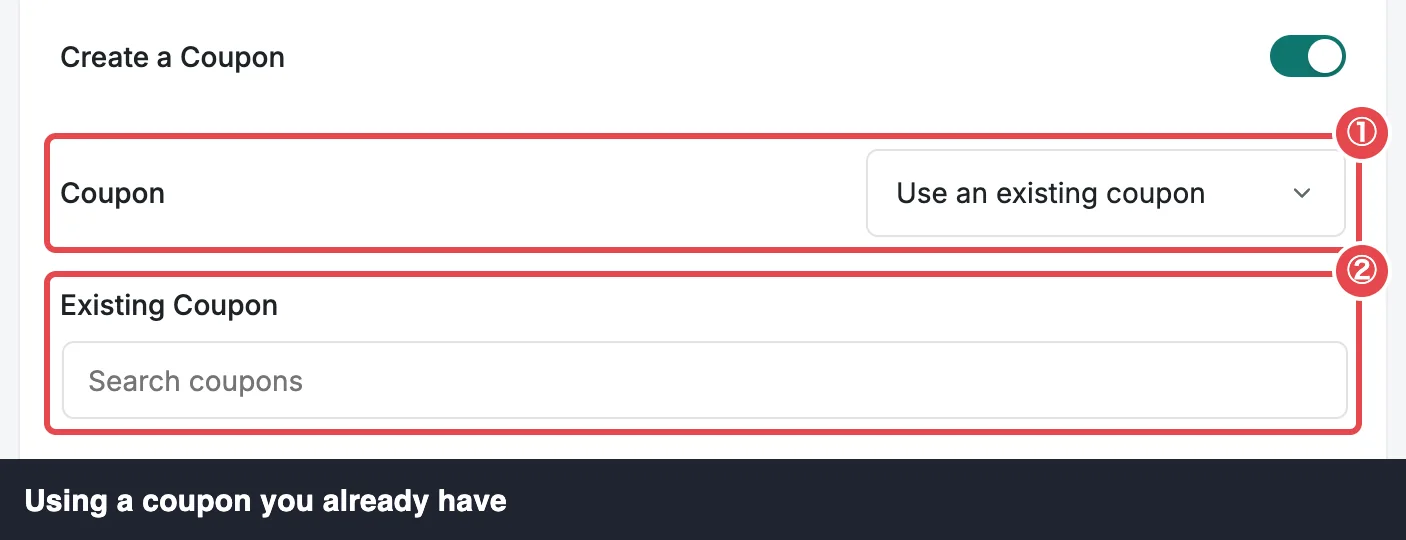
Choose Use an existing coupon when you already have a code you want to promote, like a seasonal sale. Search your store's coupons by code under Existing Coupon and pick one.
The editor then shows a summary of it: its code, its discount and whether it gives free shipping, with the note "This coupon's own settings are used. Edit it in WooCommerce to change them." That's the key difference: ShapedRecover doesn't change an existing coupon at all. Every shopper gets the same code, with whatever expiry, usage limits and restrictions you gave it in WooCommerce. The discount fields above don't apply, and coupon cleanup never touches it.
An existing coupon can go stale. If it's expired, the summary says "Expired: emails send without a coupon." If it's been deleted, the editor warns "This coupon no longer exists. Emails send without a coupon until you pick another." Either way, the emails still go out, without the coupon.
Auto Apply Coupon
With Auto Apply Coupon on, the shopper doesn't have to copy the code at all. When they click the link in the email, their cart comes back with the coupon already applied and the discount showing in the totals. It works for generated and existing coupons alike.
A few details worth knowing:
- It follows the setting the email was sent with. Turning Auto Apply on today doesn't change emails already in inboxes.
- The coupon is applied only if at least one item could be restored, since there's nothing to discount otherwise.
- If the coupon is no longer valid (it expired, or was already used), WooCommerce shows its own message and the cart comes back without the discount.
Auto Apply works through the recovery link. See Recovery Link.
Coupon style
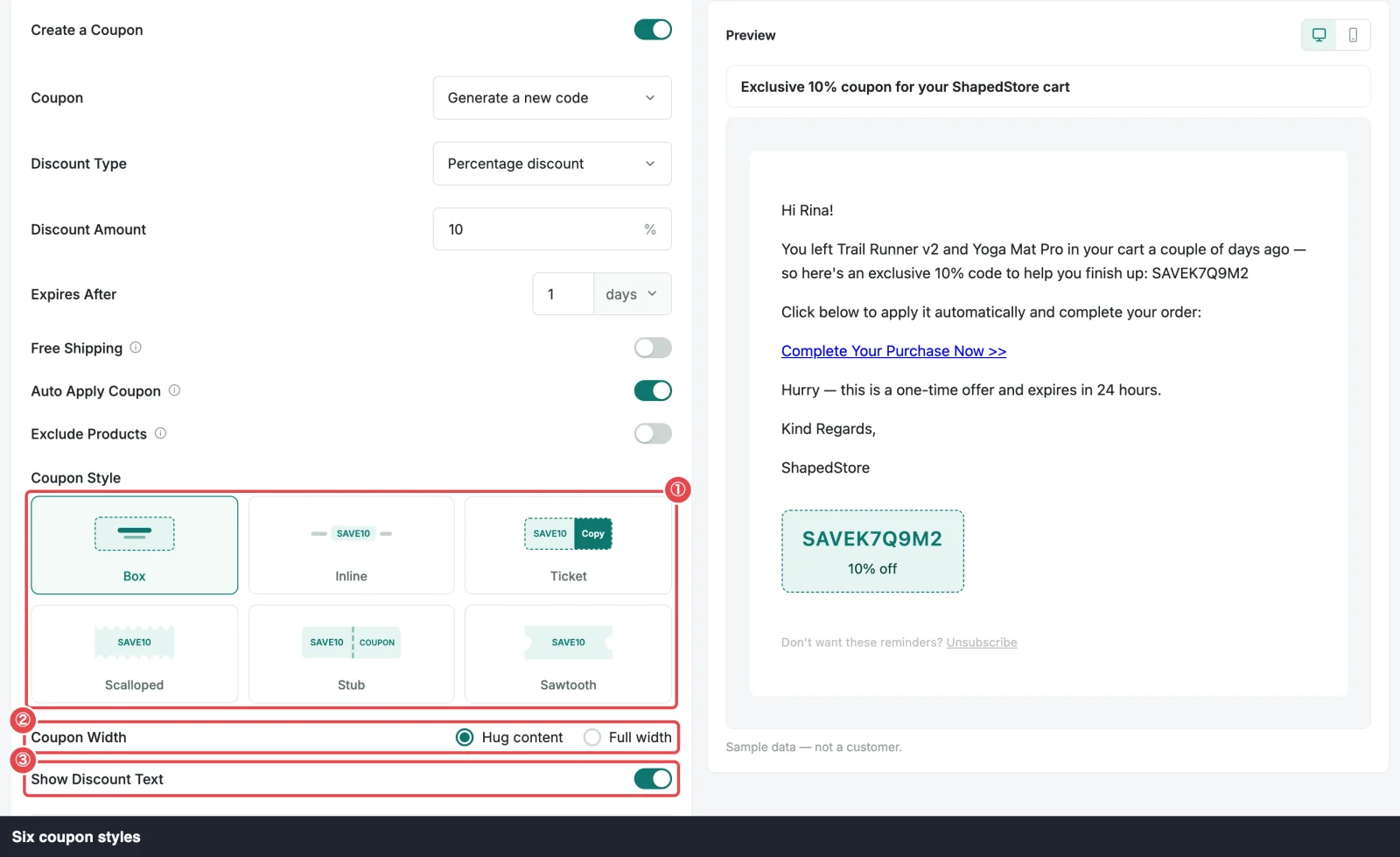
The coupon block can look six ways. Each is built from simple tables and inline styles, so it holds together in Gmail, Outlook and the other mail clients.
| Style | What it looks like |
|---|---|
| Box (default) | The code in a dashed box, with the discount underneath. |
| Inline | A sentence in your text: "Use code SAVE7HKQ2M for 10% off." |
| Ticket | The code with a Use Code button beside it. The button opens the shopper's recovery link. |
| Scalloped | A card with scalloped top and bottom edges. |
| Stub | The code with a tear-off "COUPON" stub. |
| Sawtooth | A card with notched sides. |
Two more settings shape the block:
- Coupon Width (Box only): Hug content (default) keeps the box as wide as the code; Full width stretches it across the email.
- Show Discount Text (default on): the line with the code (under it in most styles, above it in Ticket), such as "10% off", "$5.00 off your order" or "10% off + free shipping". Inline always includes it, so this setting is hidden for Inline.
Scalloped and Sawtooth use a CSS effect for their edges that only some mail clients support. Where it isn't supported, they show as a plain bordered card, which still looks fine.
Coupon merge tags
A merge tag is a placeholder that's swapped for real details when the email is sent. While Create a Coupon is on, the editor's merge-tag menu has a Coupon group with four of them:
| Merge tag | Menu label | Becomes |
|---|---|---|
{{coupon.code}} | Coupon code | The code, e.g. SAVE7HKQ2M. |
{{coupon.box}} | Coupon box | The styled coupon block. Email body only, not the subject or preheader. |
{{coupon.amount}} | Discount amount | "10%", or the amount in your currency, e.g. "$5.00". |
{{coupon.expires}} | Coupon expires | How long is left from the send, e.g. "in 1 day" or "in 3 hours". |
Use {{coupon.code}} or {{coupon.amount}} in your subject line to make the offer visible before the email is even opened: "Your {{coupon.amount}} code is waiting".
When an email has no coupon, these tags send as empty text, or as the fallback you gave them ({{coupon.code|ask us for a code}}). Switching off Create a Coupon removes the coupon block for you, but not tags you typed into your own text, so remove those yourself. Merge Tags covers every tag.
When an email goes out without a coupon
The email is still worth sending, so it goes out with the coupon tags empty when:
- the existing coupon you picked has expired or been deleted,
- coupons are switched off in WooCommerce,
- or WooCommerce couldn't save the generated coupon.
If you've written "Here's your code:" into your text, that sentence will look odd without one. Keep coupon wording inside the coupon block, or give the tags a fallback.
Previews and test emails
The editor's preview and test emails show a sample code in your store's format, such as SAVEK7Q9M2, with your campaign's discount. They never create a real coupon, so testing as often as you like leaves your coupon list untouched. See Test Email.
Exclude Products
Pro
Exclude Products is part of ShapedRecover Pro. Without Pro, the switch shows locked with a Pro badge, and generated coupons exclude nothing.
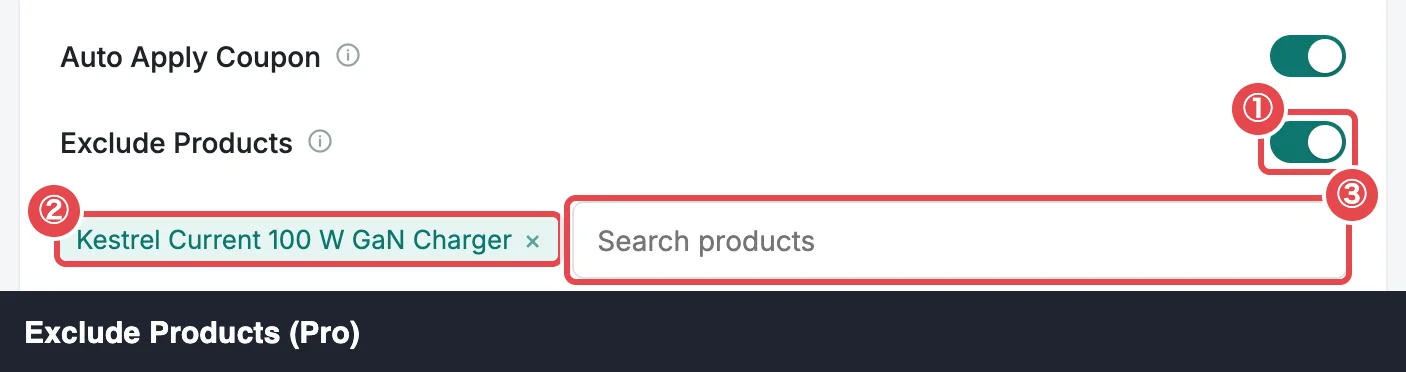
Some products shouldn't be discounted: gift cards, low-margin items, things already priced to the bone. Switch on Exclude Products ("Select products that will not get the discount."), then search for products by name and add them. Each one appears as a chip you can remove with ×.
Excluded products are written into each generated coupon, so they get no discount from it while the rest of the cart does. The setting is only shown with Generate a new code; an existing coupon uses the exclusions you set on it in WooCommerce.
If Pro is deactivated or its license becomes inactive, the list you saved is kept and the switch shows locked. Generated coupons ignore it until Pro works again. An expired license keeps Pro features working.
Where to go next
- Codes & Restrictions: the code format, and whether coupons combine or apply to sale items.
- Coupon Cleanup: keep your coupon list tidy.
- A Discount Sequence: reminders first, then a discount.