

Recovery Link
What happens when a shopper clicks the link in a recovery email.
The recovery link is the button in every recovery email that brings the shopper back: "Complete Your Purchase", or whatever your campaign calls it. One click and their cart is rebuilt, their details are filled in, and any coupon is applied, so finishing the order takes seconds. It's also how ShapedRecover knows the order was a recovery, so the link does double duty. This page covers both jobs, and the limits worth knowing.
A personal, private link
Each email gets its own link, carrying a long random code (a token) that points at that shopper's cart. It looks like this:
https://yourstore.com/?sprcv_restore=Xk3f…- The token is unguessable, and ShapedRecover stores only a scrambled (hashed) copy of it. Even someone reading your database can't rebuild a working link.
- It belongs to one cart and one email. Every email in a sequence carries its own link.
- In the email editor, the
{{cart.restore_url}}merge tag is the link. The starter campaigns already use it for their links, such as Complete Your Purchase Now. See Merge Tags.
How long it works
| Field | What it does | Default |
|---|---|---|
| Link Expires After | Recovery links stop working after this many days, counted from when each email was sent. 1 to 30 days. Shorter is safer. | 7 days |
| Recovery Link Opens | Where the link takes the shopper: Checkout or Cart. | Checkout |
Both are in Settings → Sending → Links. See Sending Settings.
Each link's expiry is fixed when its email is sent. Changing Link Expires After affects emails sent from then on, not ones already in inboxes.
Seven days suits most stores: by then, a shopper who hasn't come back probably isn't going to, and a link that works forever is a bigger risk if an email is forwarded. Keep the expiry at least as long as the gap between your emails, so each link still works when the next reminder arrives.

Where it lands
With Checkout (the default), the shopper lands straight on your checkout page, ready to pay. That's one step shorter, and usually converts best.
Choose Cart if your cart page does work the checkout doesn't, such as cross-sells or a shipping calculator, and you'd rather shoppers see it first.
Either way, the token is dropped from the address bar as the shopper arrives, so it isn't left sitting in their browser history or copied into a shared link.
How the cart is rebuilt
ShapedRecover adds each saved item back one at a time, through WooCommerce's normal add-to-cart checks. So the restored cart is always one the shopper can actually buy:
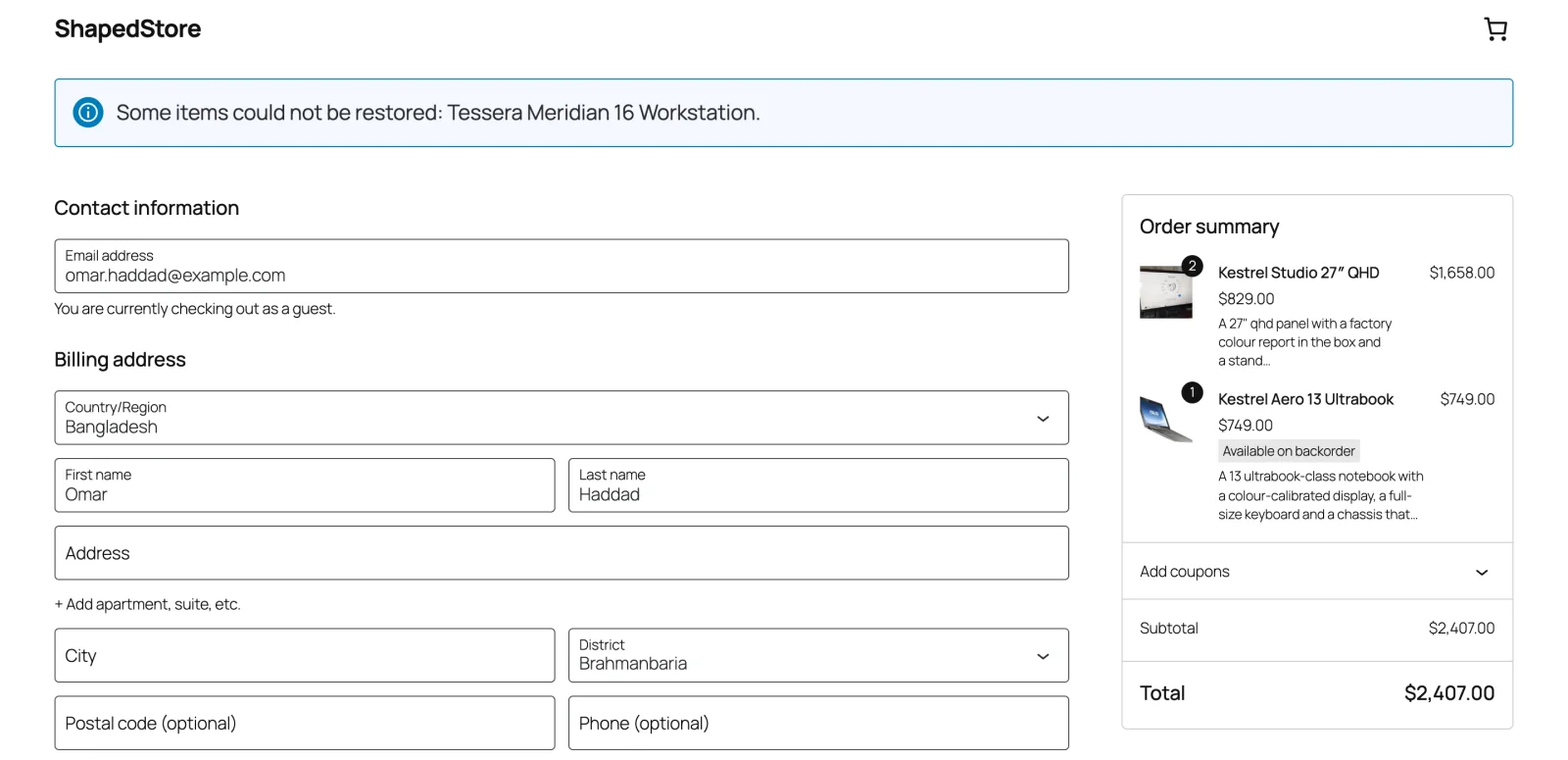
- Items that can't be bought are skipped: products that were deleted, are out of stock, or are no longer for sale. One notice lists them: "Some items could not be restored: Linen Tote and Ceramic Mug."
- Prices are today's. If a price changed since the cart was saved, the shopper sees the current price.
- Items already in the shopper's cart stay. Restored items are added alongside them.
- Quantities are never doubled. If the shopper already has an item, it's raised to the saved quantity, not added on top. Clicking the same link twice gives you the same cart, not twice the cart.
If nothing at all can be restored, the shopper lands on an empty cart with the notice explaining why.
What's filled in, and what never is
For a guest, the checkout comes back with their email address and first and last name already filled in. A logged-in customer's checkout uses their account details as usual.
Their address and phone number are never filled in from a link, and nothing is saved to anyone's account. Emails get forwarded, and some email security tools open every link in a message to check it. If a link could fill in a full address, either of those would expose it to someone else. The shopper types their address again; it's a small price for keeping it private.
The coupon
If the email carried a coupon with Auto Apply Coupon on, it's applied to the restored cart, with the discount in the totals. The shopper doesn't need to copy anything. See Coupons in Emails.
If the coupon can't be used any more, because it expired or was already used, WooCommerce shows its own message and the cart comes back without it.
The visit is remembered
Opening the link does two quiet things that matter later:
- The click is recorded on the cart, and shows as Clicked in its timeline in the Cart Drawer.
- The visit is marked, so if the shopper places an order within 14 days of the email and it's paid, the order is credited as a recovery. See How Recovery Works.
The shopper's original consent comes with them too, so the checkout doesn't show the consent box again. If they change their cart or email, even in a different browser from the one they started in, the same cart is updated, as long as it's still open (Shopping or Recoverable). A link from a closed cart rebuilds the items, but the shopper's next change starts a new cart. See Consent Checkbox.
Expired links
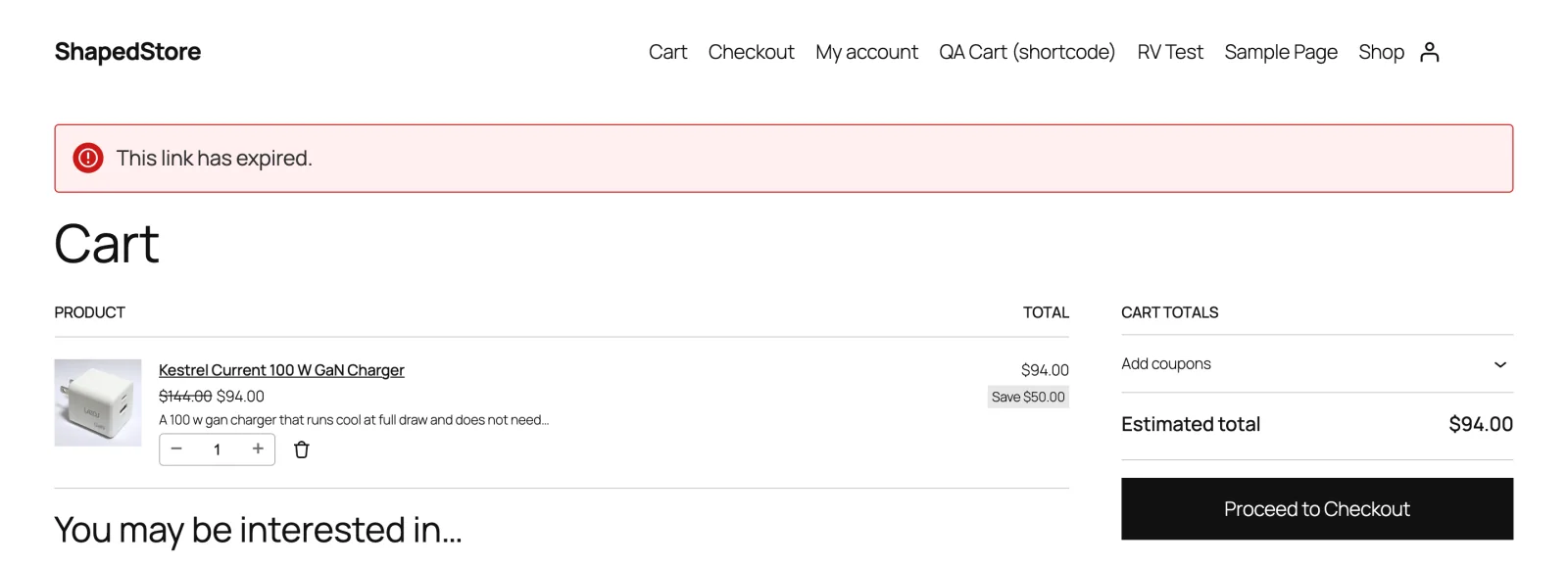
An expired link, or one that doesn't match any cart, takes the shopper to your cart page with the message "This link has expired." Nothing is restored.
They can still shop as normal. If they go on to buy, the order stops any remaining emails, but it isn't counted as a recovery: the cart closes as Ordered. See How Recovery Works.
Page caching
A page cache serves a saved copy of a page instead of building it fresh. That's great for speed, but a cached copy can't rebuild anyone's cart. So ShapedRecover makes sure the recovery link is never cached: the link's response is marked not to be stored, and it answers with a fresh redirect every time. WooCommerce already keeps the cart and checkout pages out of the cache.
This works with standard WordPress page caching. The one thing to watch for is a CDN or server cache set to ignore or strip query strings. The token is a query string (?sprcv_restore=…), so if it's removed before WordPress sees it, the shopper lands on your home page with an empty cart. If shoppers say the link "just opens the shop", that's the likely cause. Page Caching shows how to check and what to exclude.
Where to go next
- Test the Recovery Flow: click a real link and watch the cart come back.
- Page Caching: make sure your cache leaves the link alone.
- Attribution & Audit: how a click turns into a credited sale.