

License
Activate, check and deactivate your ShapedRecover Pro license, and fix activation errors.
Your license unlocks ShapedRecover Pro's features on this site and keeps Pro updated and supported. You manage it in ShapedRecover → Settings → License, the last section in the Settings menu.
Pro
The License section only exists with the Shaped Recover Pro plugin installed and active. The free plugin has no license, no License section and no license notices.
For a first activation right after installing, the short version in Installation & License is all you need. This page is the full reference.
Activate a license
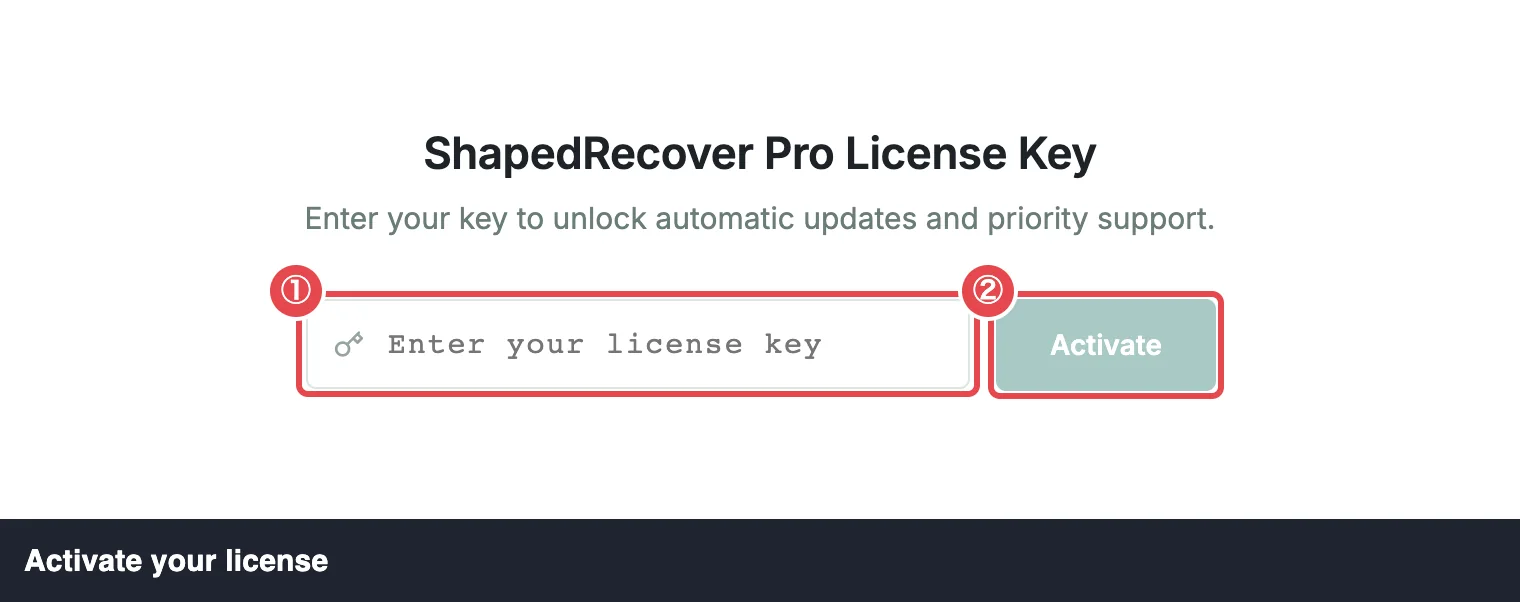
While no license is active, the section reads ShapedRecover Pro License Key, with a key field and an Activate button.
- Sign in to your ShapedPlugin account and copy your license key.
- Paste it into the field (Enter your license key).
- Click Activate.
ShapedRecover asks ShapedPlugin's license server whether the key is valid for this site. If it is, the page reloads, every Pro badge disappears and the section shows the license card. If it isn't, a message says why and nothing changes. See Activation errors.
The license card
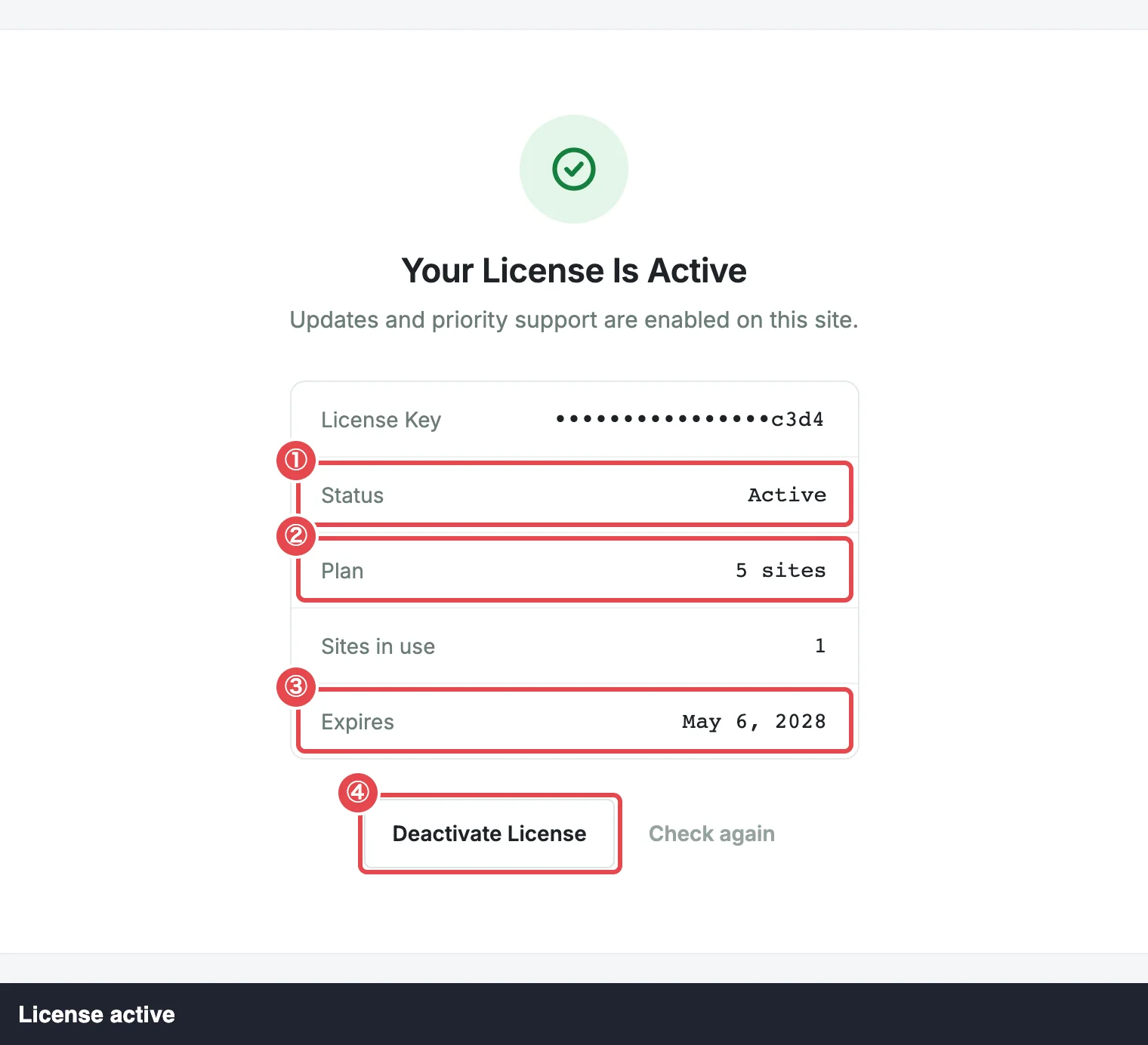
Once a license is active, the section's title reads Your License Is Active ("Updates and priority support are enabled on this site."), or Your License Has Expired ("Updates and support have stopped. Renew the license to get them back.").
| Row | What it shows |
|---|---|
| License Key | Your key, masked to its last four characters, like ••••7F3A. The full key is never shown again. |
| Status | Active or Expired. See The three states. |
| Plan | How many sites the license covers, such as 1 site, or Unlimited sites. |
| Sites in use | How many sites the license is activated on, this one included. |
| Expires | The date the license runs out, in your site's date format, or Lifetime. Reads Expired with the date once it has passed. |
Under the card, administrators get two buttons: Deactivate License and Check again.
Check again
The card shows what the license server said at the last check. Check again asks it now, for example right after you renew or upgrade your plan, so the new expiry or site count shows straight away.
You can check once a minute. Clicking sooner shows "The license was just checked. Try again in a minute." If the status changes (say, from Expired to Active after a renewal), the page reloads so every screen matches.
Deactivate a license
Deactivating frees this site's activation, so you can use the license somewhere else.
- Click Deactivate License.
- Confirm in the dialog: Deactivate this license? "Pro features stop and automatic updates and support end until you activate it again."
- Click Deactivate, or Cancel to keep it.
The page reloads with the key field showing again. Pro's features lock, but nothing is deleted: every Pro setting you saved is kept and comes back when you activate a license again.
If the license server can't be reached, nothing changes and you'll see "The license server could not be reached. Try again in a few minutes." If the server answers but refuses (for example, the license was already removed from your account), the license is cleared on this site anyway, so you're never stuck with a key you can't remove.
The three states
| State | When | Pro features | Updates and support |
|---|---|---|---|
| Active | The license server reports the license valid. | Work | Yes |
| Expired | The license server reports it expired. | Keep working | Stop until you renew |
| Inactive | No license was ever activated, it was deactivated, or the server reports it disabled, revoked or not valid for this site. | Locked, as in the free plugin | No |
While the license is inactive, Pro's features behave exactly as if only the free plugin were installed. Locked fields show the Pro badge with an Activate License link to this section. Your saved Pro settings are kept, untouched, for when you activate again. See Pro settings in the free plugin.
An expired license can't be activated on a new site: activation refuses it with "This license expired on …". Renew it first.
Who can change the license
Only administrators can activate, check or deactivate the license.
A shop manager can open the License section and sees "Ask an administrator to activate the license." With an active or expired license, they also see the card, but no buttons. Elsewhere in ShapedRecover, locked Pro fields tell them Needs an active license instead of linking here.
Notices outside ShapedRecover
To make sure the license isn't forgotten, Pro shows administrators a notice at the top of other WordPress admin pages. It never appears on ShapedRecover's own screens.
| When | Notice | Button |
|---|---|---|
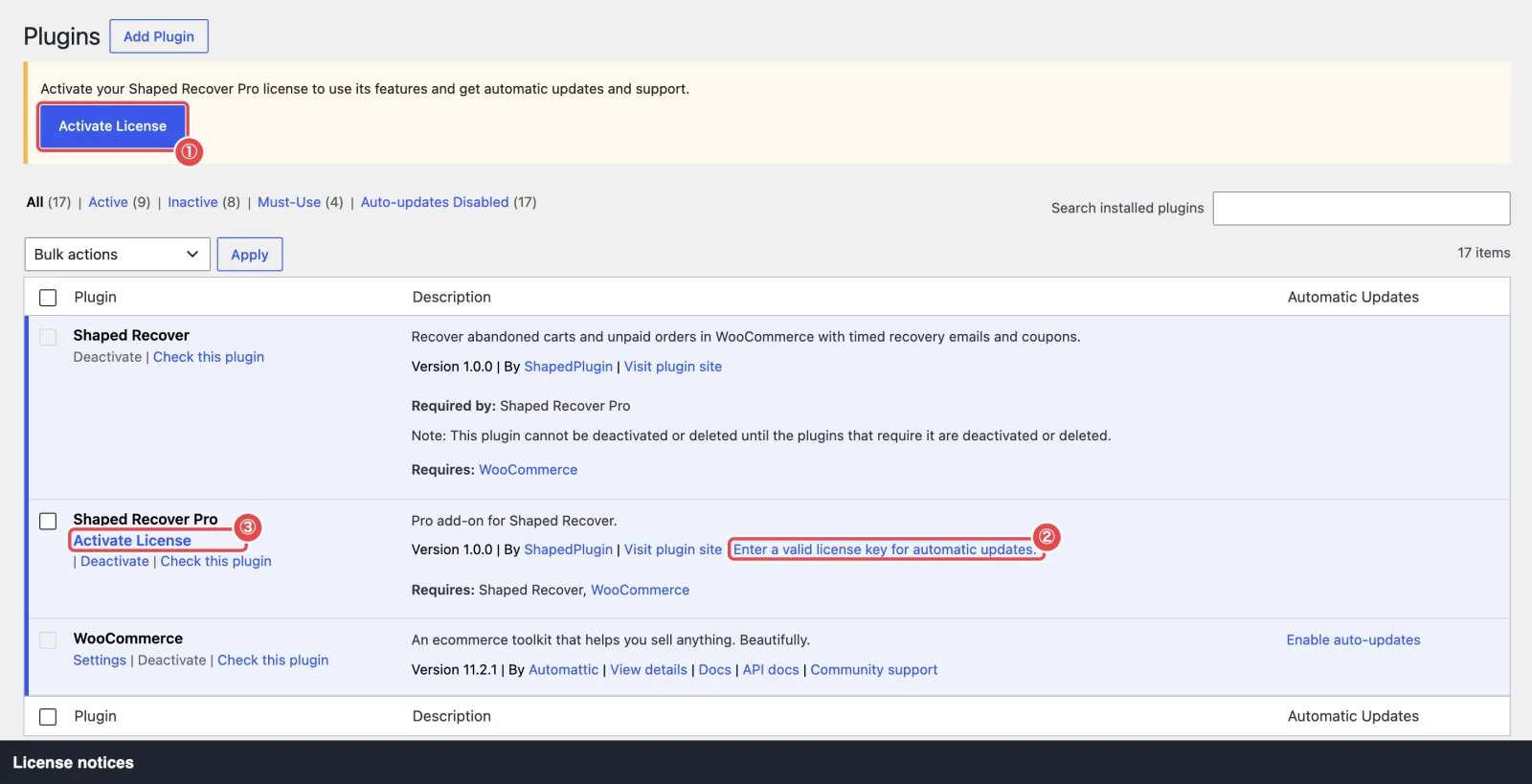
| Inactive | "Activate your Shaped Recover Pro license to use its features and get automatic updates and support." | Activate License, which opens this section |
| Expired | "Your Shaped Recover Pro license has expired. Renew it to keep getting updates and support." | Renew License, which opens ShapedPlugin's site in a new tab |
On the Plugins screen, while the license isn't active (inactive or expired), the Shaped Recover Pro row says "Enter a valid license key for automatic updates.", linking here. While it's inactive, the row also has an Activate License link next to Deactivate.
The notices go away by themselves once a license is active.
Activation errors
If an activation is refused, the license stays as it was and the section shows one of these messages:
| Message | What it means | What to do |
|---|---|---|
| This license key is not valid. | The license server doesn't recognise the key. | Copy the key again from your ShapedPlugin account, without extra spaces or missing characters. |
| This license expired on 12 March 2026. (or: This license has expired.) | The license has run out. | Renew it in your ShapedPlugin account, then click Activate again. |
| This license has no activations left. Deactivate it on another site or upgrade your plan. | Every site the plan covers is already in use. | Deactivate the license on a site you no longer use, or upgrade to a plan with more sites. |
| This license has been disabled. | The license was disabled or revoked. | Contact ShapedPlugin support. |
| This key is for a different product. | The key belongs to another ShapedPlugin plugin. | Check that you copied the key for Shaped Recover Pro. |
| The license server could not be reached. Try again in a few minutes. | Your site couldn't contact ShapedPlugin's license server, or got no usable answer. | Wait a few minutes and try again. If it keeps happening, ask your host whether outgoing connections from your site are blocked. |
| Deactivate the current license first. | This site already holds an active or expired license, for example after activating in another browser tab. | Reload the page. To switch keys, deactivate the current one, then activate the new one. |
| Something went wrong. Try again. | An unexpected error, with no message from the server. | Reload the page and try again. |
The same "could not be reached" message can appear on Check again and Deactivate License. In both cases nothing changes until a later attempt gets through.
The weekly re-check
You don't need to check the license yourself. Once a week, ShapedRecover's daily background job asks the license server about an active or expired license and updates the card. That's how a renewal, an expiry or a plan change shows up on its own.
If the server can't be reached, the license keeps its current state and is asked again the next day. An inactive license isn't checked. Background jobs need WordPress's scheduled tasks to run. See Background jobs.
What's sent to the license server
The free plugin never contacts a license server. Pro contacts ShapedPlugin's server only to activate, deactivate or check the license, and to look for Pro updates. Each request carries exactly four things:
- what it's asking (activate, deactivate, check, or get the latest version),
- your license key,
- the product's ID,
- your site's address.
Nothing about your shoppers, orders, carts or sales is sent. On your site, Pro keeps only the key, the license's status, plan, site count and expiry, the time of the last check, and the result of its last update check. The key is never sent back to your browser in full.
Moving to another site
A license activation belongs to a site's address. To move Pro to a new site or domain:
- On the old site, click Deactivate License. This frees the activation.
- On the new site, install both plugins and activate the license there.
Deactivate before you delete Pro from a site. Deleting Pro removes the license from that site but doesn't free its activation with ShapedPlugin, so it keeps counting in Sites in use. If that happens and a new activation is refused with "no activations left", contact ShapedPlugin support to free it.
A copy of your site, such as a staging site, carries the stored license with it. At its next check the license server may report that the license isn't activated for the copy's address, and the copy then shows the license as Inactive.
Where to go next
- Installation & License: install both plugins and keep them updated.
- Free vs Pro: what the license unlocks.
- Settings Overview: how Pro fields look while locked.