

Settings Overview
Where every ShapedRecover setting lives, how saving works, and who can change what.
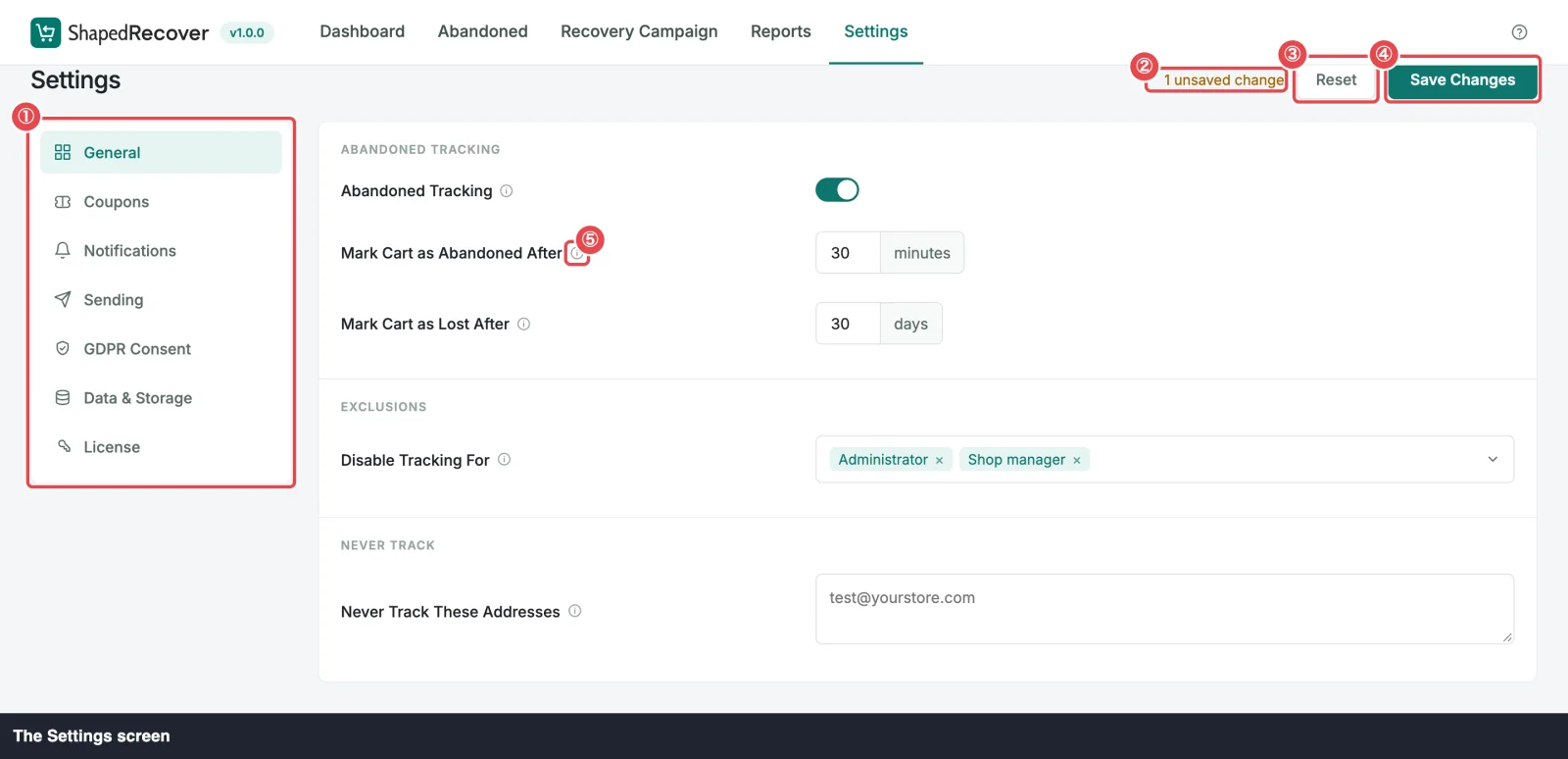
Every store-wide setting is on one screen: ShapedRecover → Settings. You can open it from the WordPress admin menu or from the Settings tab at the top of any ShapedRecover screen. Settings apply to the whole store. Anything that belongs to a single email, like its delay or coupon, lives in that campaign instead. See Campaign List.
The sections
The menu down the left side splits Settings into sections. Inside each one, related fields are grouped into panels with a title, like Abandoned Tracking or Coupon Cleanup. Most fields have an info icon next to their label: hover over it or tab to it for a one-line explanation.
| Section | What's in it | Reference |
|---|---|---|
| General | The Abandoned Tracking switch, when carts count as abandoned or lost, roles that are never tracked, and the Never Track list (Pro) | General Settings |
| Coupons | How generated codes look, coupon restrictions (Pro), and coupon cleanup | Coupon Settings |
| Notifications | A digest email of recoveries and abandonments for you and your staff (Pro) | Notification Settings |
| Sending | Who recovery emails come from, how the recovery link behaves, and a delivery check | Sending Settings |
| GDPR Consent | The wording of the checkout consent checkbox | GDPR Consent Settings |
| Data & Storage | How much is stored, how long it's kept, a manual clear-out, and what uninstalling removes | Data & Storage Settings |
| License | Only with ShapedRecover Pro installed: activate, check and deactivate your license | License |
Saving your changes
Nothing is saved while you type. As soon as you change a field, the top of the screen counts your edits, for example 2 unsaved changes, and two buttons come alive:
- Save Changes checks every changed value, then saves them all together. You'll see Settings saved at the bottom of the screen.
- Reset throws away your unsaved edits and puts every field back to its last saved value. It doesn't restore the factory defaults.
Your edits stay with you as you move between sections. You can change something in General, switch to Sending, change something there, and save both with one click. The count covers every section.
There's one exception to how Reset works. Until you've saved a sender, opening Sending fills the empty sender fields from WooCommerce, and Reset goes back to those suggestions, not to empty fields. See The WooCommerce sender suggestion.
When a value is refused
If any value isn't allowed, nothing is saved, not even the changes that were fine. The bottom of the screen says Fix the highlighted setting to save, the field is outlined, and a message under it explains the problem. Fix it and click Save Changes again. If the problem field is in another section, switch to that section to see it.
Most values get the general This value is not allowed. when they're out of range or in the wrong format, such as Link Expires After set to 45 days, or a line in an address list that isn't an email address. Some rules have their own message:
| Message | Field | Details |
|---|---|---|
| Must be longer than your slowest campaign (sends at 3 days). Increase this to at least 4 days. | Mark Cart as Lost After | Lost cutoff rules |
| Must be no longer than how long carts are kept (90 days). Increase Recoverable Carts first. | Mark Cart as Lost After | Lost cutoff rules |
| Must be at least as long as Mark Cart as Lost After (30 days). | Recoverable Carts | Retention |
| Use letters and digits only, up to 10. | Code Prefix | Coupon Codes |
| Make the code at least 4 characters longer than the prefix. | Code Length or Code Prefix | Coupon Codes |
| Add at least one address. | Send Notifications to | Notification Settings |
The numbers in these messages come from your own store: your slowest campaign's delay, your retention period and your lost cutoff.
Leaving with unsaved changes
If you open another ShapedRecover tab before saving, you're asked first:
Save your changes? You have 2 unsaved settings. Save them before leaving, or discard and continue.
- Save & Leave saves and moves on. If a value is refused, you stay on Settings with the field highlighted.
- Discard drops your edits and moves on.
- Keep Editing closes the question and leaves your edits in place.
Closing the browser tab or reloading the page with unsaved changes brings up your browser's own "Leave site?" warning instead.
Who can change settings
Anyone who can manage WooCommerce, which means administrators and shop managers, sees the ShapedRecover menu and can change every setting.
The one exception is the License section: only administrators can activate, check or deactivate the license. Shop managers can see its status. See License.
Pro settings in the free plugin
Pro
A few settings are part of ShapedRecover Pro: Never Track These Addresses (General), Allow Coupons to Combine and Exclude Sale Items (Coupons), and the whole Notifications section.
With only the free plugin, these aren't hidden. They show locked:
- A locked field shows a crown Pro badge and can't be changed. It shows the default value, never anything you saved earlier with Pro.
- The Notifications section shows sample values, faded out, with a one-line description and an Unlock Pro link that opens the pricing page in a new tab.
- With Pro installed but its license not active, the link reads Activate License and opens Settings → License. Locked fields show the same link beside their badge. A shop manager, who can't change the license, sees Needs an active license instead.
Values you saved while Pro was active are kept, untouched. They have no effect until Pro is back with an active or expired license, and then they return exactly as they were. See Free vs Pro.
Where to go next
- General Settings: switch tracking on and set the cutoffs.
- Sending Settings: set who your emails come from.
- Quick Start: the four setup steps, two of which happen in Settings.